Part 1 · Foundations
Logging In & Navigating the Consoles
PRA has two front doors — the browser-based /login interface and the desktop Access Console — and almost every task in this course happens in one or the other. This module gets you comfortable moving between them.
Two interfaces, two audiences
Module 1 mentioned that the appliance is where configuration lives and the Access Console is just a client. In practice that split shows up as two separate pieces of software you'll use constantly:
/login— a browser-based interface reachable at your site's URL followed by/login(for examplehttps://pra.bt.lab/login). This is where administration, user management, and downloads live. Anyone with a PRA account signs in here, but what they see afterward depends entirely on their permissions.- Access Console — a desktop (or web) application reps use to actually run sessions: browsing Jump Items, launching a remote session, pulling a credential from the Vault. It authenticates against the same appliance and the same account, it just exposes a different, session-focused surface.
You'll notice almost every lab in this course starts the same way: log into /login, then either configure something there directly, or grab the Access Console to do the actual remote-access work.
Signing in to /login
Point a Chromium-based browser at your site's /login URL and authenticate with a PRA account. In the lab environment that's https://pra.bt.lab/login, reached from the LAB01 virtual machine. The account you log in with determines whether you land on an end-user landing page or an administration-heavy one — the built-in admin account, for instance, has full access to appliance and site configuration, which is why the exam lab has you change its password on first login.
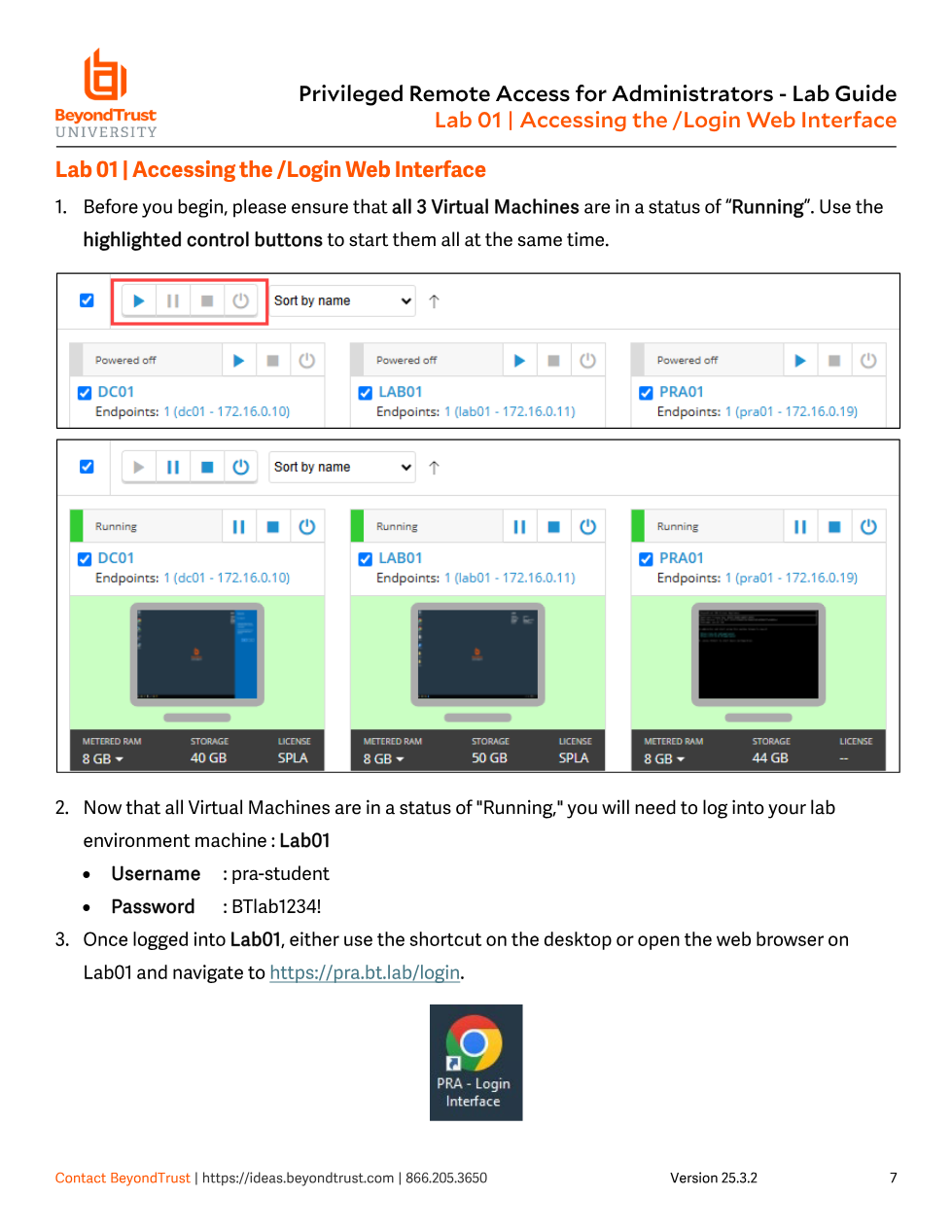
/login is reachable; DC01 is the domain controller, PRA01 is the appliance itself, and LAB01 is where you actually browse to the login page.If /login won't load, the instinct is to assume a config problem. Check the obvious thing first: is the appliance VM actually running? PRA01 has to be powered on and finished booting before the login interface answers at all — this trips people up constantly in a lab environment where VMs start from a cold, powered-off state.
Getting the Access Console
The Access Console isn't preinstalled — you download it per-machine, per-user, from inside /login. There are two paths to the same download:
- From the left-hand menu in
/login, open Consoles & Downloads. Under the Access Console tab, choose your platform (Windows, macOS, Linux, iOS, Android — plus a browser-based Web Access Console for platforms where installing isn't practical) and click Download Access Console. - Or, from the user menu in the top-right corner of
/login, click Download Access Console directly. This shortcut only offers the.exeinstaller, so if you need a different platform you still have to go through Consoles & Downloads.
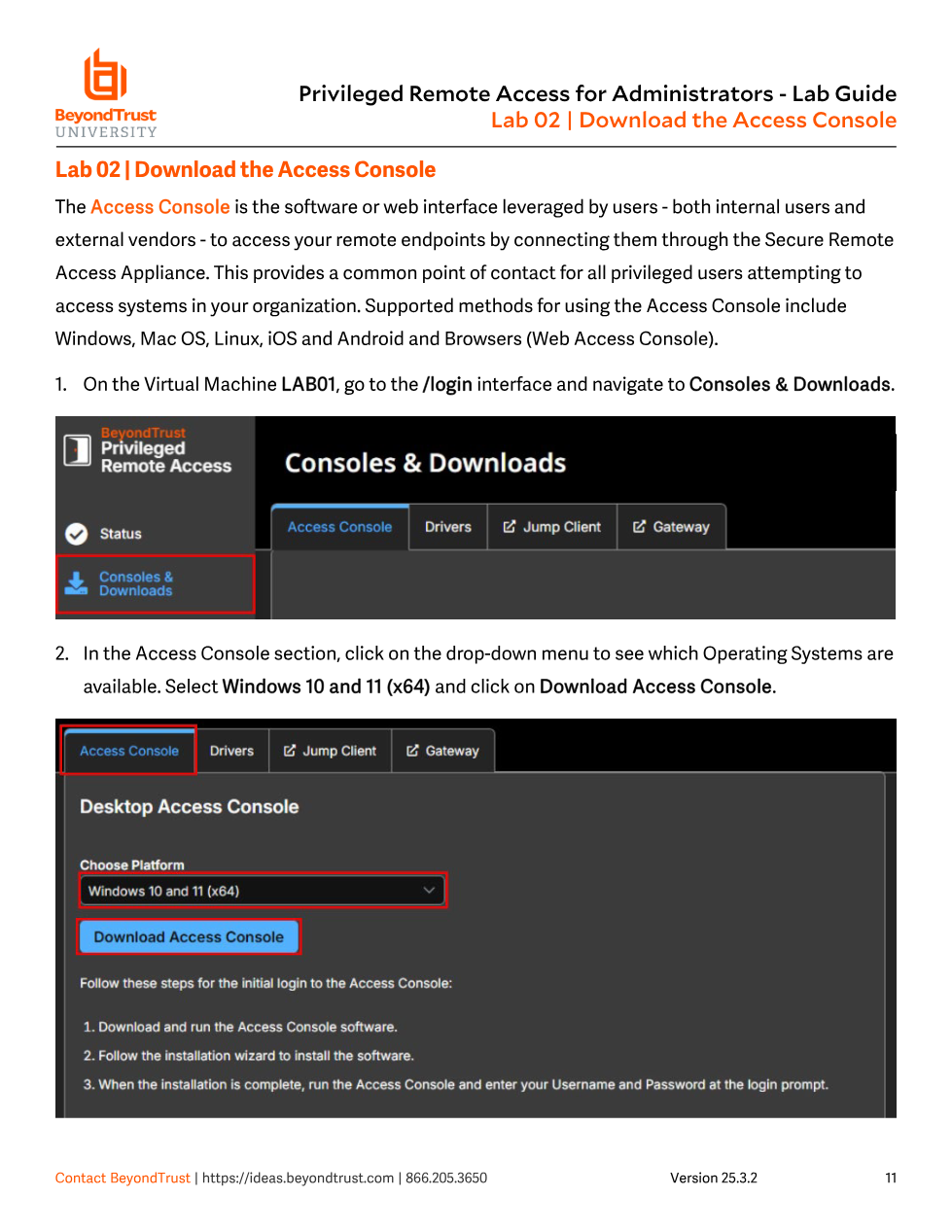
Once downloaded, running the installer and completing the wizard gets you a desktop shortcut. The first time you open it, it prompts for the same username and password you used at /login — it's the same account, just a different door.
The user menu and My Account
The user menu (the avatar icon, top-right of /login) is worth knowing well because it's the fastest path to a handful of self-service tasks: downloading the Access Console (as above), editing your own user record, enabling Extended Availability Mode, and jumping into My Account.
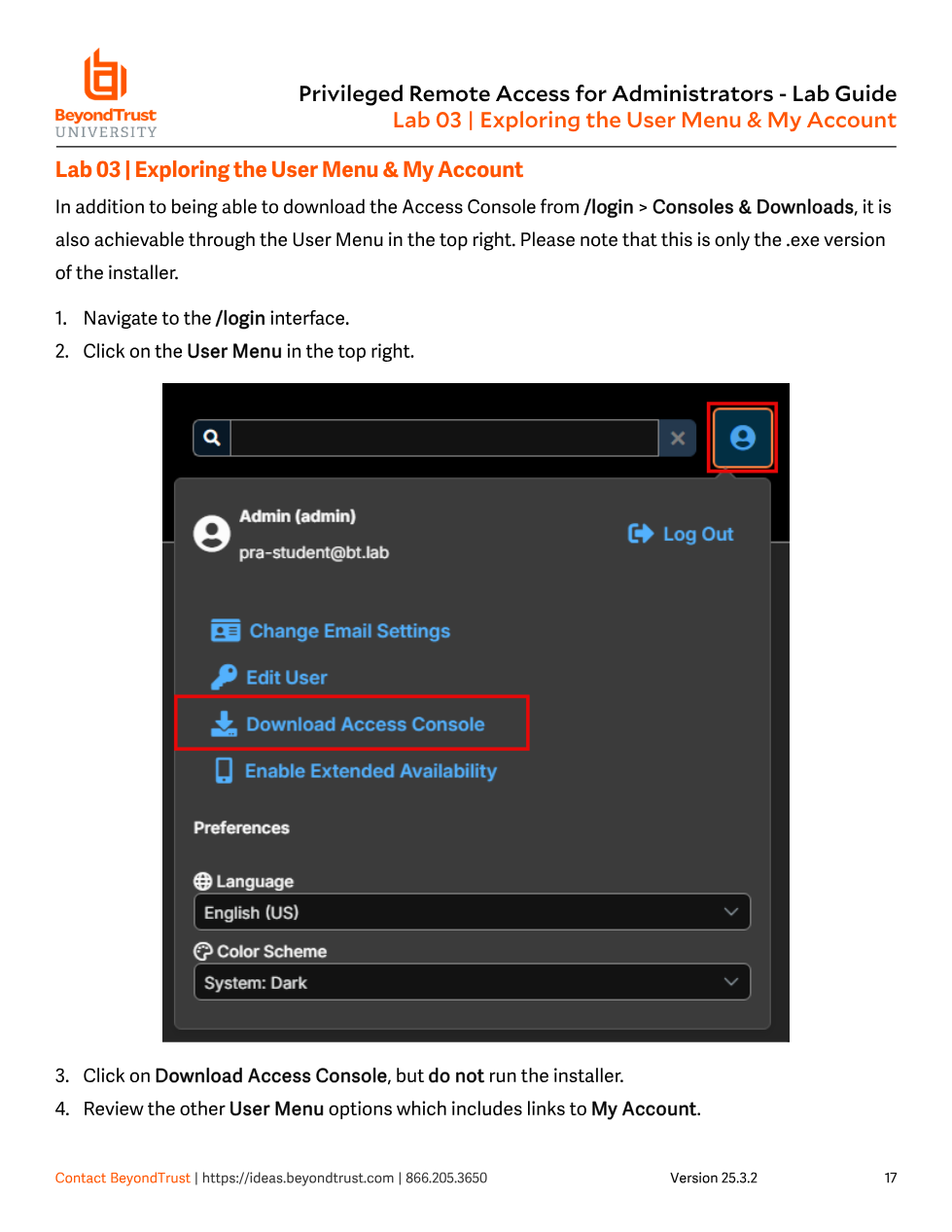
My Account is where a user manages their own credentials and notification settings rather than anyone else's:
- Change Email Settings — updates the address PRA sends notifications to (password resets, extended-availability alerts) and requires re-entering your current password to confirm the change.
- Preferred email language — if the site has more than one language enabled, this controls which one your notification emails arrive in.
- Extended Availability Mode — when enabled, you can receive session-share invitations from other reps by email even while you're not actively logged into an Access Console. Without it, an invite only reaches you if you happen to be online.
Extended Availability Mode is easy to dismiss as a minor toggle, but it directly affects incident response. If a rep who normally handles escalations has it switched off, a share-session invite sent while they're away from their console simply goes nowhere until they log back in — which can be the difference between a five-minute assist and a missed SLA.
Putting it together
By the end of this module you should be able to: reach /login from the lab environment, pull down the correct Access Console installer for a given platform, and find your way to the account-level settings that affect notifications and availability. Every module from here forward assumes you can do these three things without thinking about it — Module 3 picks up where /login leaves off, in the /appliance interface that controls the appliance itself rather than the site running on it.