Part 3 · Identity & Access Console
Local Users & Accounts
Every PRA site needs at least a handful of accounts that don't depend on an external directory. This module covers Local Users — accounts created and stored directly on the appliance — how to create them, what permissions live at the account level, and why every site needs a "break glass" account that can log in even if LDAP, RADIUS, or SAML is unreachable.
Local Users vs. security-provider accounts
Module 8 covered Security Providers — LDAP, RADIUS, SAML — which let PRA authenticate users against an external directory your organization already maintains. A Local User is the other kind of account: one created and maintained entirely from within /login > Users & Security > Users, with no dependency on anything outside the appliance. The username, display name, and password all live in PRA itself. This applies to on-premises and on-cloud PRA sites; account management on Pathfinder-hosted sites works differently and is out of scope here.
The distinction matters operationally, not just administratively. A security-provider account is only as available as the directory behind it — if your LDAP server or IdP is down, degraded, or mid-migration, nobody using that provider can log in to PRA at all. A Local User has no such dependency, which is exactly why BeyondTrust's documented best practice is to keep a minimum of two Local Users on every on-premises or on-cloud site: the built-in Admin account (which cannot be deleted) and a second, dedicated emergency "break glass" account reserved for the day your normal authentication path is unavailable.
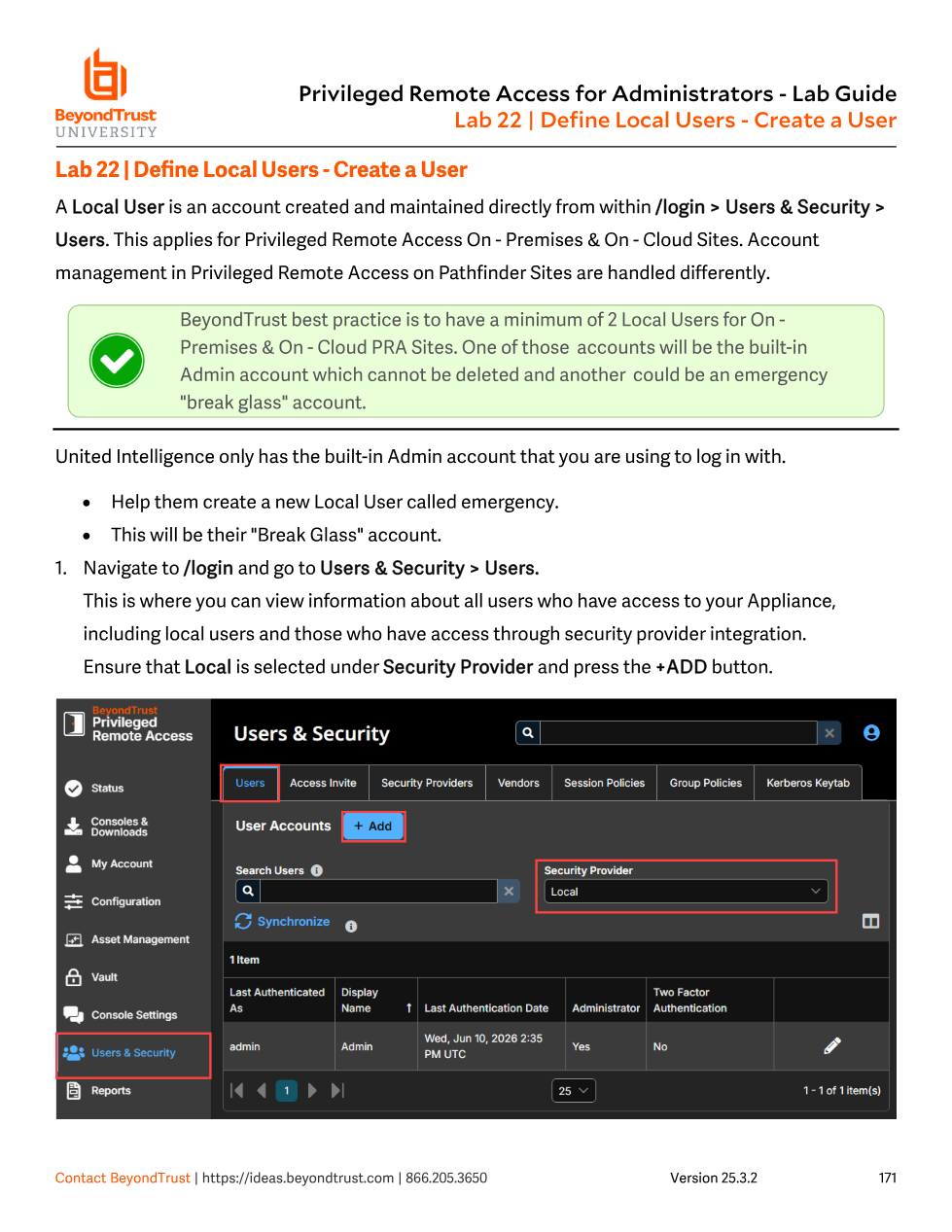
The Users page under Users & Security shows every account with access to the appliance, both local and provider-synced, side by side. Filtering by Security Provider = Local is how you isolate the accounts that don't depend on anything outside PRA — the ones that still work when everything else is having a bad day.
Walkthrough: creating a Local User
Lab 22 walks through exactly this scenario for a fictional customer, United Intelligence, that has only the built-in Admin account and needs a break-glass user called emergency.
- Sign in to
/loginand go to Users & Security > Users. This page lists every user with access to the appliance, whether local or authenticated through a security provider. - Confirm the Security Provider filter is set to Local, then click + Add.
The Add User form asks for a unique Username (the login identifier) and a Display Name (what shows on the public site, in chat, and in reports). An Email Address is required — it's where password-reset links and account notifications are sent — along with a Preferred Email Language if the site has more than one language enabled. You then set a Password and confirm it; the string has to satisfy whatever password policy is configured site-wide (more on that below).
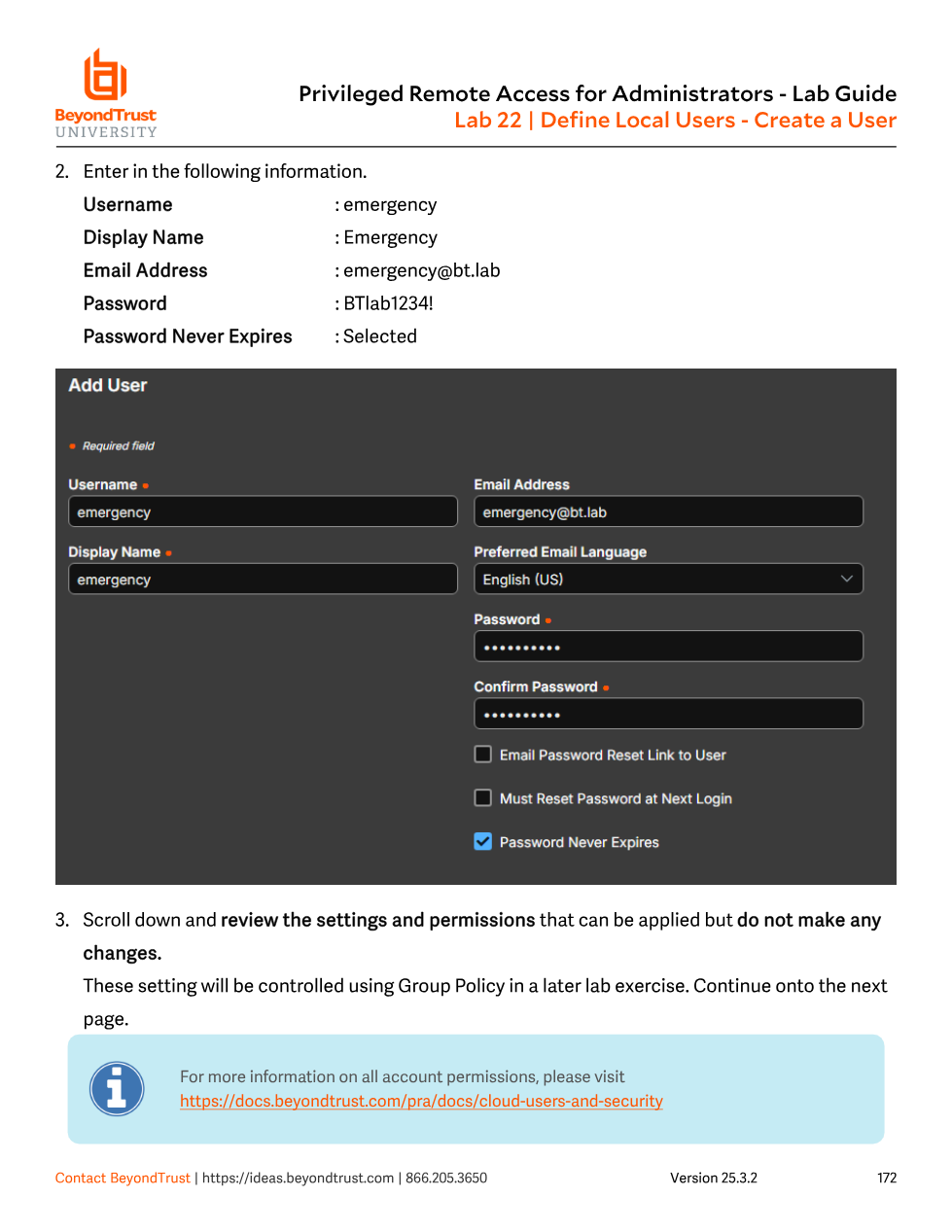
emergency break-glass user, with Password Never Expires checked so the account can't lock itself out of being available in an emergency.Three checkboxes control the password lifecycle for this specific account: Email Password Reset Link to User sends the new user a self-service reset link instead of you handing them a password directly; Must Reset Password at Next Login forces a change on first sign-in; and Password Never Expires exempts the account from the site's password-expiration policy. For a break-glass account specifically, Password Never Expires is the deliberate choice in the lab — an emergency account that silently expired would defeat its own purpose.
Don't stop at just the built-in Admin account and call it done. If Admin's password is forgotten, its multi-factor device is lost, or the account gets locked out by the failed-login threshold, you have no other local path into the appliance — and if your security provider is also down, you have no path in at all. The break-glass account exists specifically to break that failure mode; treat its credentials with the same care as a physical master key, not as a convenience login.
Permissions and group assignment at the account level
Scrolling down the Add/Edit User page reveals several permission sections: Memberships, Account settings, General permissions, Access permissions, Session permissions, and Availability settings. These are the same categories of settings that Group Policies (Module 18) apply in bulk — a user account can hold its own values, or inherit them from a Group Policy the account belongs to.
The permissions worth understanding now, before Modules 11–18 build on top of them:
- Allowed to access endpoints — the master switch that lets this user open the access console and run sessions at all. Everything else under Access Permissions only matters if this is enabled.
- Session management — governs whether the user can share sessions with people outside their team, invite external one-time participants, or enable extended availability mode (receiving session-share invitations while not actively logged into the console).
- Jump Technology > Allowed Asset methods — which connection types this user is even allowed to use: Jump Client, Local Jump, Remote Jump, Remote VNC, Website, Remote RDP, SSH, Protocol Tunnel.
- Asset Roles — a predefined bundle of Asset permissions, assigned separately for Default, Personal, Teams, and System scopes. The System role is the one to watch: for most users it should stay at No Access, because setting it to anything else quietly grants visibility into Asset Groups — and other users' personal Asset lists — that the user wouldn't otherwise see.
Wherever a field shows a small lock icon next to it on the Edit User page, that value is being enforced by a Group Policy the user belongs to and can't be changed here — a useful visual cue for troubleshooting "why can't I change this user's permission" questions.
The password an admin types into the Add User form must comply with the policy defined for the site — failed-login lockout thresholds, lockout duration, password expiration in days, and password-reuse history are all configured centrally rather than per user (see Module 4, Security & Site Configuration). A per-account Password Never Expires checkbox overrides the expiration part of that policy for that one account only; it doesn't touch complexity or lockout rules.
Editing and deleting Local Users
Editing an existing user opens the same form as Add User, with the same fields, plus four read-only membership lists that only appear once an account exists: Team memberships, Gateway memberships, Asset Group memberships, and Vault Account Group memberships. These show you everywhere the account has been granted access, which is often the fastest way to answer "what can this person actually reach?" without hunting through every Asset Group and Team individually.
Deleting a user is a single click from the Users list — with one guardrail: you cannot delete the account you're currently logged in as. That's a deliberate safety check, not a bug; it prevents an admin from accidentally locking themselves out mid-session.