Part 2 · Appliance & Site Configuration
Security & Site Configuration
The Security page under /login > Management is where site-wide behavior — how long sessions stay recorded, how idle users get logged out, which networks can even reach the admin interface — gets locked down. This is Lab 16 territory: enforcing security and setting site options.
Where this page sits and why it's distinct from Module 3
It's easy to conflate this page with the /appliance settings from Module 3, but they answer different questions. /appliance configures the box: its network identity, its software version, its certificates. /login > Management > Security configures the site running on that box: how the access console behaves for every logged-in user, how long session data is retained, and which IP ranges are even allowed to reach the admin and API interfaces. Get this distinction straight early — the exam and real-world troubleshooting both hinge on knowing which layer a given setting lives in.
Security in PRA is described in the documentation as a set of features and integrations designed to protect remote access sessions without getting in the way of productivity — supporting external directories like LDAP for user management, keeping all logging local to the appliance, and offering extensive auditing (including full video playback of screen activity) so organizations can demonstrate compliance and accountability.
Access Console behavior settings
The top section of the Security page, labeled Access Console, controls how sessions and the console itself behave once a rep is logged in. Lab 16 walks through this exact panel:
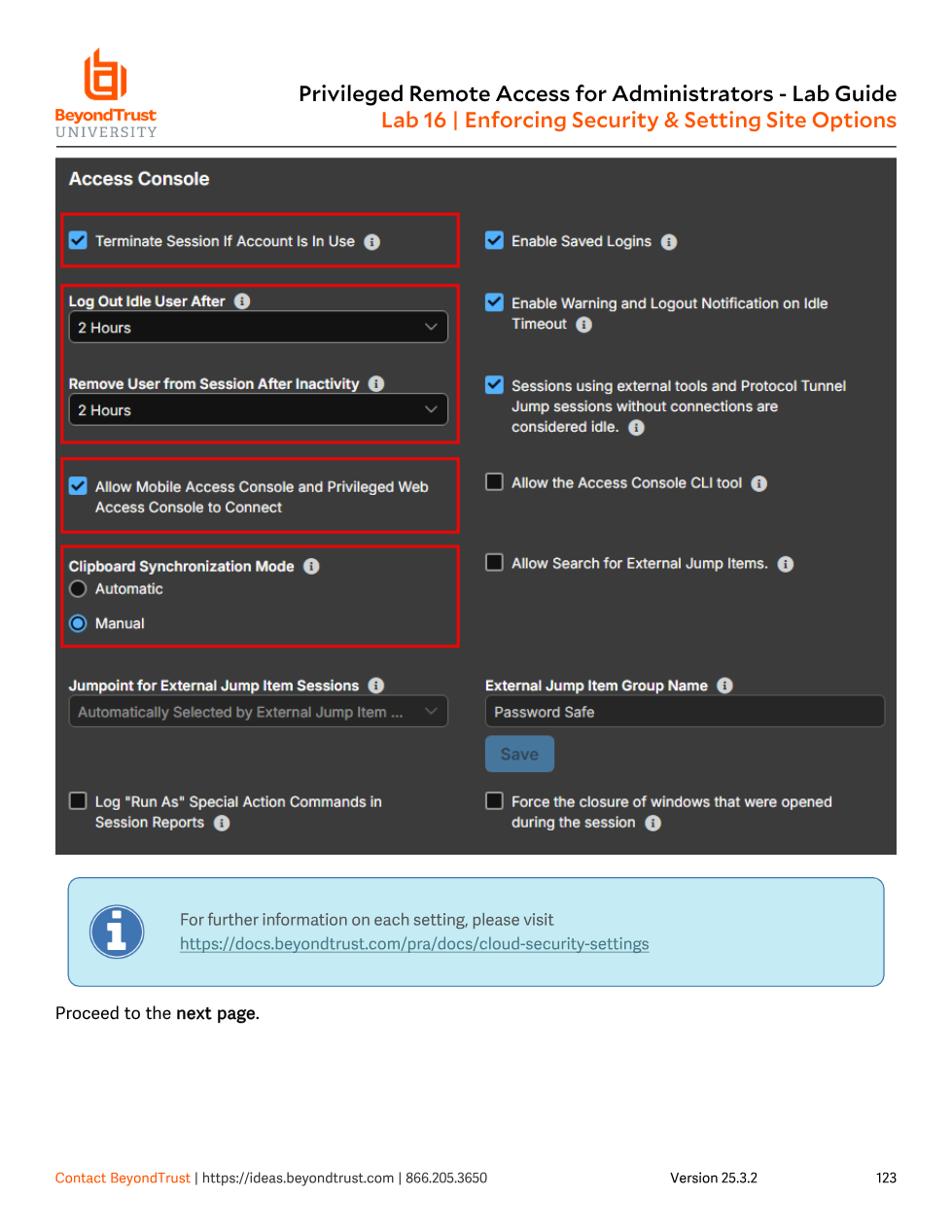
Each of these settings maps to a real operational risk. Terminate Session If Account Is In Use decides what happens when a rep tries to sign in on a second machine while already logged in elsewhere — checked, the new login forcibly closes the old session (useful for shared/kiosk-style rep workstations, and required if you want to reclaim a session that appears "stuck" on another machine); unchecked, both sessions stay open, which can be a compliance problem if you need to guarantee one human = one active session. Log Out Idle User After and Remove User from Session After Inactivity are two separate timers — the first logs the rep out of the console application itself, the second removes a rep from an active remote session — and both exist to stop a walked-away, unlocked rep workstation from leaving a live privileged session open indefinitely.
Clipboard Synchronization Mode is a smaller setting with an outsized security implication: Automatic mirrors the clipboard between the rep and the remote system continuously, which is convenient but means anything copied on either side is silently available on the other; Manual requires an explicit action to push clipboard content across the session boundary, which is the safer default in an environment where the remote system might contain sensitive data you don't want auto-copied to a rep's local clipboard (or vice versa — malware on a compromised target auto-harvesting whatever a rep last copied).
The right-hand column of the panel includes toggles for Enable Saved Logins (lets the console remember credentials — a convenience/security trade-off), Enable Warning and Logout Notification on Idle Timeout (gives the user a heads-up before the idle timers above kick in), whether sessions using external tools or Protocol Tunnel Jump without connections count as idle, and whether the CLI tool or external Jump Item search are permitted at all.
These aren't cosmetic UX preferences — several of them are exactly what an auditor or compliance framework will ask you to demonstrate: proof that idle privileged sessions time out, proof that clipboard exfiltration paths are controlled, proof that duplicate concurrent logins on one account are prevented. Screenshotting this panel with the correct values set is a common piece of audit evidence.
Miscellaneous: retention limits and the 90-day ceiling
Scrolling further down the Security page reaches the Miscellaneous section, which governs how long different categories of operational data live on the appliance before they're purged.
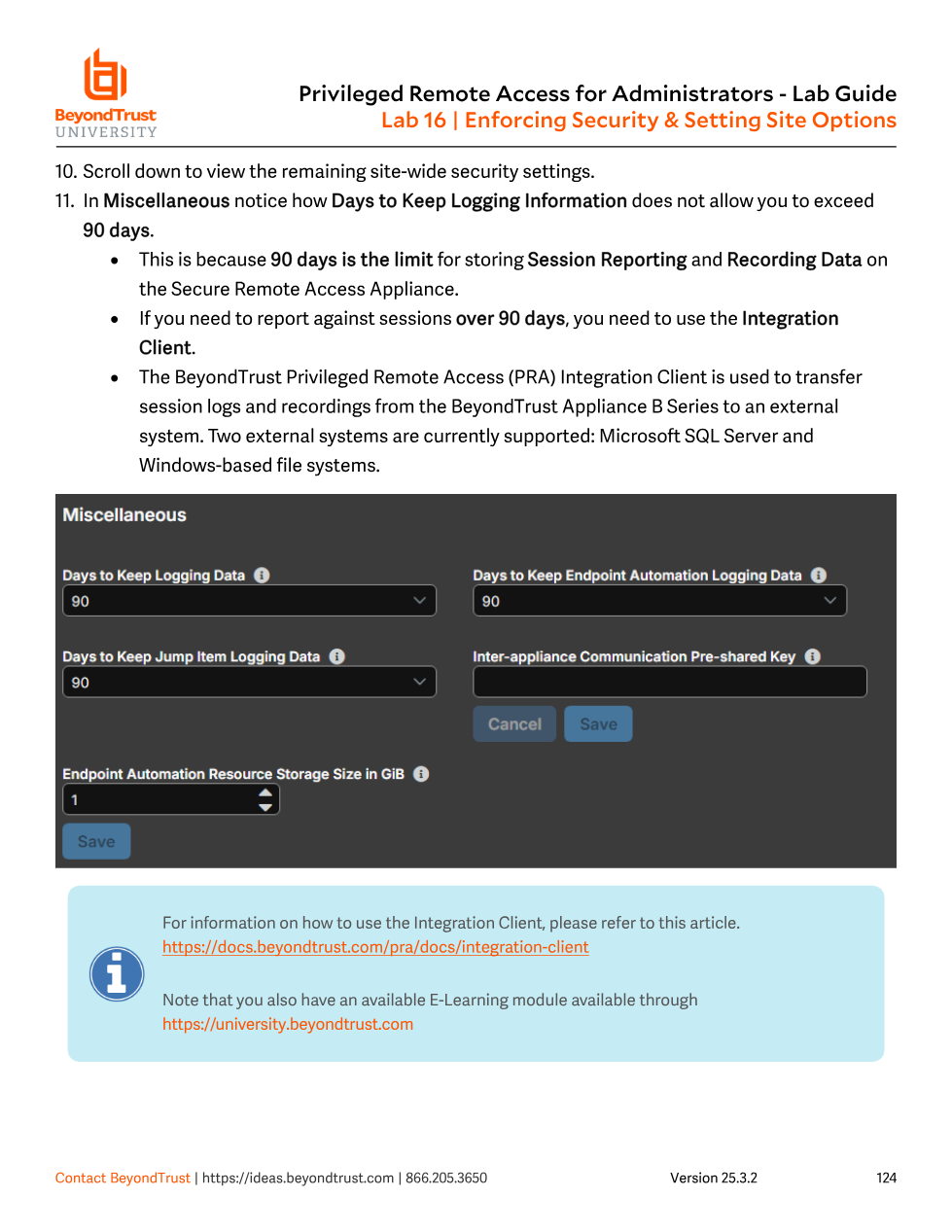
Days to Keep Logging Data controls session reporting data and recordings — text logs of everything that happened in a session plus, if enabled, video recordings of the screen. This is hard-capped at 90 days: that's the maximum the appliance's local disk is designed to retain regardless of what you type into the field. If your organization has a retention requirement longer than 90 days — common in regulated industries — you cannot solve it by raising this setting, because it doesn't go higher. Instead, the documented answer is the Integration Client, a separate Windows application that periodically exports session logs and recordings off the appliance to an external Microsoft SQL Server database or Windows file system, where they can be retained indefinitely under your own archival policy.
Even within the 90-day ceiling, retention isn't purely time-based: the appliance runs a daily maintenance script that keeps disk usage under 90%, and if that threshold is exceeded it starts deleting the oldest session recordings by formula — regardless of whether they're still inside the configured retention window. A recently lowered "Days to Keep" value can also take up to 24 hours to actually take effect.
The Inter-appliance Communication Pre-shared Key field sitting in this same section establishes the trust relationship required for two appliances to cooperate on failover or clustering — both appliances must have matching keys, at least 6 characters with a mix of upper/lowercase, a number, and a special character. This is the credential Module 6 refers back to when a failover relationship refuses to establish.
An admin is told "we need 180 days of session recording retention for compliance" and goes looking for a bigger number to type into Days to Keep Logging Data — only to find the field simply won't accept anything past 90. The real fix isn't a setting on this page at all; it's standing up the Integration Client to continuously export recordings to external storage before the 90-day local window rolls them off. Treat the 90-day cap as a hard architectural constraint of the appliance, not a policy you can configure around.
Network restrictions
The Security page also controls which IP networks are permitted to reach /login, /api, and the access console at all. You choose between Always apply network restrictions (letting you build an allow list or a deny list of networks) and Never apply network restrictions. When restrictions are on, you separately decide whether the desktop/mobile access console and the web console (/console) inherit the same restrictions as the admin interface, apply their own, or only enforce the restriction at a user's first authentication. This is a coarse but effective control: even with valid credentials, a login attempt from outside the allowed network range is rejected before authentication logic ever runs.
Authentication sources feeding into site security
Site security isn't only about session behavior — it also governs how users authenticate in the first place. PRA supports locally defined accounts as well as integration with external authentication sources such as Active Directory via LDAP, with additional providers for Kerberos or SAML single sign-on and RADIUS for multi-factor authentication. Each provider can map external directory groups to internal teams, which is how permission structures at scale get built without hand-managing every account locally. Module 8 covers configuring each of these providers in detail; this module is about the session and retention behavior that applies regardless of which authentication source a given user came through.