Part 5 · Policies & Governance
Teams & Canned Scripts
Teams and Canned Scripts live under the same Console Settings umbrella but solve unrelated problems: Teams organize reps into queues for routing, monitoring, and session sharing; Canned Scripts give reps pre-written command sequences they can fire off during a shell or screen-sharing session instead of typing commands live. This module treats them as two short, separate lessons.
Part 1 · Teams
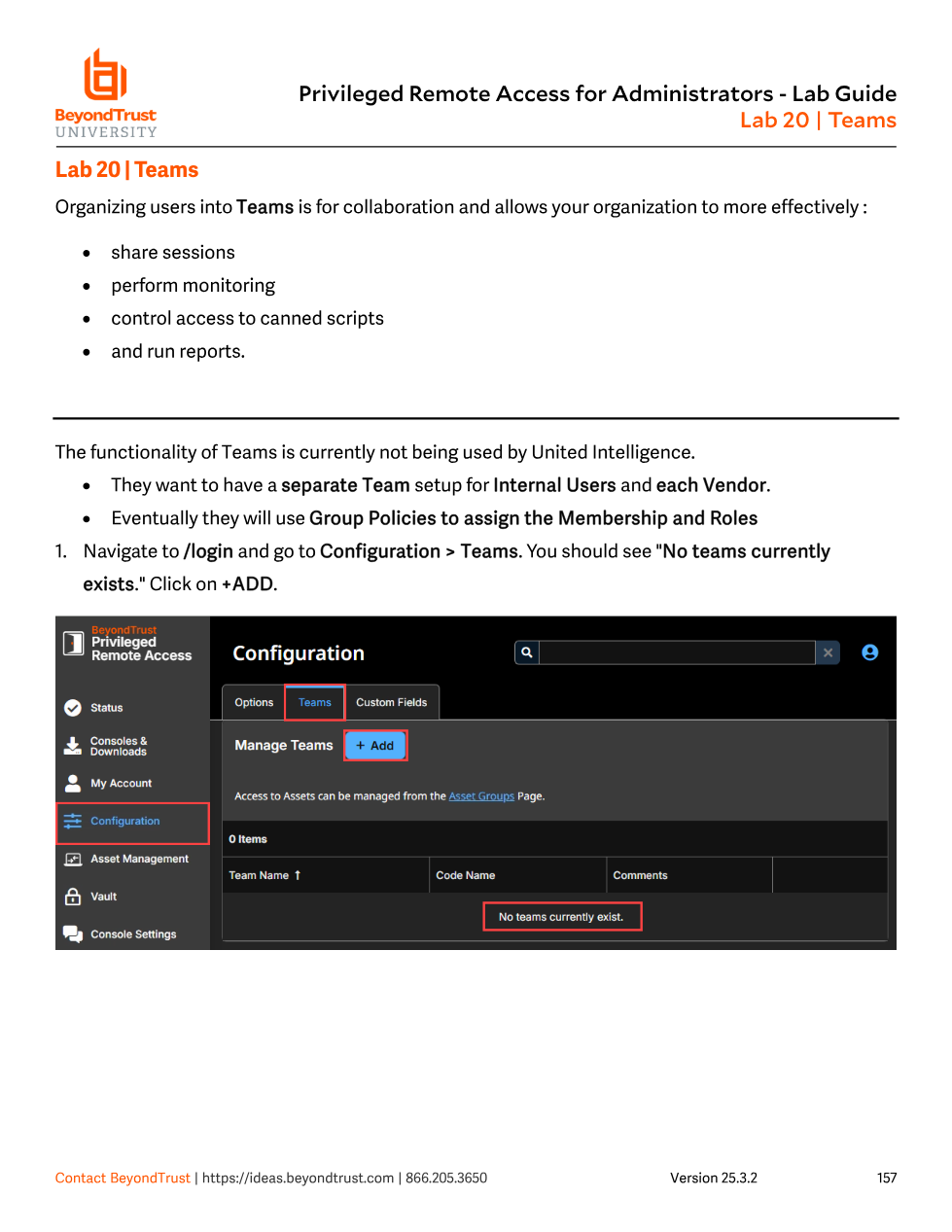
A Team is a group of reps organized for queueing and routing, not a permissions container in the Group Policy sense. Teams are created at Configuration > Teams in /login (note: this is under Configuration, not Users & Security — a small but real navigation distinction from Group Policies). Each team gets a unique Team Name, an optional Code Name for integrations, and free-text Comments. Once created, a team shows up as its own distinct queue inside the Access Console, which is what lets an incoming session be routed to "the right team" rather than to every logged-in rep at once.
Members are added to a team with one of three roles — Team Member, Team Lead, or Team Manager — and those roles drive what the Dashboard feature in the Access Console shows and permits. Within a team, a user can only administrate others holding a strictly lower role, and that authority is scoped per-team: a Team Lead on one team has no special standing on a different team even if the same person happens to be a member of both.
- Monitoring Team Members — lets a Lead/Manager watch a team member's Access Console; can be disabled entirely or limited to Access Console viewing only.
- Enable Session Join and Take Over — lets a Lead join or take over a team member's session (the Lead still needs Start Session access to that asset unless the next option is also enabled).
- Allow Team Managers/Leads to Transfer/Take Over/Join even without Start Session access to the underlying asset — an explicit override for cases where routing authority should outrank asset-level access.
- Team Chat History — optionally persists team chat across Access Console logins (1–24 hours, capped at 1000 messages), independent of in-session or private chat.
Rather than adding people to a team one at a time, the scalable pattern is the same one from Module 18: assign an entire Group Policy to a team and a role, and every member of that policy inherits team membership automatically. Individually-added members always show up with disabled Edit/Delete controls if they arrived via Group Policy — you're expected to edit the policy, not fight the team roster directly.
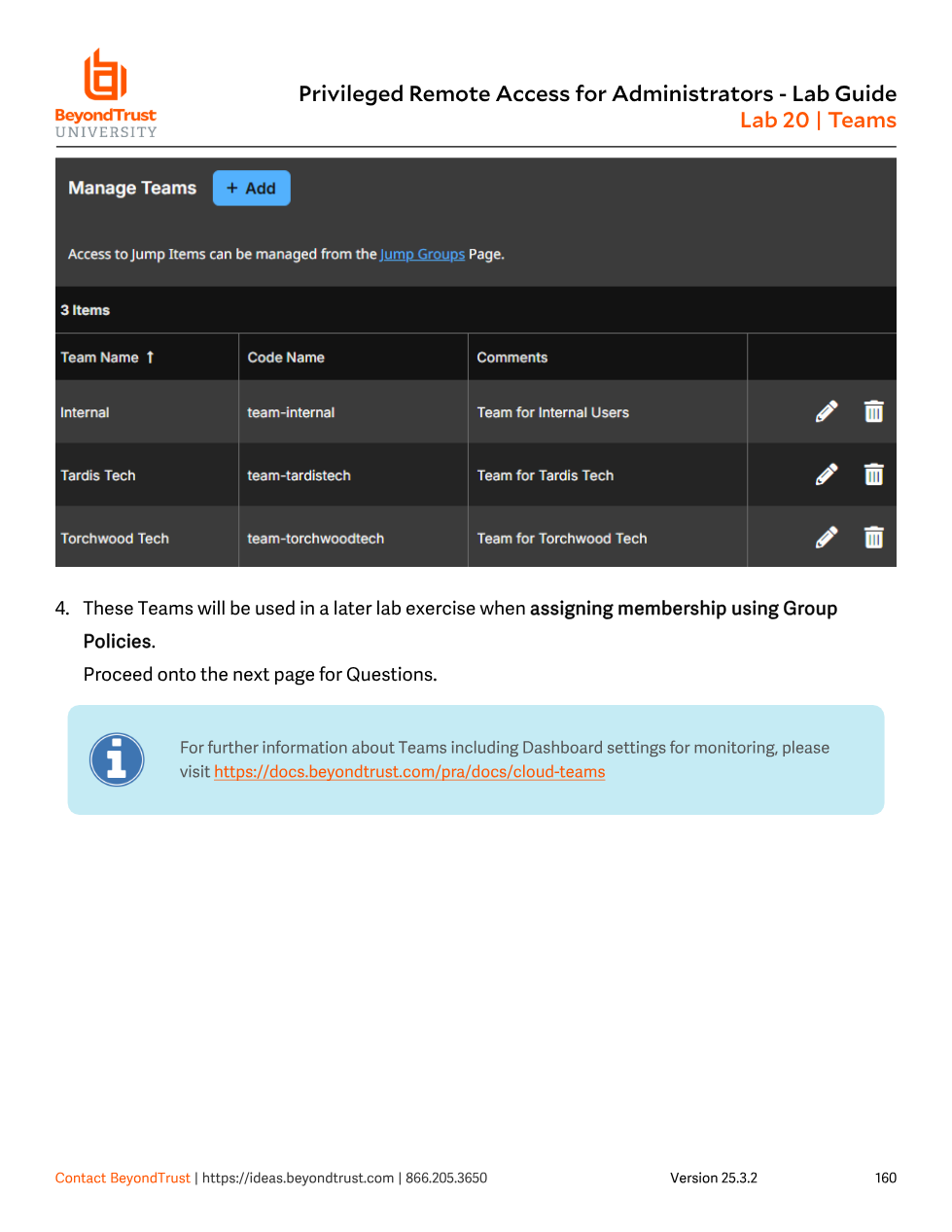
Internal, Tardis Tech, and Torchwood Tech. Membership isn't assigned here yet — that happens later by wiring each Group Policy to the matching team and role.It's easy to conflate these three because they all group people. A Group Policy defines what a user can do system-wide. A Team defines how a rep is queued, monitored, and routed for sessions — it has no independent permission model of its own; a Group Policy is what grants a set of users membership in a Team and a role within it. A Vendor Group (Module 20) is different again: it's a container for third-party accounts with its own registration portal, tied to exactly one Group Policy for authorization. A vendor's users can also be placed on a Team for routing purposes, but the Vendor Group itself is what governs their account lifecycle.
Part 2 · Canned Scripts
A Canned Script is a saved, reusable command sequence a rep can trigger during an active Screen Sharing or Command Shell session instead of typing it live. It executes in the context of the logged-in user or the local system, depending on whether the session is elevated, and it's displayed in the console as it runs so the customer (and any session recording) can see exactly what was executed.
Canned Scripts live at Console Settings > Canned Scripts. Building one requires:
- Script Name — unique, used to locate the script in the console's script picker.
- Description — shown to the rep on the confirmation prompt before the script runs.
- Command Sequence — written like a batch file or shell script; only the last line may be interactive, since a script can't pause mid-run to prompt for input.
- Team Availability — which Teams can see and run this script (this is the direct link back to Part 1: Teams gate who gets access to which scripts).
- Categories — an organizational grouping so a growing script library stays navigable.
- Resource File — an optional file (up to 100 MB total across the library) referenced from the script body as
"%RESOURCE_FILE%"(quotes required, case-sensitive) or accessed via its temp directory with%RESOURCE_DIR%; PRA uploads it to the target machine only when the script actually runs.
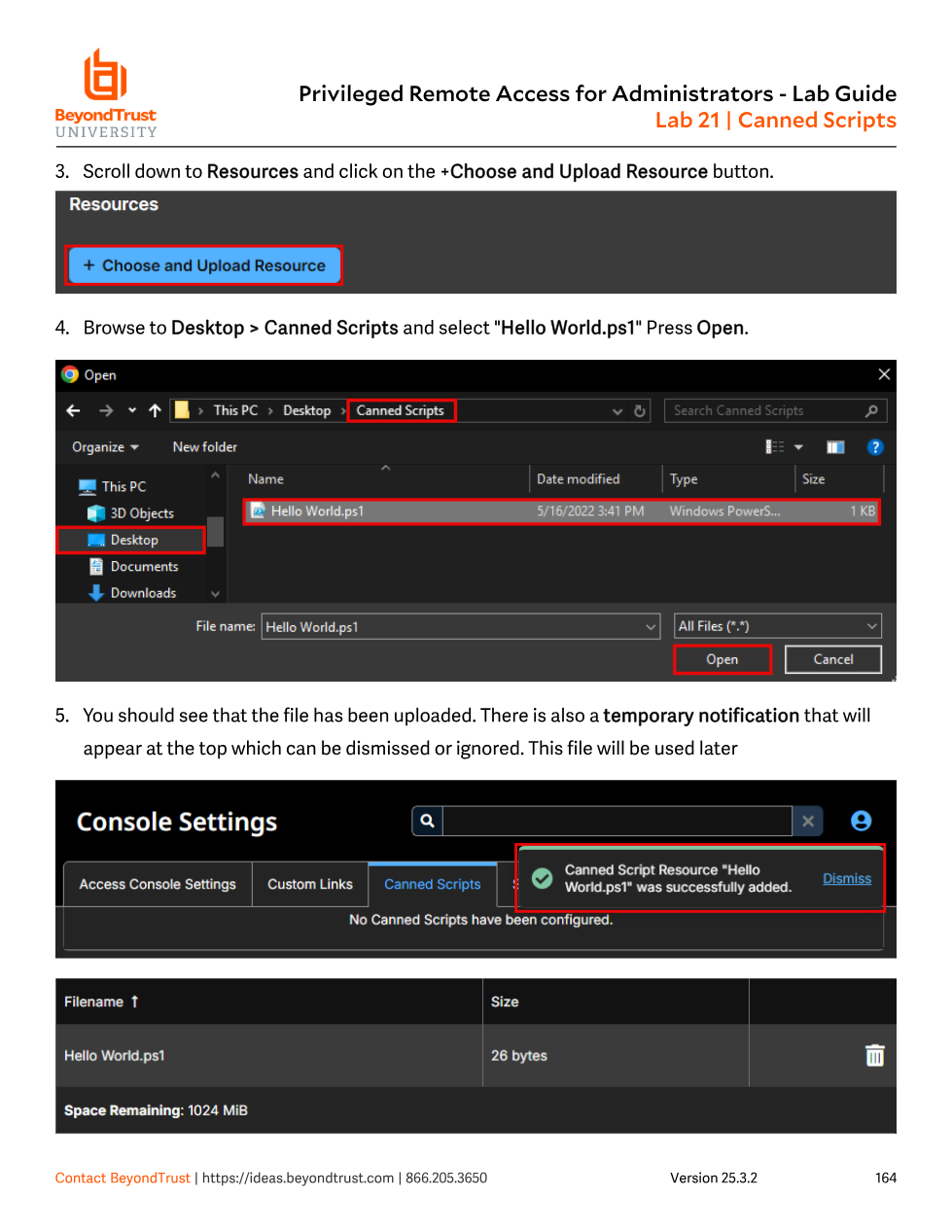
Hello World.ps1 as a Resource before building the script that references it. Resources are managed separately from the scripts that use them, so one file can be shared across multiple canned scripts.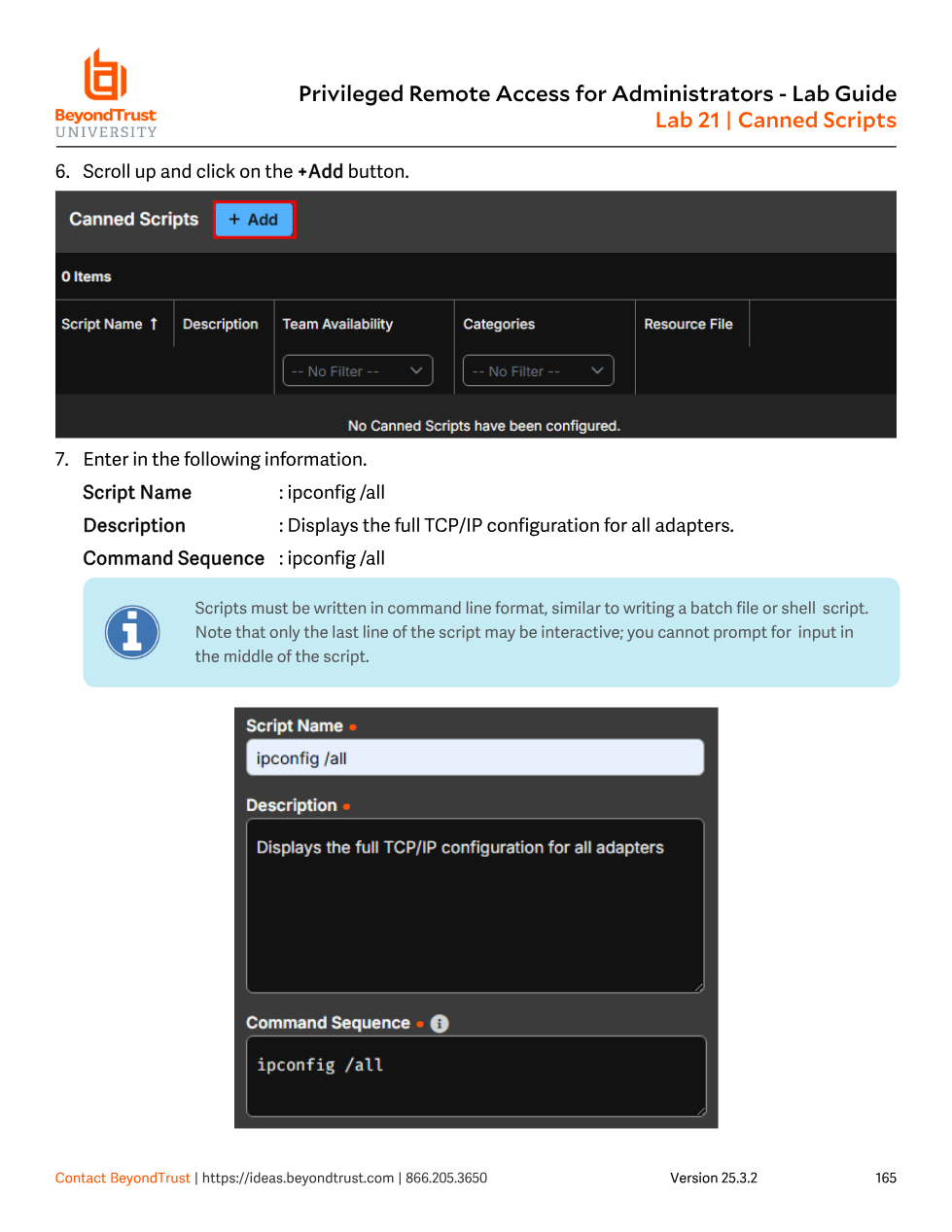
ipconfig /all) with Script Name, Description, and Command Sequence filled in. The in-product warning repeats the rule: scripts run like a batch/shell file, and only the final line can be interactive.Canned Scripts also have a permission gate you already met in Module 17: the Canned Script Rules setting inside a Session Policy (Allow / Deny / Not Defined) controls whether a rep can invoke scripts in a given session at all. A rep can be a member of a Team with a script assigned, and the script can be perfectly well-formed — but if the active Session Policy denies Canned Scripts for that session, the option simply won't be available. Team Availability answers "does this script exist for this team," Session Policy answers "is running any canned script allowed in this session."
A rep reports that a canned script they can normally use has disappeared for one particular Jump Item. The instinct is to check Team Availability on the script itself — but if the script worked everywhere else, the more likely cause is a Jump Item-level Session Policy (evaluation-order step 1 or 2 from Module 17) explicitly denying Canned Scripts for that specific asset, overriding the Group Policy or user-level setting that normally allows it. Diagnose with the Session Policy Simulator before touching the script or team configuration.