Part 4 · Assets & Jump Technology
Asset Policies: Schedule & Approval
An Asset Group decides who can see an asset. An Asset Policy decides when they're allowed to jump to it, and whether someone else has to sign off first. This module covers the two levers inside an Asset Policy that gate the moment a session is allowed to begin: Schedule and Approval.
What an Asset Policy controls
An Asset Policy is a named, reusable configuration that governs the conditions under which a session can start against any Asset it's attached to. BeyondTrust's documentation defines it narrowly but the feature set is broader than the name suggests: a policy can enforce a schedule, require a ticket ID, demand a two-factor authentication challenge, send start/end notifications, disable session recording, control simultaneous-connection behavior, and — the other half of this module — require human approval before a session begins.
Policies are created once under Asset Management > Asset Policies and then attached to one or more Assets (via the asset's Properties, the same dialog where you set its Asset Group) or to a whole Asset Group membership. This reuse is the point: define "Business Hours Only" or "Approval Required" once, then apply it wherever that access pattern is needed, instead of hand-configuring restrictions per asset.
Asset Groups and Asset Policies solve different problems and are easy to conflate. A group answers "who can see this asset." A policy answers "under what conditions can a session with this asset actually start." You can — and often should — apply different policies to different subsets of the same Asset Group: production database servers might carry an Approval policy while a dev sandbox in the same group carries nothing.
Schedule: restricting when a session can start
The Schedule section is enabled with a single Enabled checkbox. Once on, it defines the windows during which a session against this asset is permitted to start. Configuration has three parts:
- Time Zone — the reference zone for every schedule entry (Lab 08 leaves this at UTC).
- Schedule Entries — one or more Day-of-Week + Time-of-Day start/end pairs, added via + Add Schedule Entry. A common pattern, shown in Lab 08, is five entries — Monday through Friday, 08:00–17:00 — to model a standard business week.
- Force session to end when schedule does not permit access — an optional hard cutoff. Without it, a session that starts inside the window is allowed to run past the end time; the restriction only blocks new session starts outside the window. With it enabled, an in-progress session is forcibly disconnected at the boundary, with recurring warnings to the user beginning 15 minutes before termination.
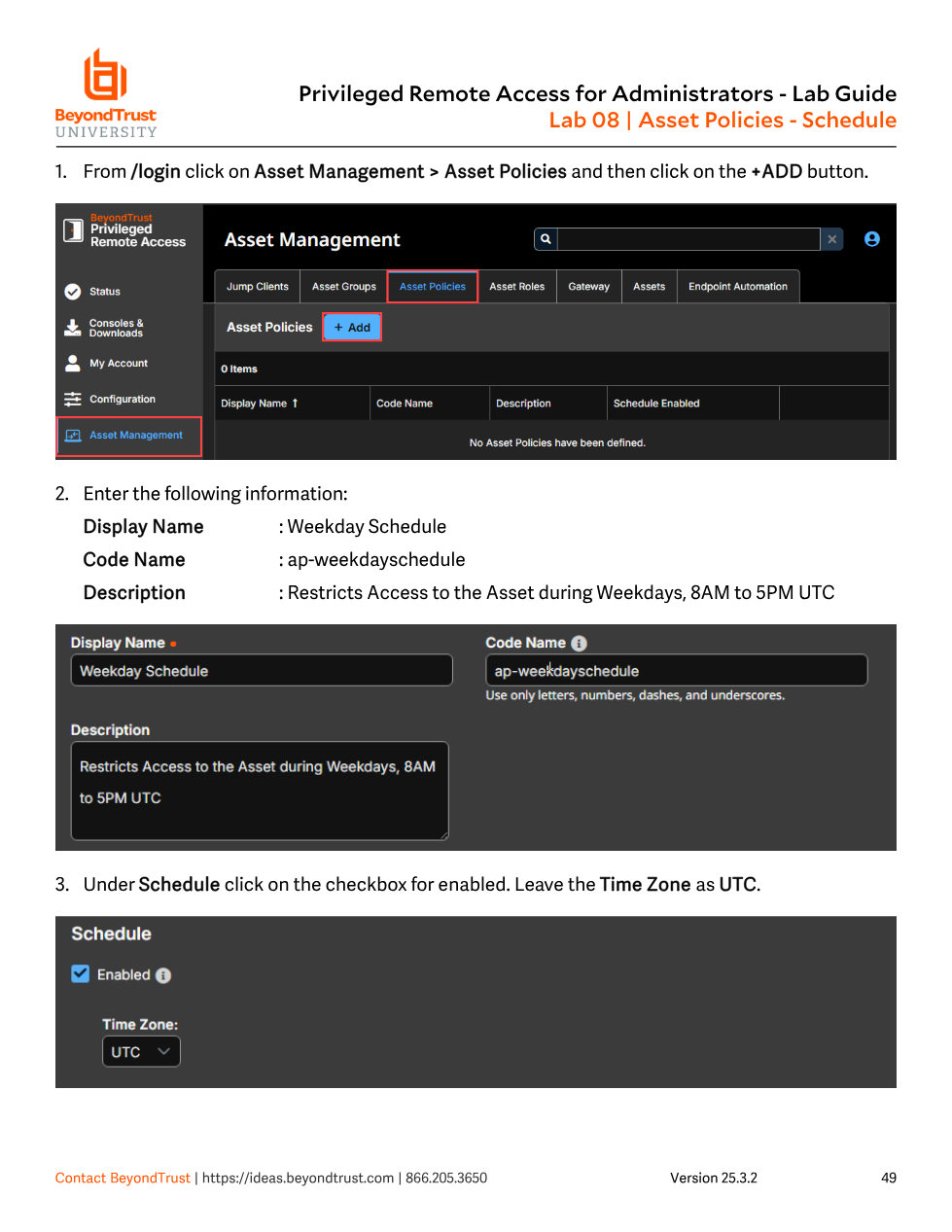
Weekday Schedule Asset Policy: Display Name, Code Name, Description, then enabling the Schedule with Time Zone UTC.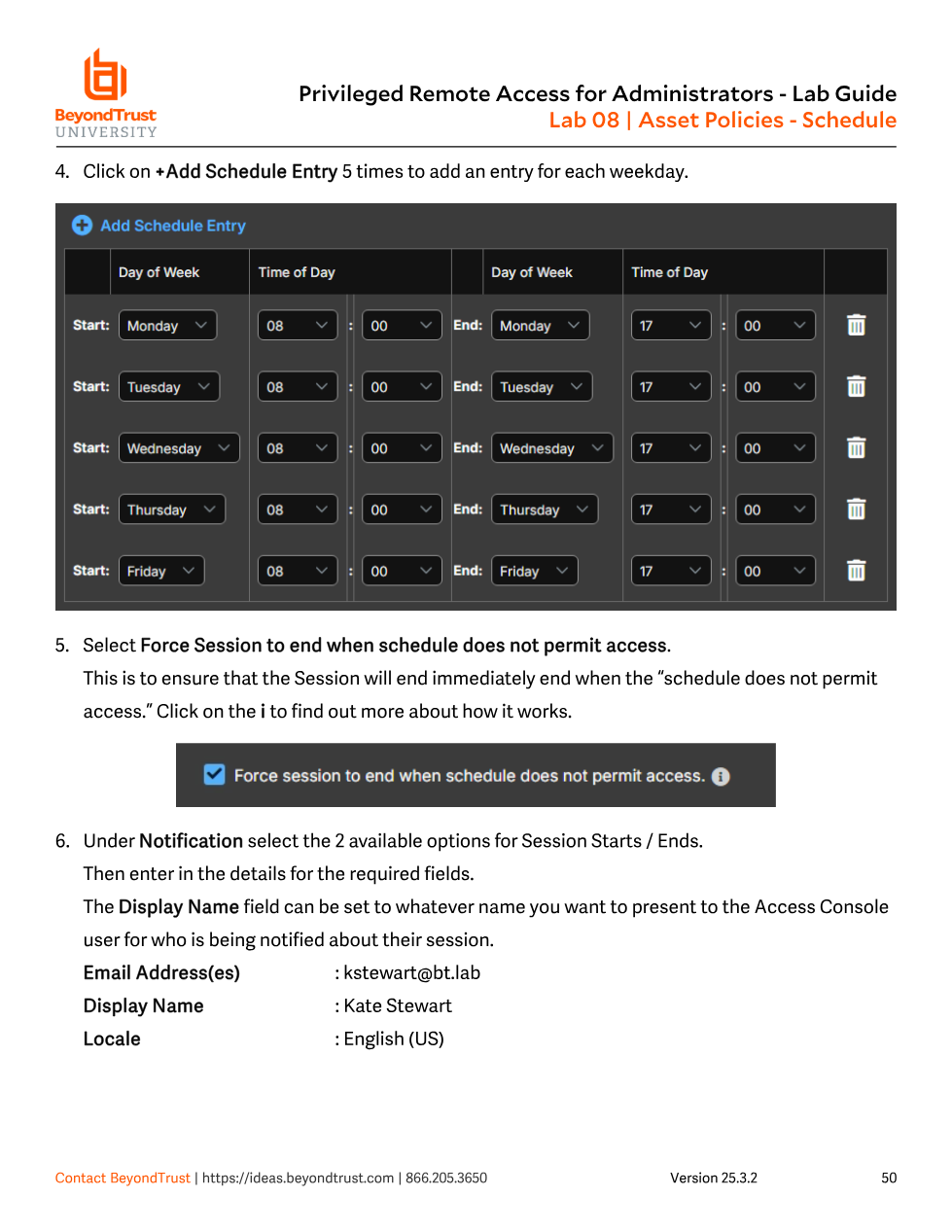
If a policy's window is, say, 8 AM–5 PM and a user tries to start a session at 6 PM, they get a notification that the schedule does not permit a session to start — and, per the docs, they may choose to override the schedule restriction and start the session anyway unless the admin has locked that down elsewhere. The schedule blocks the start of new sessions outside the window; it does not silently fail — it prompts.
Approval: requiring sign-off before a session starts
The Approval method establishes a list of contacts who must approve or deny access to an endpoint before a session is allowed to begin. When Require approval before a session starts is checked, attempting to start a session against an asset carrying that policy pops a dialog prompting the requester for a reason, a requested time, and a duration. That request is then routed to the configured Approvers — who can be existing PRA users, plain email addresses, or a mix of both — via an emailed link to a webpage where they can allow or deny the request, and simultaneously as an in-app notification if they're logged into the Access Console.
Key Approval-policy fields, per Lab 09:
- Maximum Access Duration — the longest window a single approved request can grant (e.g. 8 Hours).
- Access Approval Applies to — whether the approval covers only the requesting user (Requestor Only) or is broader.
- Approvers (Jump Approvers) — one or more PRA users or email addresses. The admin console resolves typed names against known users (typing "Kate" surfaces "Kate Stewart" as a suggestion).
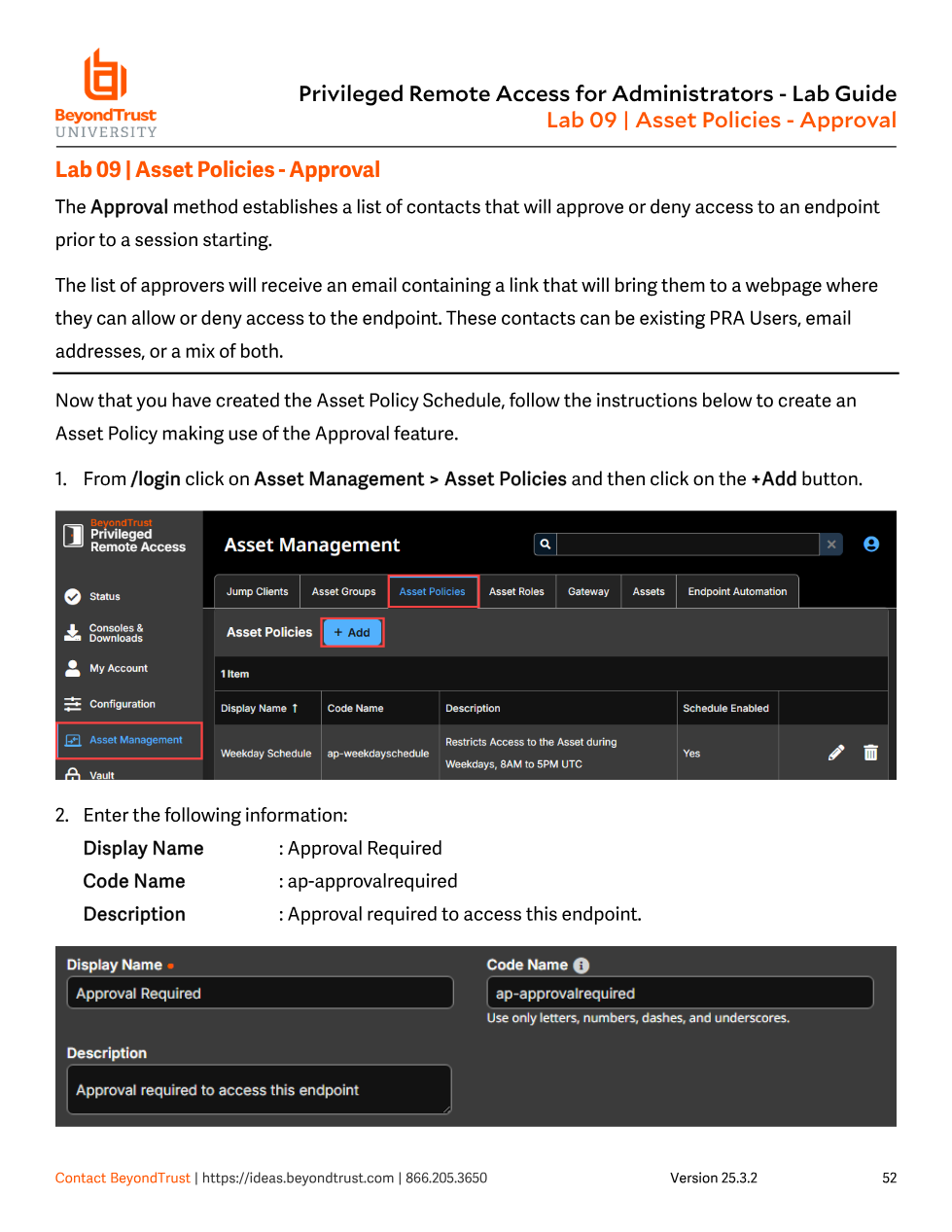
Approval Required, alongside the previously created Weekday Schedule policy in the list.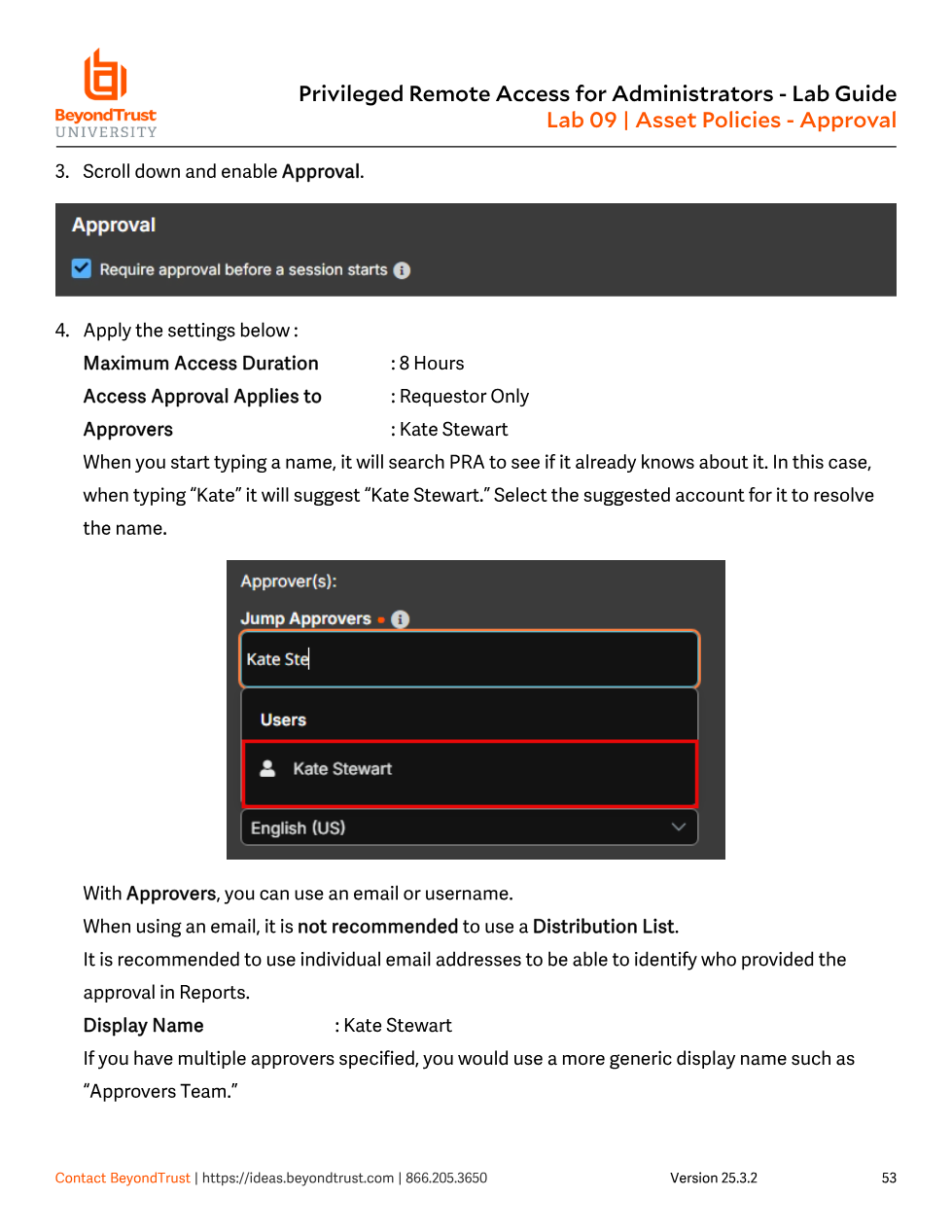
Kate Stewart as a Jump Approver.Two operational details worth calling out from the lab guidance: when using email addresses as approvers, avoid distribution lists — an individual address lets reports identify exactly who approved a given request, which distribution lists obscure. And when multiple approvers are configured, use a generic Display Name like "Approvers Team" rather than one person's name, since the notification templates surface that display name to the requester.
Schedule and Approval are not both available on the same policy in every combination the docs describe: the official guidance states that the Require approval before a session starts option "cannot be used if a Schedule is enabled" on the same policy. Admins who want both business-hours restriction and manager sign-off need two separate policies — commonly stacked by putting the Schedule policy on the Asset Group and layering an Approval policy at the individual asset or membership level — not one policy trying to do both jobs. Don't discover this the hard way mid-build; decide up front which mechanism this asset needs, or how to split responsibilities across two policies.
Other policy controls worth knowing
| Setting | What it does |
|---|---|
| Require a ticket ID before a session starts | Forces entry of an ID tied to an external ITSM/ticketing system before the session opens — useful for change-management-gated access. |
| Two Factor Authentication Challenge | Requires the end user to pass an MFA challenge before starting or elevating a session — independent of login-time MFA. |
| Notify recipients when a session starts / ends | Sends configurable email notifications (with macro-driven templates) on session start and/or end. |
| Disable Recordings | Suppresses recording for sessions under this policy even if recording is globally enabled — screen sharing, database connection recordings, and command shell recordings are all affected. |
| Simultaneous connections | Governs whether a second user can join an active session (Join Existing Session), is blocked (Disable), or defers to the global Asset Settings — configured separately for Jump Client/Local/Remote Jump/VNC versus Remote RDP. |
Email Notification and Email Approval templates (Subject/Body, with macros like %JUMP_ITEM.NAME%, %AUTHORIZATION_REQUEST.STATE%, and %USER.DISPLAY_NAME%) live on the same Asset Policies page and let you customize exactly what approvers and stakeholders see in their inboxes, rather than relying on generic defaults.
Applying a policy and where it fits
Once saved, a policy is attached the same way you'd set an Asset Group: from an asset's Properties dialog, using the Asset Policy dropdown (visible right alongside Asset Group and Session Policy in the same form). It can also be assigned per-member when adding a user to an Asset Group, via the New Member Asset Policy field covered in Module 11. That reuse across both surfaces is deliberate — a policy isn't tied to one asset or one user, it's a rule you apply wherever the same access pattern needs enforcing.
Remember the layering as you move into the next module: Asset Group gates visibility, Asset Policy gates when/with-what-conditions a session may start, and Asset Role — up next — gates what the user can actually do once the session is running.