Part 5 · Policies & Governance
Vendor Groups
Vendor Groups are how PRA segments third-party access from internal users: a dedicated account container, tied to exactly one Group Policy, with its own expiration rules, notification routing, network restrictions, and — optionally — a branded self-registration portal that still requires an admin's approval before anyone gets in. This module walks through building one end to end using United Intelligence's two vendors, Tardis Tech and Torchwood Tech, as the running example.
Why vendors get their own construct
Third-party support staff are structurally different from internal reps: they need to be provisioned and de-provisioned quickly, their access should expire on its own if nobody renews it, and an organization typically wants a lightweight audit trail (who approved this vendor account, and when). A Vendor Group at Users & Security > Vendors bundles all of that into a single object rather than making an admin reinvent expiration and approval logic every time a new vendor shows up. PRA supports up to 500 vendor groups per site — plenty of headroom for even a large multi-vendor environment.
Creating a Vendor Group
Every Vendor Group needs a unique Name and, critically, a Group Policy selection in its Authorization Settings — that single Group Policy defines the permissions, memberships, and settings for every user who authenticates through that vendor, and those settings cannot be overridden per vendor user. (One guardrail worth remembering: Group Policies that grant administrative permissions are not selectable for a Vendor Group at all — vendors can never be handed admin rights this way.)
Beyond authorization, a Vendor Group configures its own account lifecycle, independent of whatever Account Expiration setting exists on the linked Group Policy:
- Vendor users expire after — a day count from account creation; expired accounts can't log in until a PRA User or a vendor admin extends them. Expiration is calculated from when access was approved or last extended, and a background hook that runs hourly is what actually marks accounts expired.
- Automatically delete expired users — an optional day count after expiration before the account is deleted outright.
- Users and Teams for management and notifications — up to 10 users/teams who receive configured notifications (user added, user expired, user auto-deleted) for this vendor group.
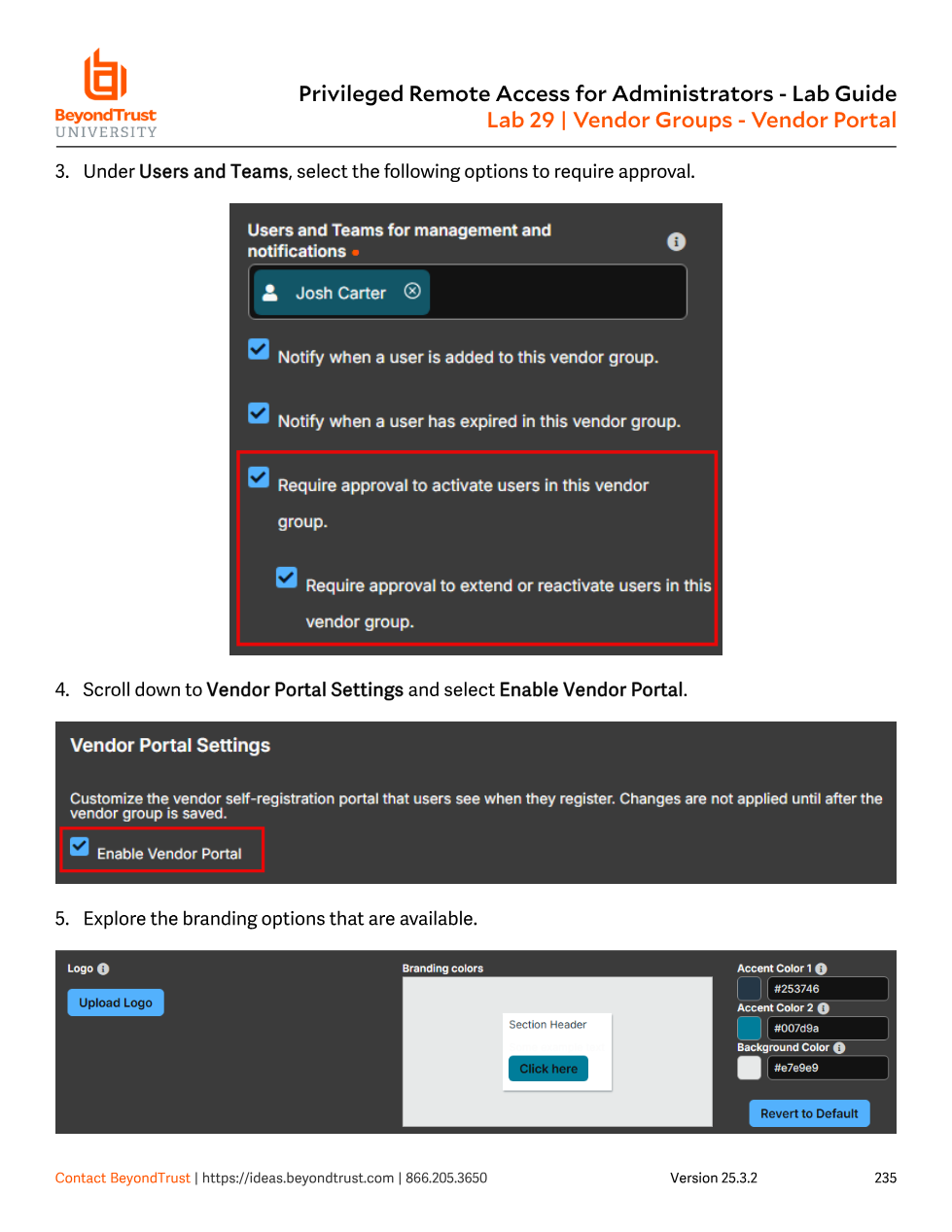
- Require approval to activate users / require approval to extend or reactivate users — the approval gate that turns self-registration from "anyone can register" into "anyone can register, but nothing activates without sign-off."
- Network address allow list — restrict the vendor group to specific network prefixes.
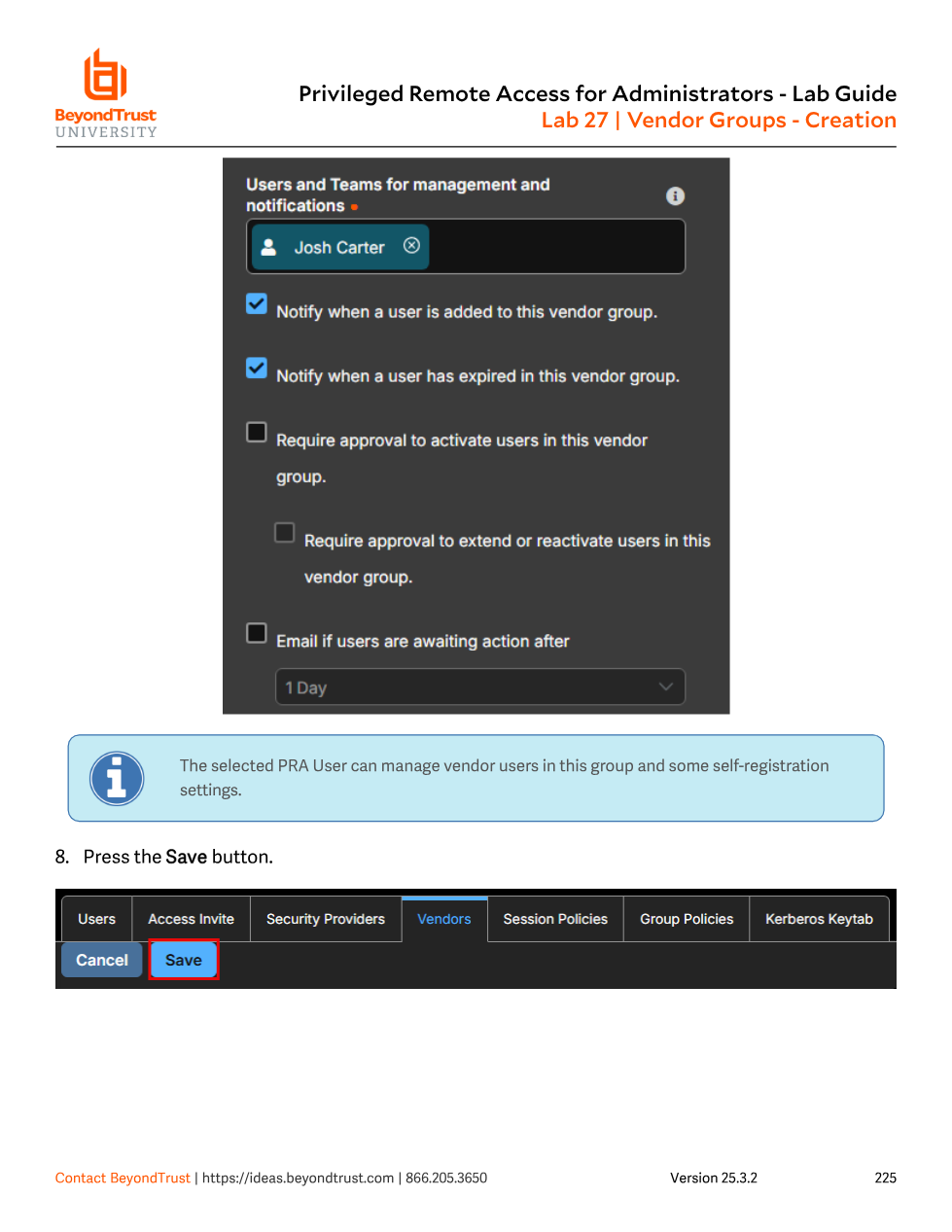
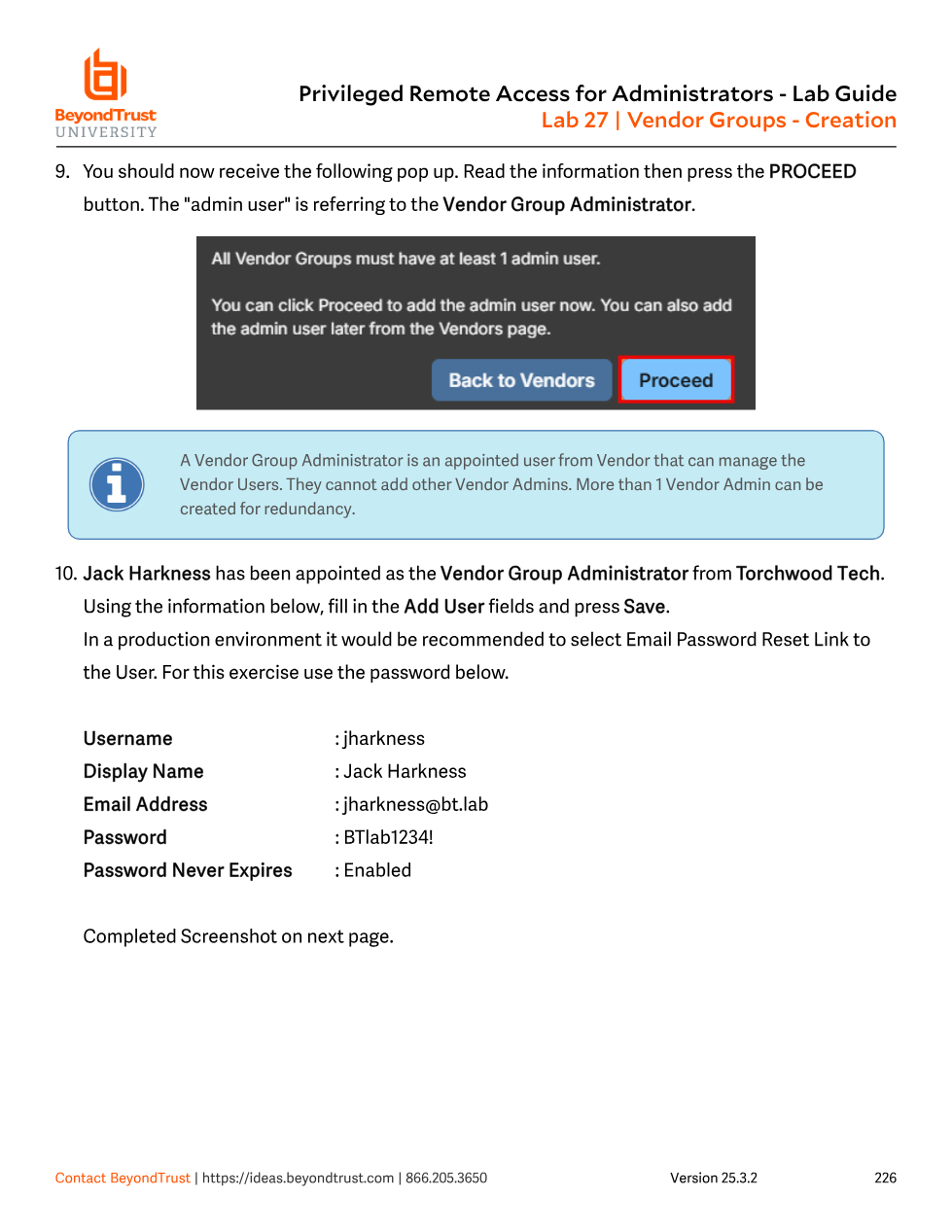
After the first save, PRA insists that every Vendor Group have at least one Vendor Group Administrator — a designated vendor-side user who can manage the other vendor users in that group (and some self-registration portal settings) but who cannot create other vendor admins. You can add that admin immediately via the Proceed prompt or come back to it later from the Vendors page.
Adding vendor users directly
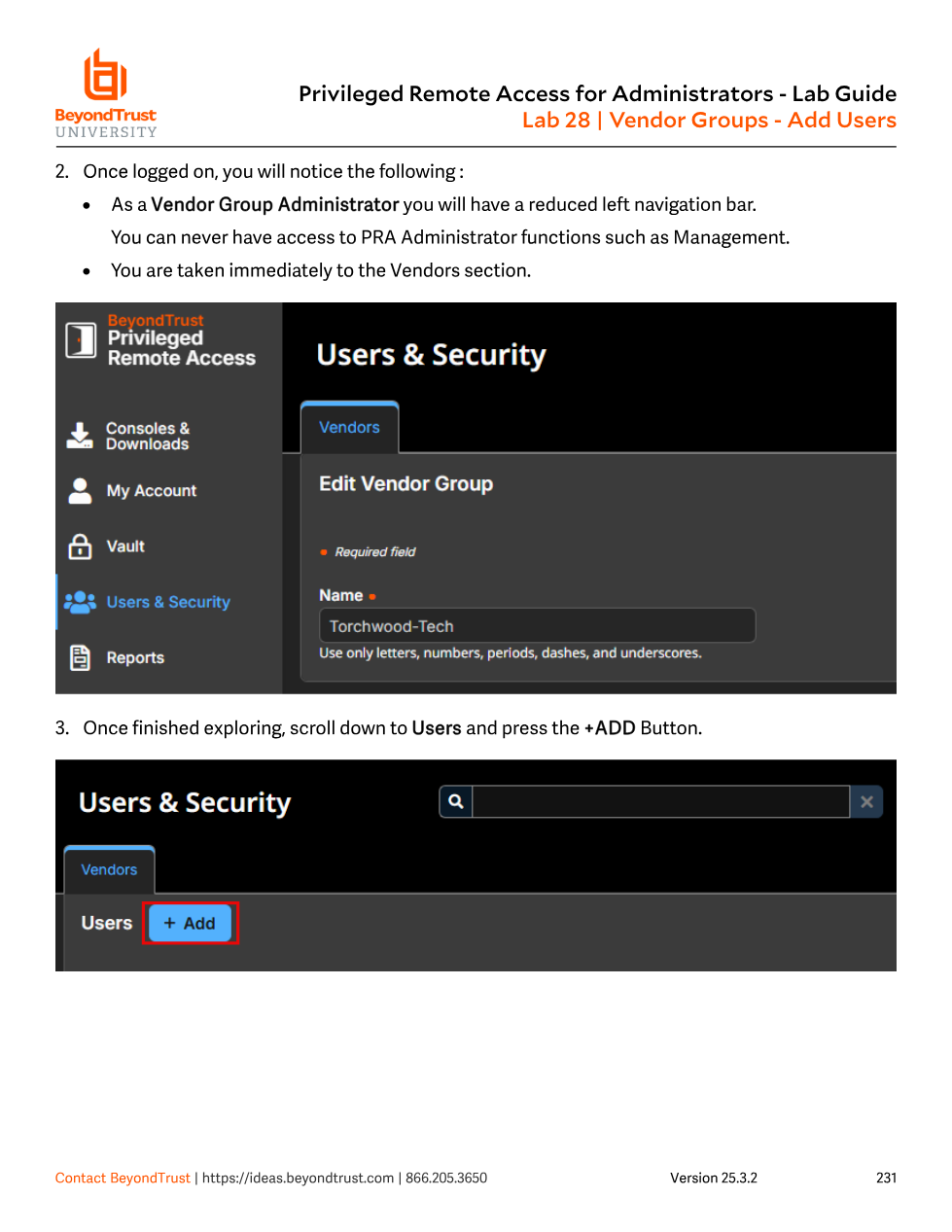
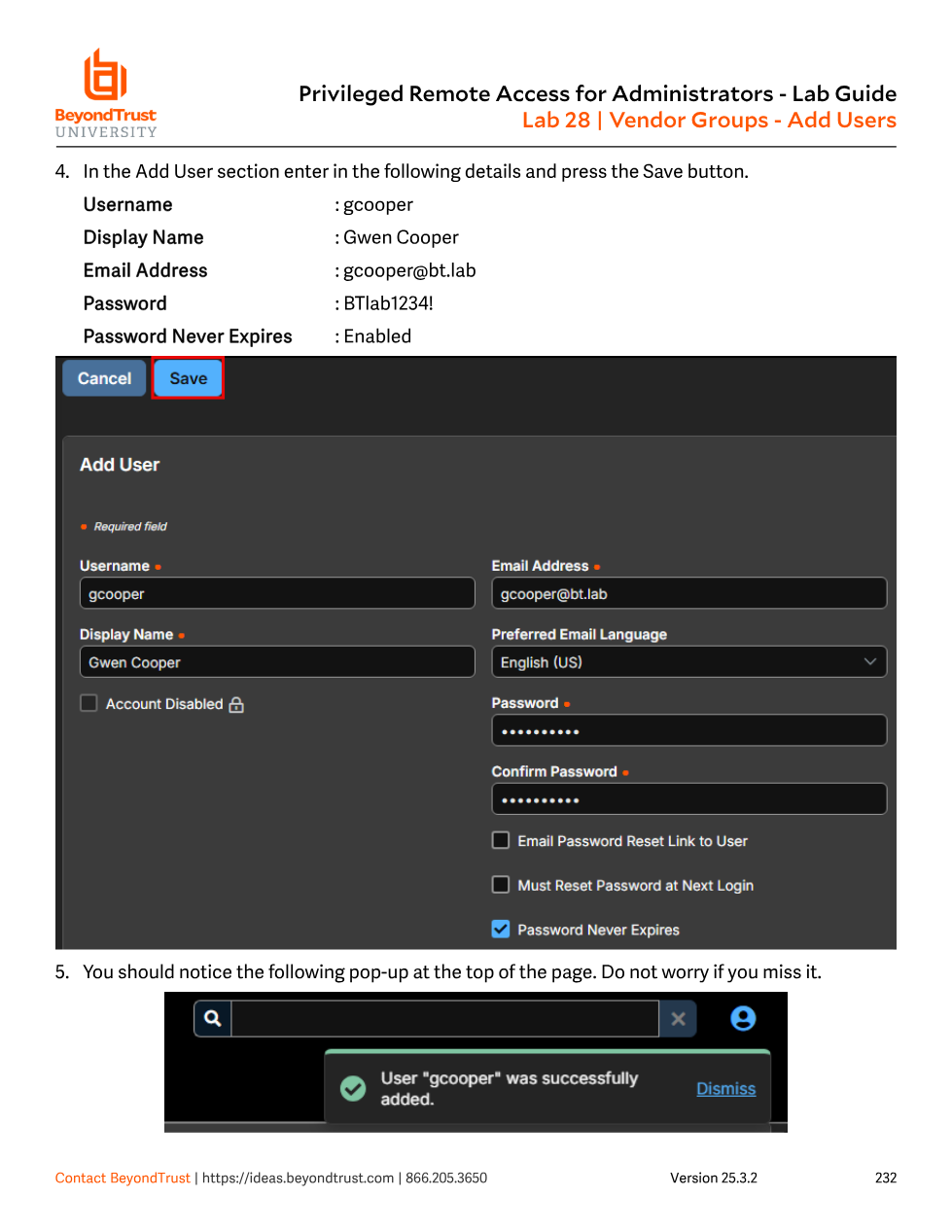
Once the group exists, a PRA admin can add vendor users the direct way — no portal involved — from Users & Security > Vendors > [group] > Users > Add. Interestingly, a Vendor Group Administrator can do this too: logging in as a vendor admin shows a deliberately reduced left navigation (no PRA Administrator functions like Management are visible at all), and the vendor admin lands directly on the Vendors section scoped to their own group.
The Vendor Portal: self-registration with an approval gate
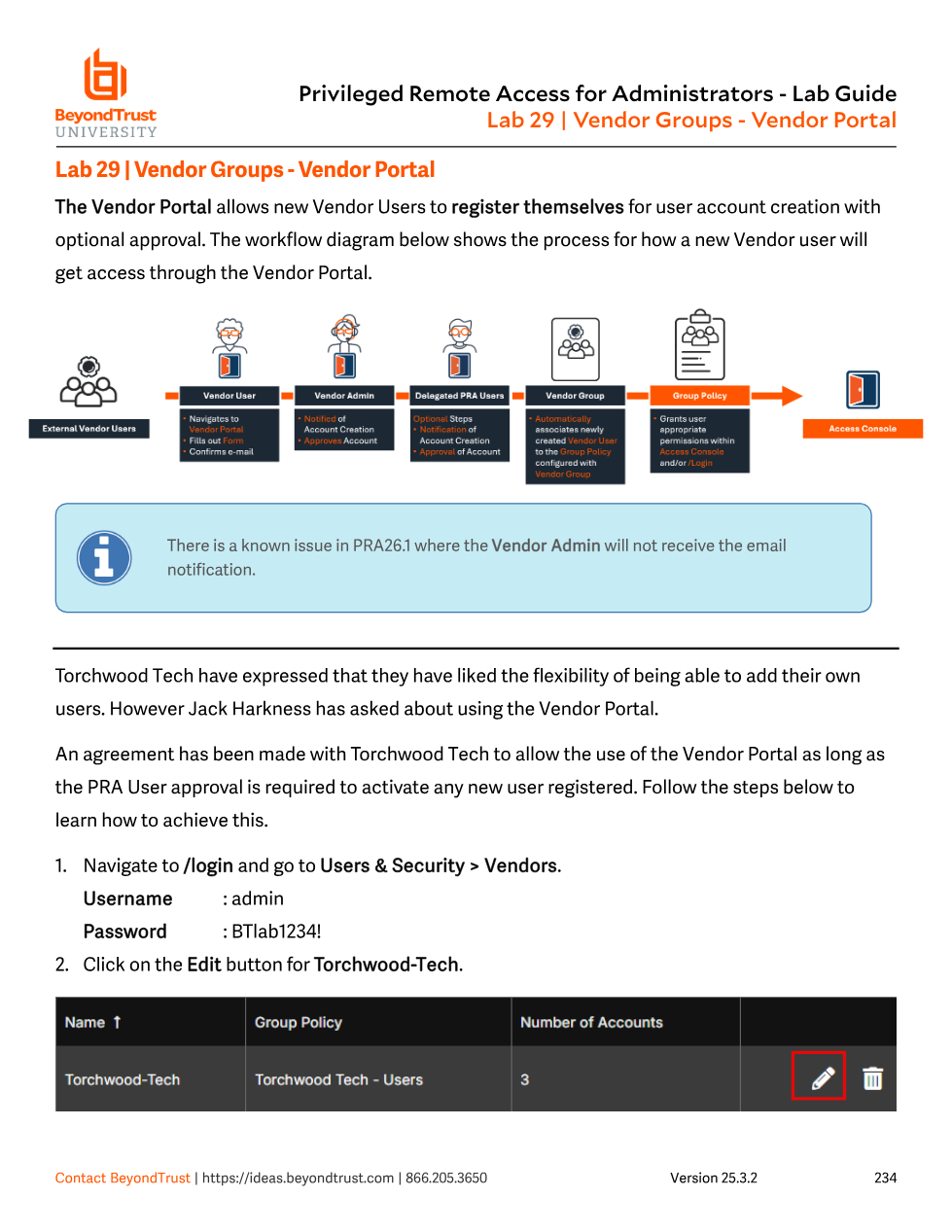
For larger or more dynamic vendor relationships, PRA can expose a branded self-registration portal instead of requiring an admin to manually add every user. The registration flow has a fixed shape, and it's worth memorizing because it spans three different actors:
Enabling the portal requires a Group Policy already selected on the vendor group; only then does the Enable Vendor Portal checkbox under Vendor Portal Settings become usable. From there, admins can customize a logo, two accent colors and a background color, portal instructions text, the confirmation email's subject and body, the portal's URL, an optional Email Domain Allow List to restrict who's even allowed to register, and a Configurable Slug for the portal's URL path.
Walking through registration
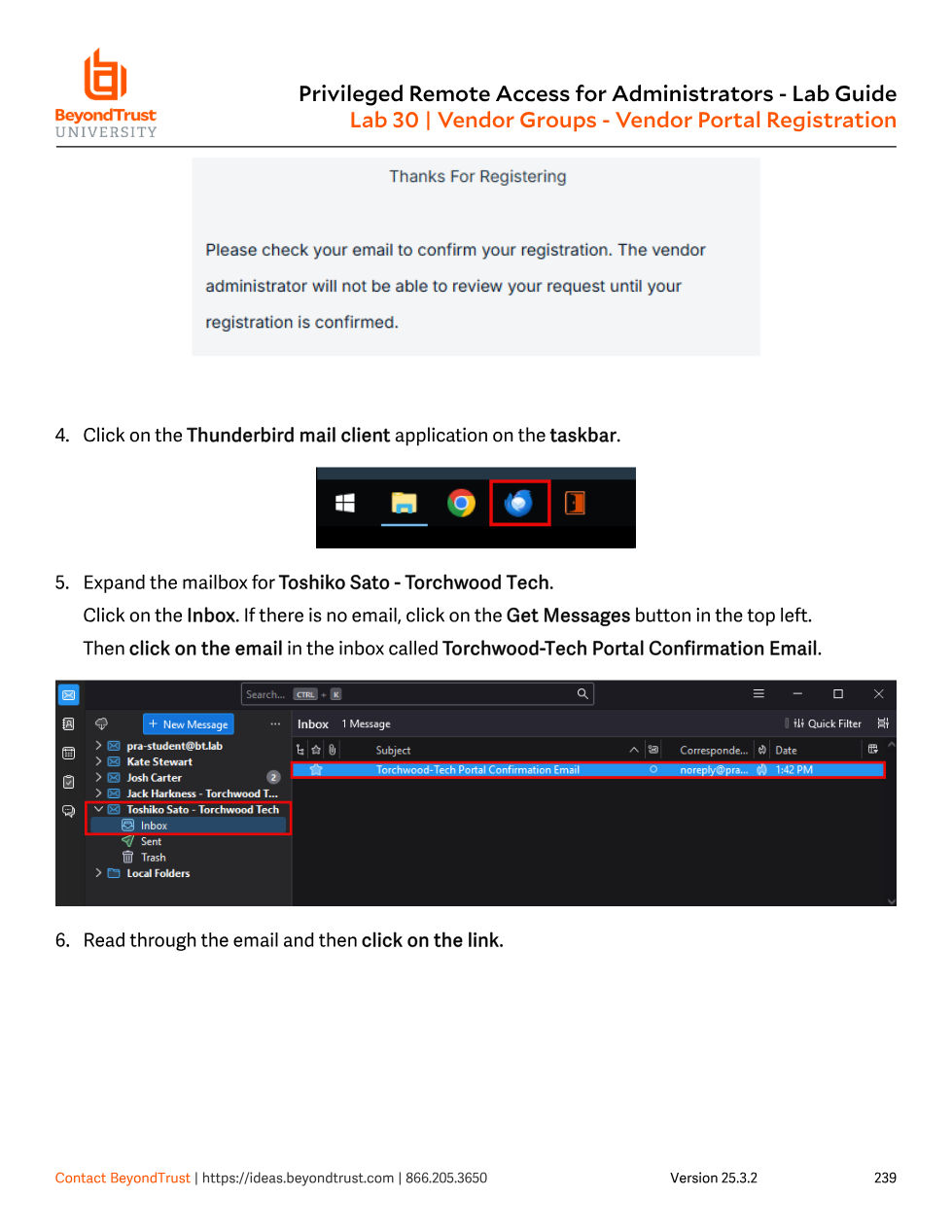
From the vendor user's side, registering through the portal triggers a confirmation email before anything else happens — the vendor admin (or delegated PRA admin, if approval is required) cannot even review the request until the registrant confirms their own email address. Clicking the confirmation link marks the email verified and tells the registrant to wait for the admin's decision.
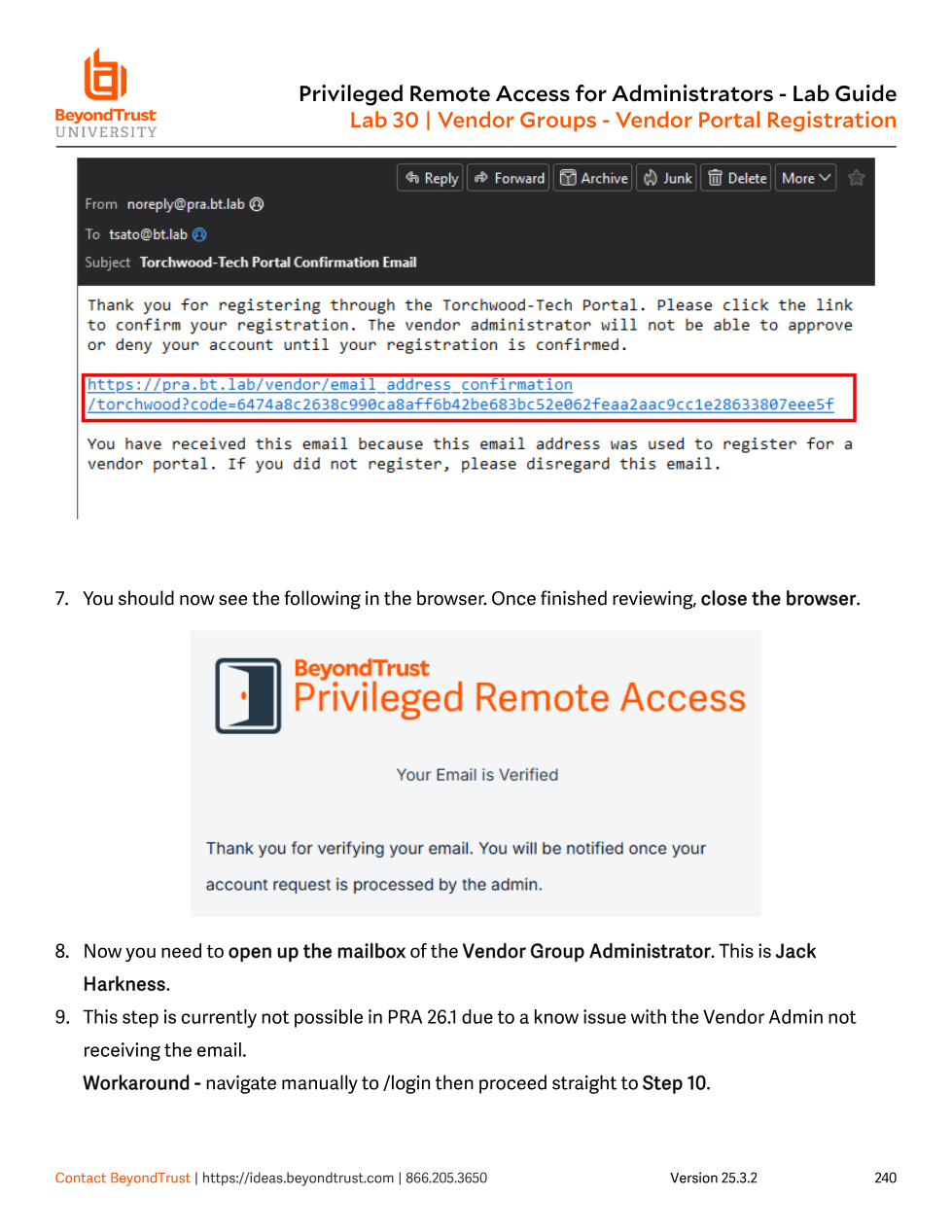
The email-confirmation step and the approval step are two separate gates, not one. A malicious or mistyped registration can't even reach a human's inbox for approval until the registrant proves control of that email address — and even after that, nothing activates until a PRA admin (or delegated vendor admin, if allowed) explicitly approves it. Disabling both checkboxes turns the portal into pure self-service; leaving them on, as United Intelligence requires for Torchwood Tech, keeps a human in the loop for every new vendor account.
Assuming a Vendor Group is just "a Group Policy with a different name." It isn't — the Group Policy only supplies permissions and settings; the Vendor Group layers on account expiration, deletion timers, notification routing, network restrictions, and the entire portal/approval workflow. Two different vendors can point at the same Group Policy (identical permissions) while having completely different expiration windows and approval requirements, because those live on the Vendor Group object, not the Group Policy.