Part 5 · Policies & Governance
Group Policies
Where a Session Policy governs one narrow slice of behavior (what tools are available in a session), a Group Policy is the master permission template for a set of users — it bundles a Session Policy assignment together with Jump Technology access, Asset Roles, reporting rights, team memberships, and dozens of other settings. Users almost never get configured one at a time; they get added to Group Policies, and this module is about how PRA resolves the settings when a user belongs to several at once.
Group Policy vs. everything else with "policy" in the name
Module 17 introduced the four policy/role concepts that repeatedly get confused on the exam. A Group Policy is the broadest of the four: it is not limited to session behavior. Under Users & Security > Group Policies a single policy configures Account Settings, General Permissions (access permissions, session management, user-to-user screen sharing, Jump Technology methods, Asset Roles, endpoint automation, external tools), Session Permissions (which is where a Session Policy gets attached), Availability Settings, and Memberships (which users/security-group are in the policy, and which Teams or Asset Groups it grants membership in).
In short: a Group Policy can set a user's Session Policy, but it also controls things a Session Policy never touches — whether the user can access the Access Console at all, which Jump methods they can use, what Asset Role they get on which Asset Groups, and whether they're a Team Lead or Team Manager. Think of Session Policy as one ingredient inside the much larger Group Policy recipe.
Why users belong to Group Policies, not the other way around
Group Policies exist to avoid configuring permissions on hundreds of individual user accounts. Standardize once — "Level 2 Server Support," "Database Engineering," "Vendor Access" — and add or remove members instead of touching settings per person. Best practice, straight from the documentation: define most behavior through group policies for scalability, and reserve direct user-level assignments for rare exceptions.
Creating a Group Policy
Adding a policy starts with a unique Policy Name, then a two-pane Available Members / Policy Members picker: choose a Security Provider (Local or an integrated provider like LDAP), search, and move the matching account or security group across with Add. Membership can come from individual local accounts or entire external security groups — in the lab, the whole UnitedIntelligence-Users Active Directory group is added in one step rather than importing each user individually.
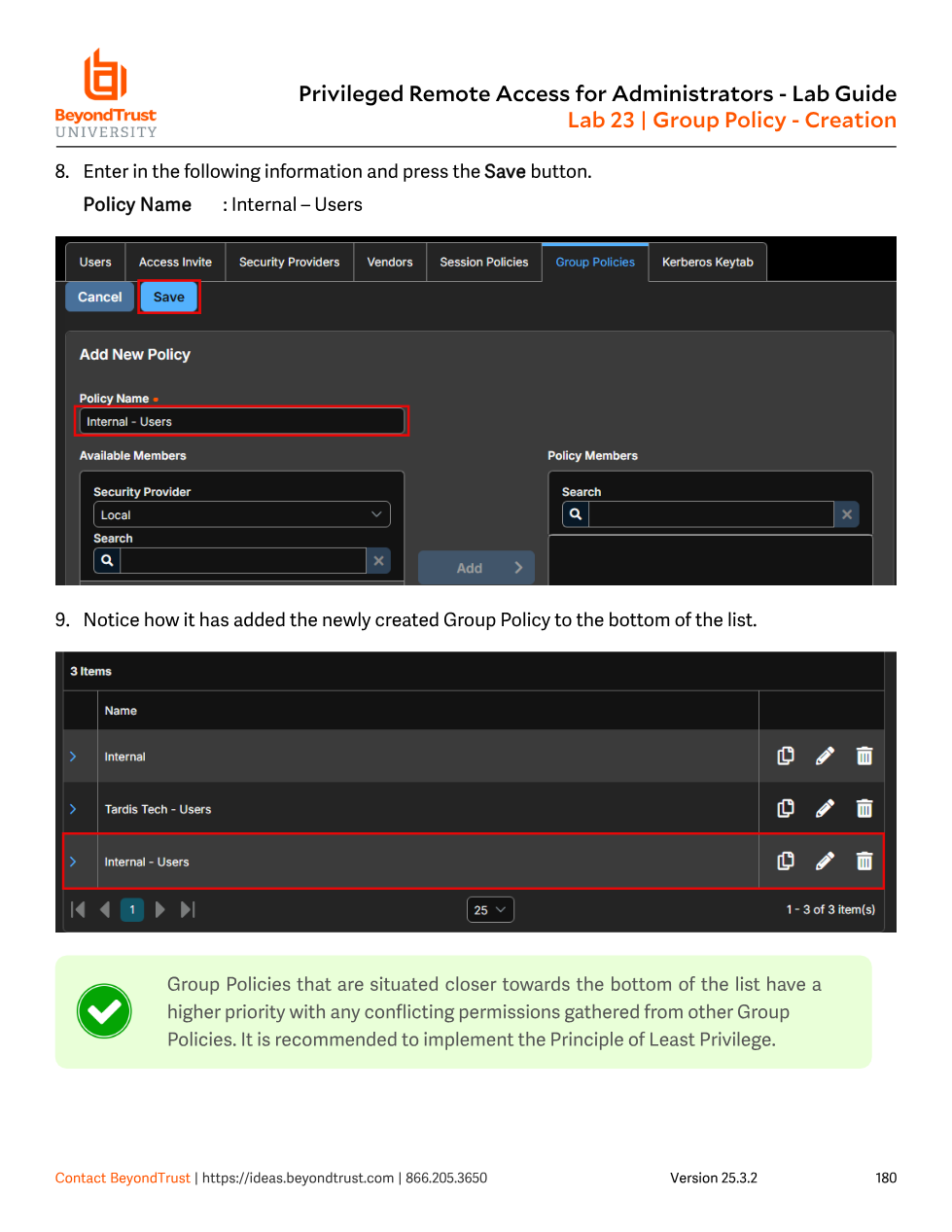
Internal - Users, appears at the bottom of the Group Policies list. The in-product callout is explicit: policies closer to the bottom have higher priority when settings conflict, so least-permissive policies belong near the top.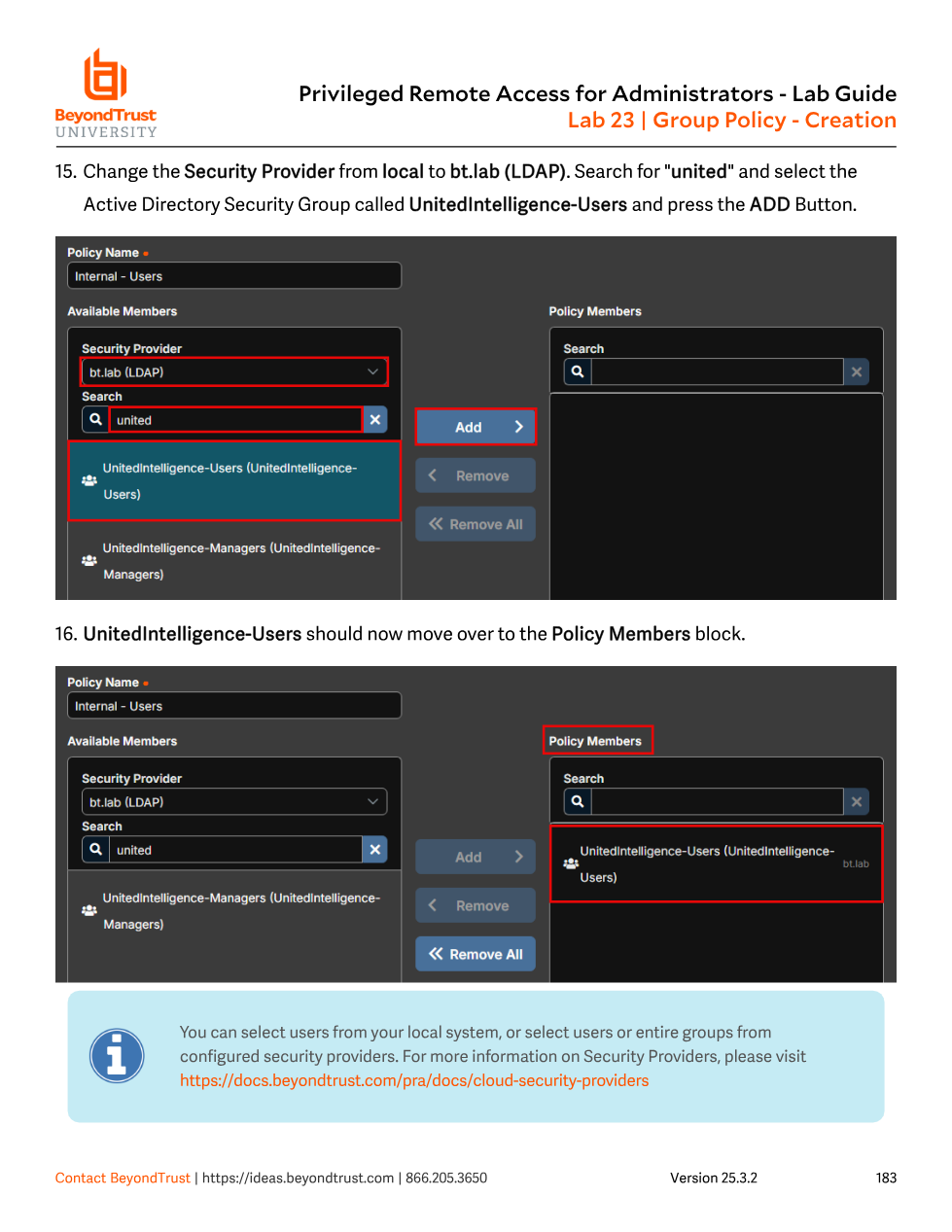
bt.lab (LDAP) and adding the UnitedIntelligence-Users Active Directory group. Group Policy membership can be an entire directory group, not just local accounts.Editing properties and attaching a Session Policy
Editing a policy is where the Session Policy relationship from Module 17 becomes concrete: inside Session Permissions, you either select an existing Session Policy from the dropdown or choose Custom to define one inline. Two checkboxes sit next to that dropdown and matter a great deal: Defined (does this Group Policy have an opinion on the Session Policy setting at all, or should it fall through) and Final (covered below). Renaming and re-scoping membership works the same way as creation — edit the policy, change its Policy Name, and adjust Available Members / Policy Members to add or remove a security group, such as swapping a broad internal-users group for a narrower PRA Administrators group once a dedicated admin policy exists.
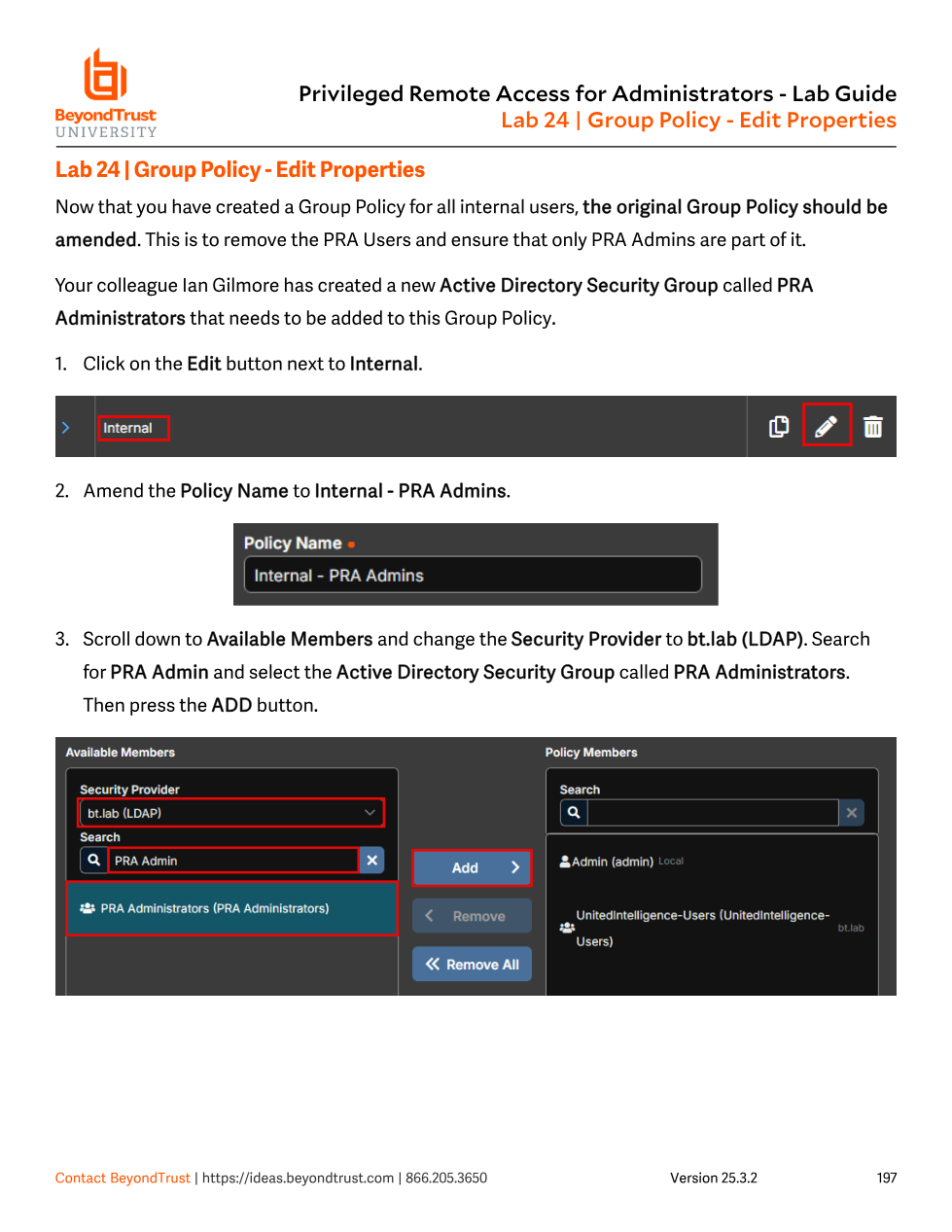
Internal to Internal - PRA Admins and adding the PRA Administrators Active Directory group as a member, tightening the policy from "all internal users" to just admins.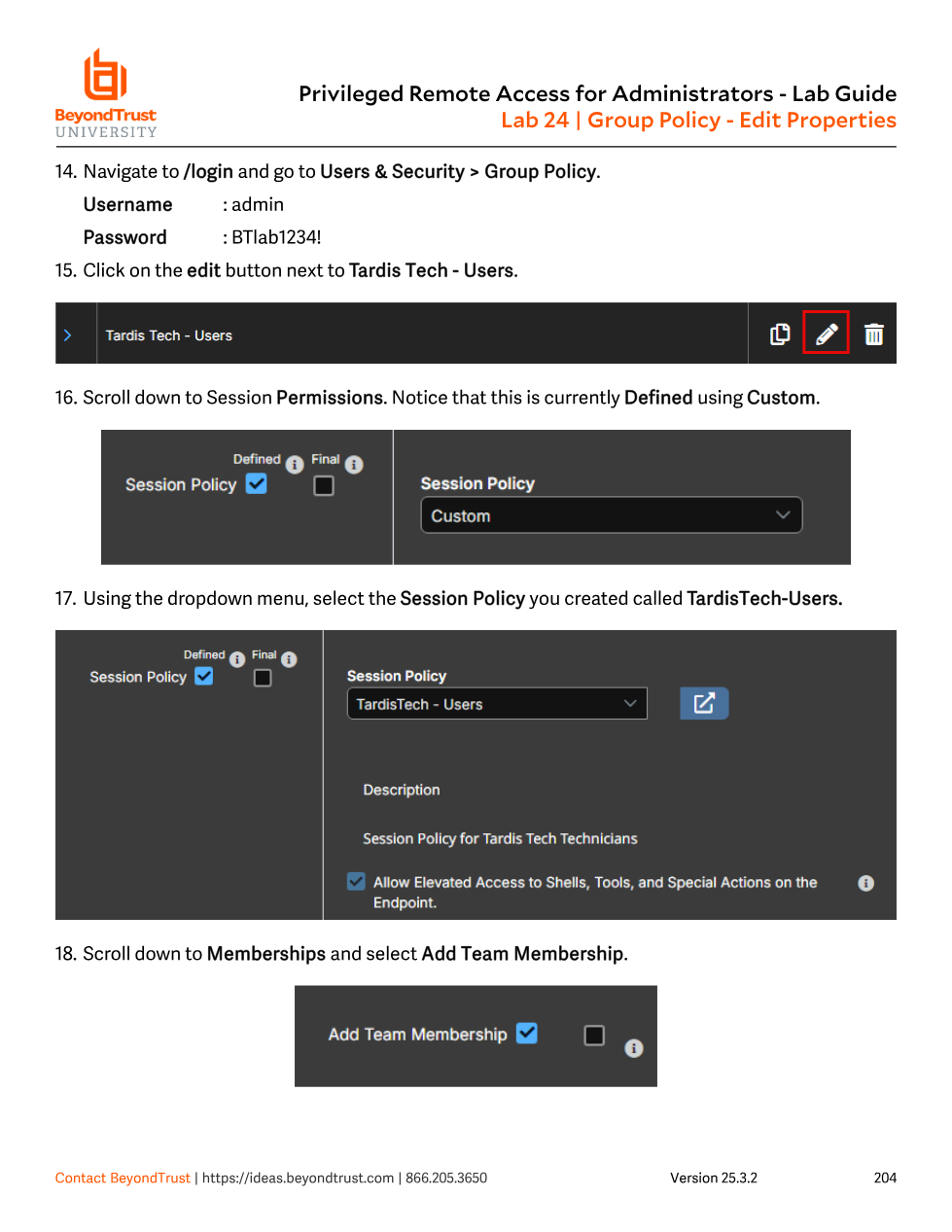
TardisTech - Users Session Policy to the Tardis Tech - Users Group Policy via the Session Policy dropdown, with Defined checked. This is the exact mechanism by which a Group Policy supplies an answer at evaluation-order step 2 from Module 17.Import and export
Like Session Policies, Group Policies can be exported to a portable file and imported into another policy — useful for promoting a tuned policy between sites, or for receiving a pre-built policy from a colleague. One important asymmetry to remember: export carries only the policy name, account settings, and permissions — it deliberately excludes Policy Members, Team memberships, and Gateway memberships, so importing a file into a new policy still requires manually re-adding members afterward.
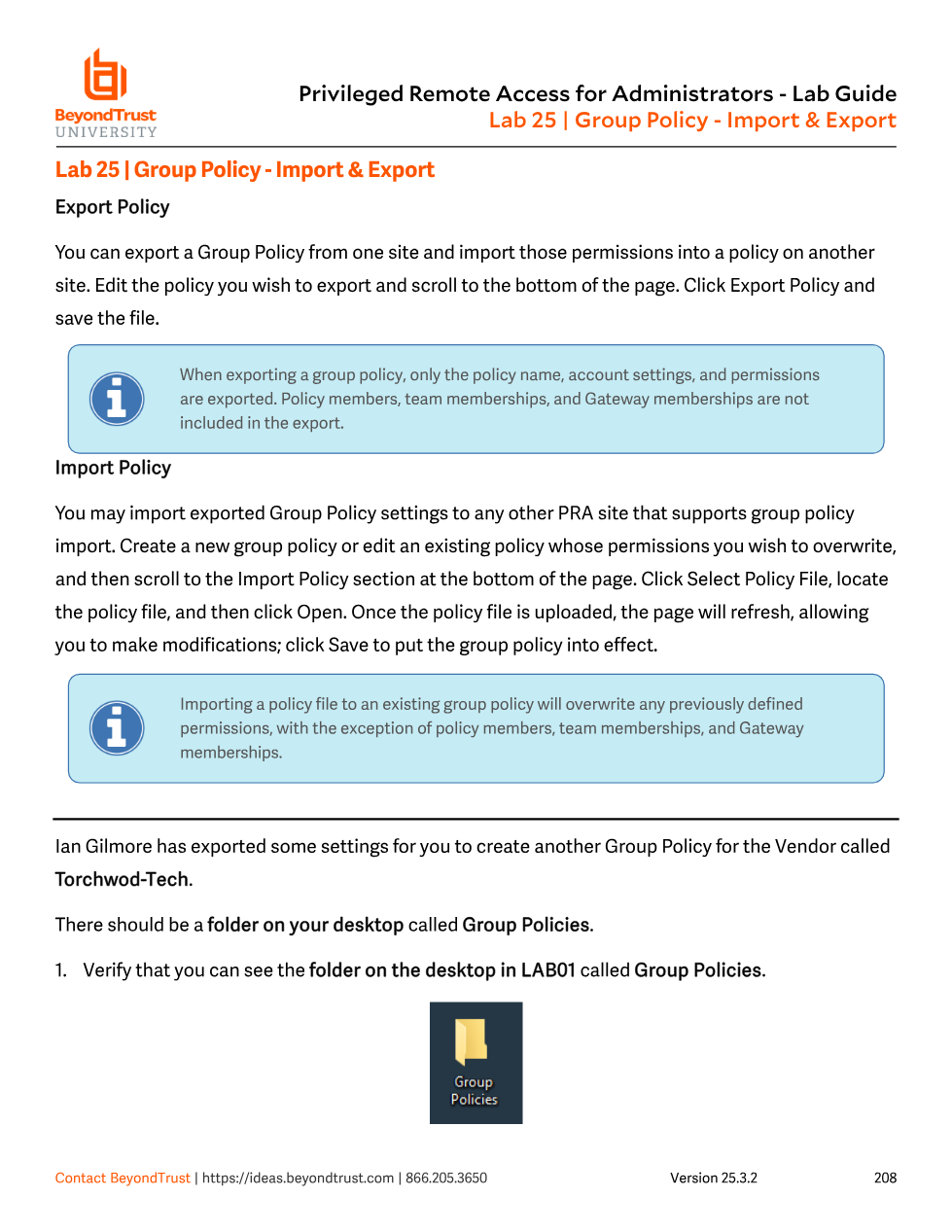
.bgo file can seed a brand-new policy's permissions, but membership must still be configured by hand afterward.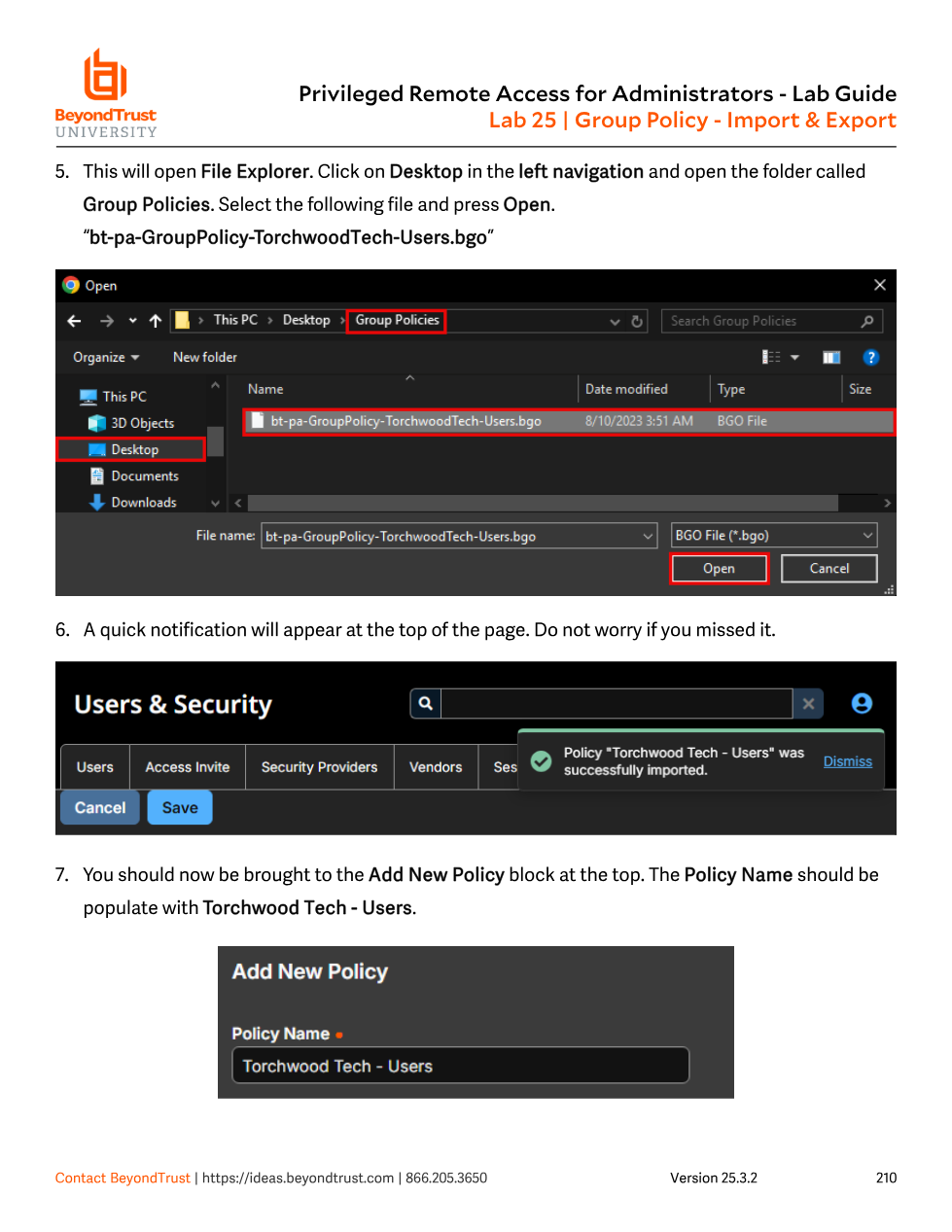
bt-pa-GroupPolicy-TorchwoodTech-Users.bgo auto-fills the new policy's name and permissions from the file; the admin still has to add the vendor's users and Team membership before saving.Copy, and the priority order that Change Order controls
Just like Session Policies, Group Policies support a Copy button — but with one deliberate difference: copying a Group Policy retains its memberships, where exporting does not. That makes Copy the right tool when you want a near-identical policy for the same people (e.g. splitting a Team Manager variant off an existing Team policy) rather than starting from a blank membership list.
This is also where the list order you saw hinted at back in Lab 23 becomes an operational lever. When a user is a member of two or more Group Policies and they disagree on a setting, PRA evaluates every applicable Group Policy from top to bottom and applies whichever one answers last — i.e. the policy positioned lowest in the list wins the conflict. The Change Order button on the Group Policies page lets you reorder policies to control exactly that outcome.
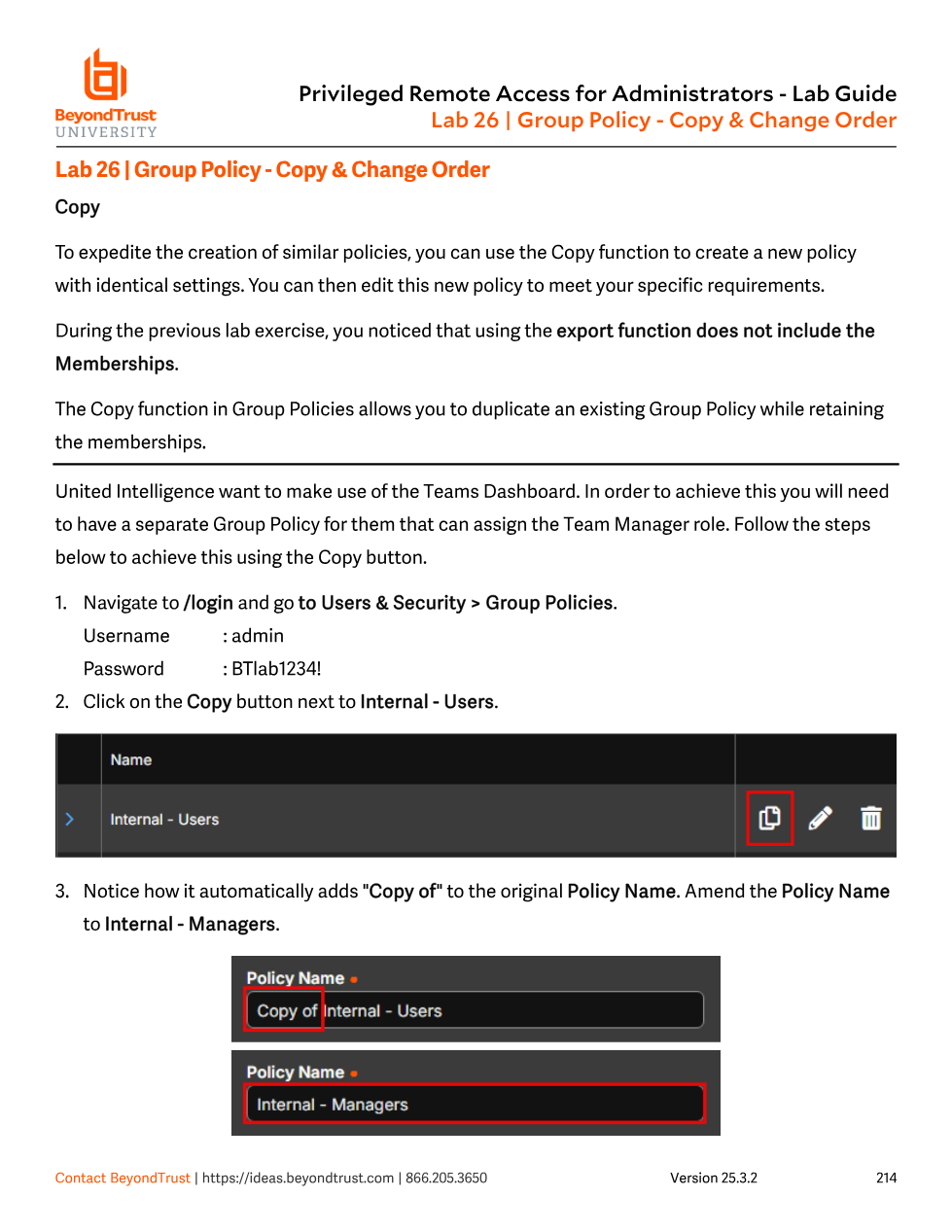
Internal - Users into Internal - Managers with membership intact, letting United Intelligence build a Team-Manager variant of an existing policy without re-adding the AD group.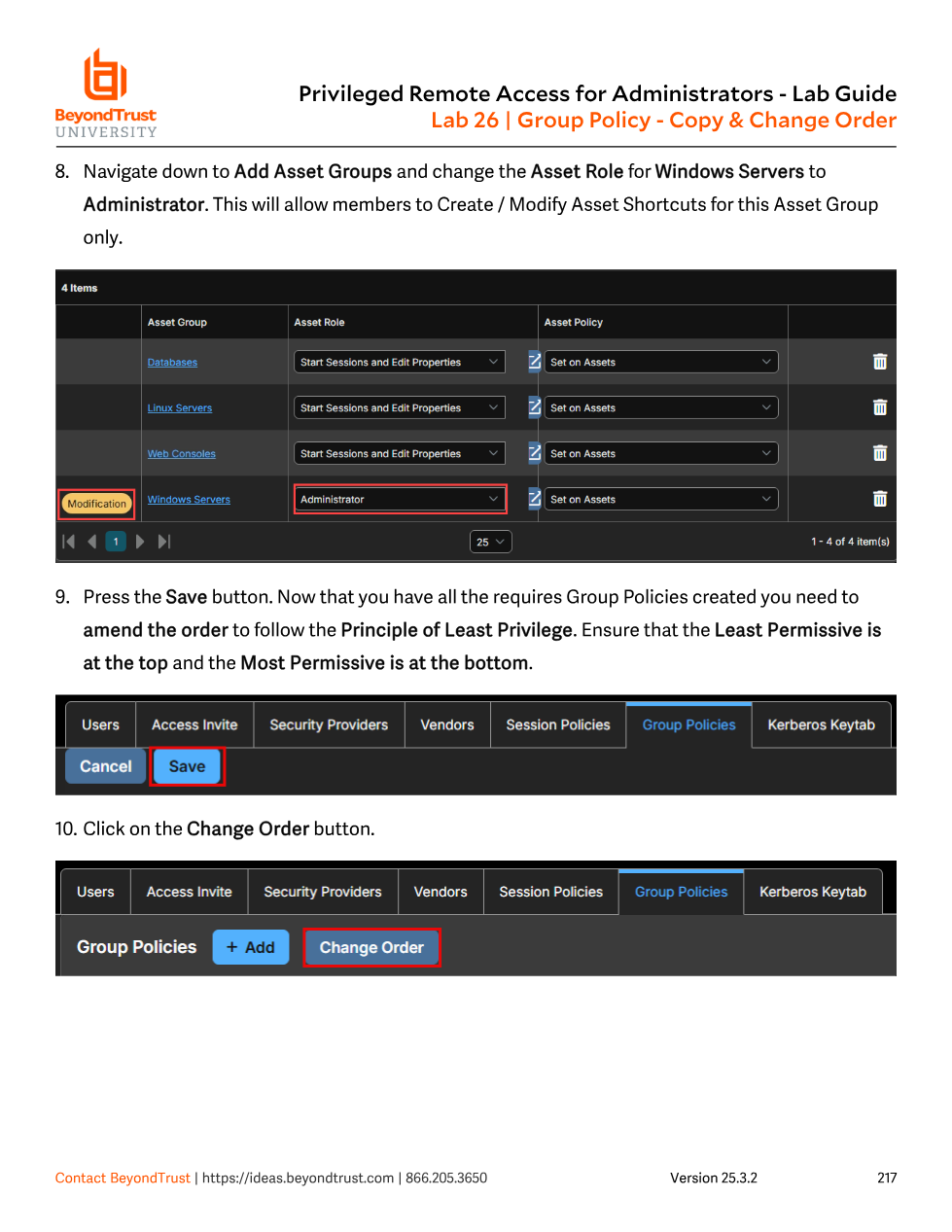
Windows Servers to Administrator, the lab instructs: order the list so the least permissive policy is at the top and the most permissive is at the bottom, using Change Order — since the bottom-most matching policy wins any conflict.| Scenario | Resolution rule |
|---|---|
| User is in only one applicable Group Policy | That policy's settings apply directly |
| User is in multiple Group Policies with non-conflicting settings | Settings from all of them are combined ("inherit answers from both") |
| User is in multiple Group Policies with conflicting settings | Evaluated top to bottom; the last (bottom-most) policy to answer wins |
| One of the conflicting policies has Final checked on that setting | Final overrides list order and wins regardless of position; if two+ policies mark the same setting Final, the first Final read (top-down) takes precedence |
| No applicable Group Policy answers a setting | Falls through to the user's own account-level configuration |
The "bottom wins" rule is the opposite of how many admins instinctively read a list, and it's exactly why the docs illustrate it with a worked example: a user in both Server Support Team (Invite External Users: Deny) and, positioned lower, Server Support Manager (Invite External Users: Allow) ends up allowed — because Manager answers last. Reordering the list is a real, load-bearing admin action, not cosmetic housekeeping.
An admin promotes a trainee into a new, more restrictive Group Policy expecting it to lock things down immediately — but the trainee is still in several older, more permissive policies positioned lower in the list, so those win the conflicts and nothing actually tightens. The Final checkbox exists precisely for this edge case: checking Final on a specific setting inside the more restrictive (even if higher-positioned) policy forces that answer to win regardless of where the permissive policies sit in the order — without having to rebuild the entire ordering or create an entirely new policy just for one setting.
Two closing reminders that show up often in exam scenarios: Group Policy Session Policy settings are just one more source competing in the Module 17 evaluation chain (a Group Policy that leaves a tool Not Defined simply defers to the user level or Global Default), and when every applicable Group Policy setting comes back Not Defined, PRA falls back to whatever is configured directly on the user's own account — which is one more reason to keep direct user-level overrides rare and well documented.