Part 4 · Assets & Jump Technology
Creating Assets: RDP, Shell, Tunnel, Website
Groups, Policies, and Roles are the scaffolding. This module is where you actually build the thing they scaffold: the four Asset (Jump Item) types a rep can create from the Access Console's Create menu, each suited to a different kind of target and a different way of reaching it.
One Create menu, four (plus) asset types
Every asset in this module is created the same way: from the Access Console's Assets tab, select the target Asset Group in the tree, click Create, and choose a type from the dropdown — Remote Jump, Local Jump, Remote RDP, Remote VNC, Protocol Tunnel (with sub-types), or Shell (SSH/Telnet), and — if the Website add-on is licensed — Website. Every type shares a common tail of fields: Name (max 128 characters, shown in session tabs), Gateway (which network hosts the target), Asset Group, Tag, Comments, and an Asset Policy / Session Policy pair — the exact same fields Modules 11–13 taught you to configure. What differs between types is the connection-specific configuration in the middle of the form, and that's the focus below.
RDP & Secure App
Remote RDP is BeyondTrust's proxied Remote Desktop Protocol connection to Windows (and some Linux) systems. Because the session is proxied through a Gateway and converted to a BeyondTrust session, it inherits the platform's session sharing, transfer, auditing, and recording behavior — you don't get "raw" unaudited RDP. Using it requires a Gateway and the user permission Allowed Jump Methods: RDP via a Gateway.
Core fields when creating a Remote RDP asset: Hostname/IP (default port 3389, override with host:port), Username and Domain, display Quality (Video Optimized, Black and White, Few/More/Full Color), and an optional Console Session flag. Session Forensics can be enabled for detailed event logging (focused-window changes, mouse clicks, menu opens, new windows), but requires a preconfigured RDP Service Account on the Gateway.
The SecureApp section is what turns a plain RDP asset into an application-scoped one. Instead of handing a user a full desktop, SecureApp launches a single named application on the remote host:
- None — standard full RDP session, no application scoping.
- RemoteApp — uses Microsoft RDS RemoteApps; you supply a Remote App Name and Remote App Parameters.
- BeyondTrust Remote Desktop Agent — a lightweight agent preinstalled on the target that launches an arbitrary Executable Path with Parameters. This mode also unlocks Inject Credentials: a second set of credentials (from Vault or manually entered) is passed into the launched application via macros like
%USERNAME%,%PASSWORD%, and%TARGETSYSTEM%— letting you inject a SQL login into SQL Server Management Studio, for example, without the user ever seeing the RDP account's own password.
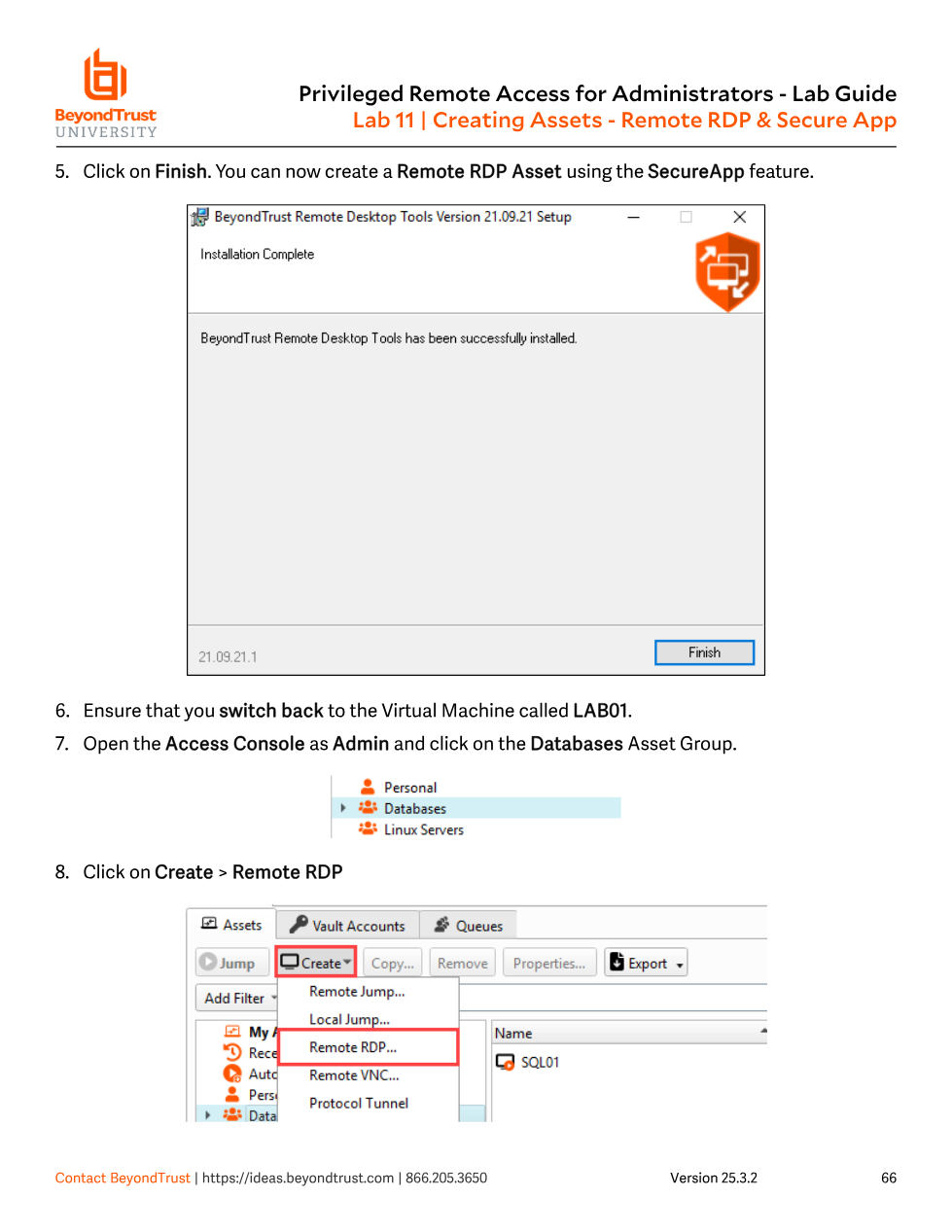
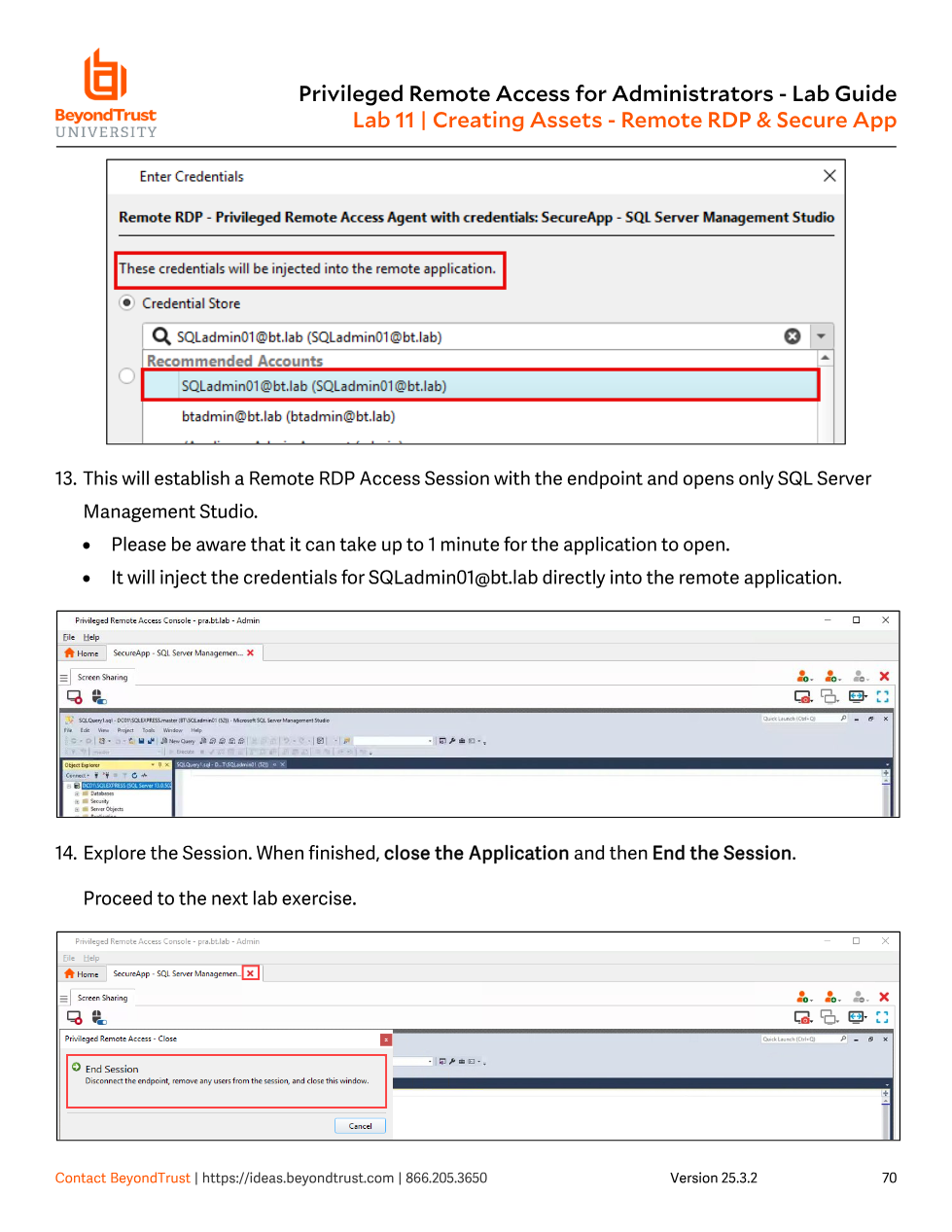
SQLadmin01@bt.lab directly — the rep never types or sees that password.Shell
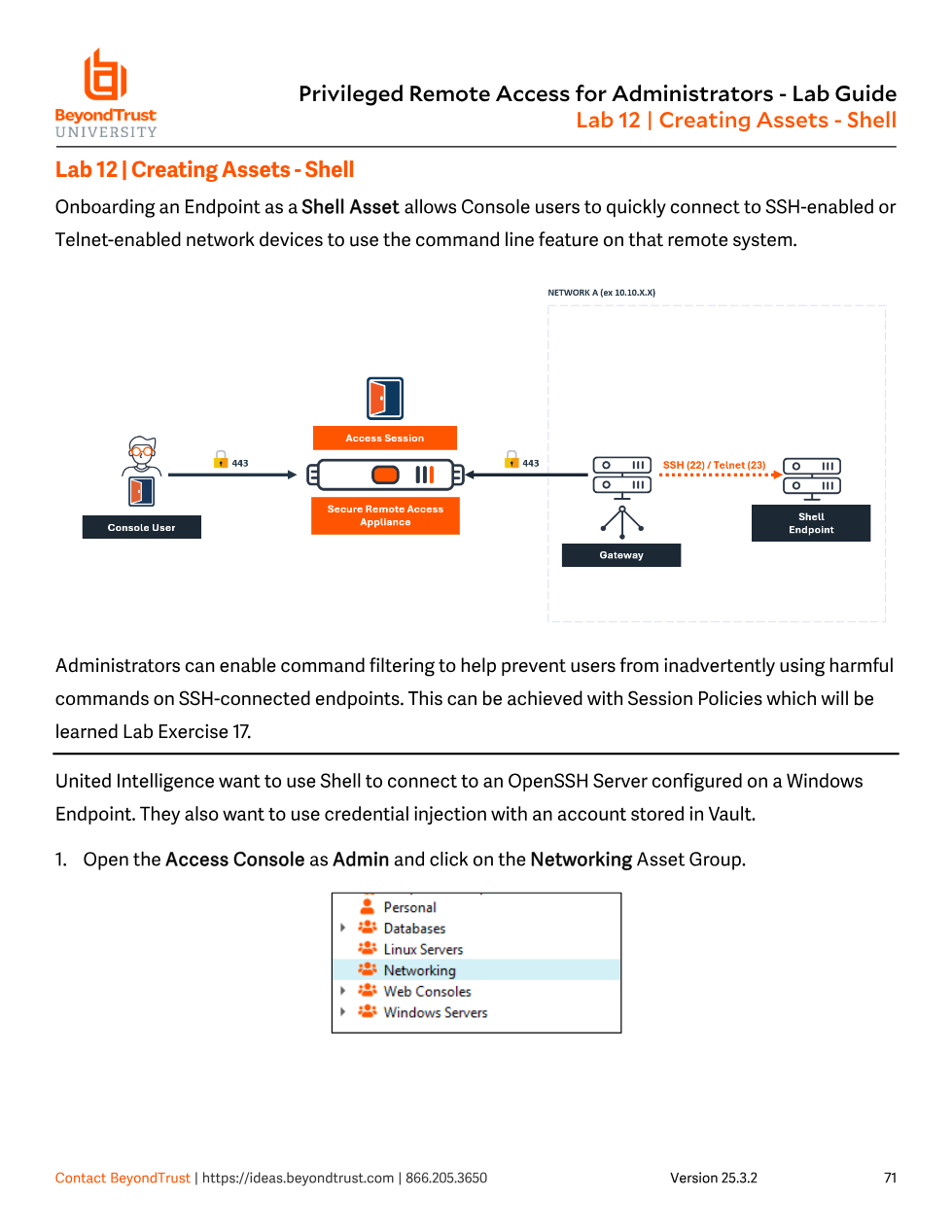
Shell assets give a rep a command-line session to an SSH- or Telnet-enabled device — servers, network gear, anything that exposes a shell — without needing a full desktop protocol. They're the natural fit for scripted, repeatable admin tasks (patching, troubleshooting) across many endpoints. Shell shortcuts are only enabled if the assigned Gateway is configured for open or limited Shell access.
Creation fields: Hostname/IP, Protocol (SSH or Telnet, which auto-fills the default Port — override as needed), Username, Terminal Type (xterm or VT100), and an optional keep-alive interval. On first connection to a host without a cached SSH key, PRA warns that the host key isn't cached and lets the rep choose Save Key and Connect, Connect Only, or Abort — the same trust-on-first-use model any SSH client uses.
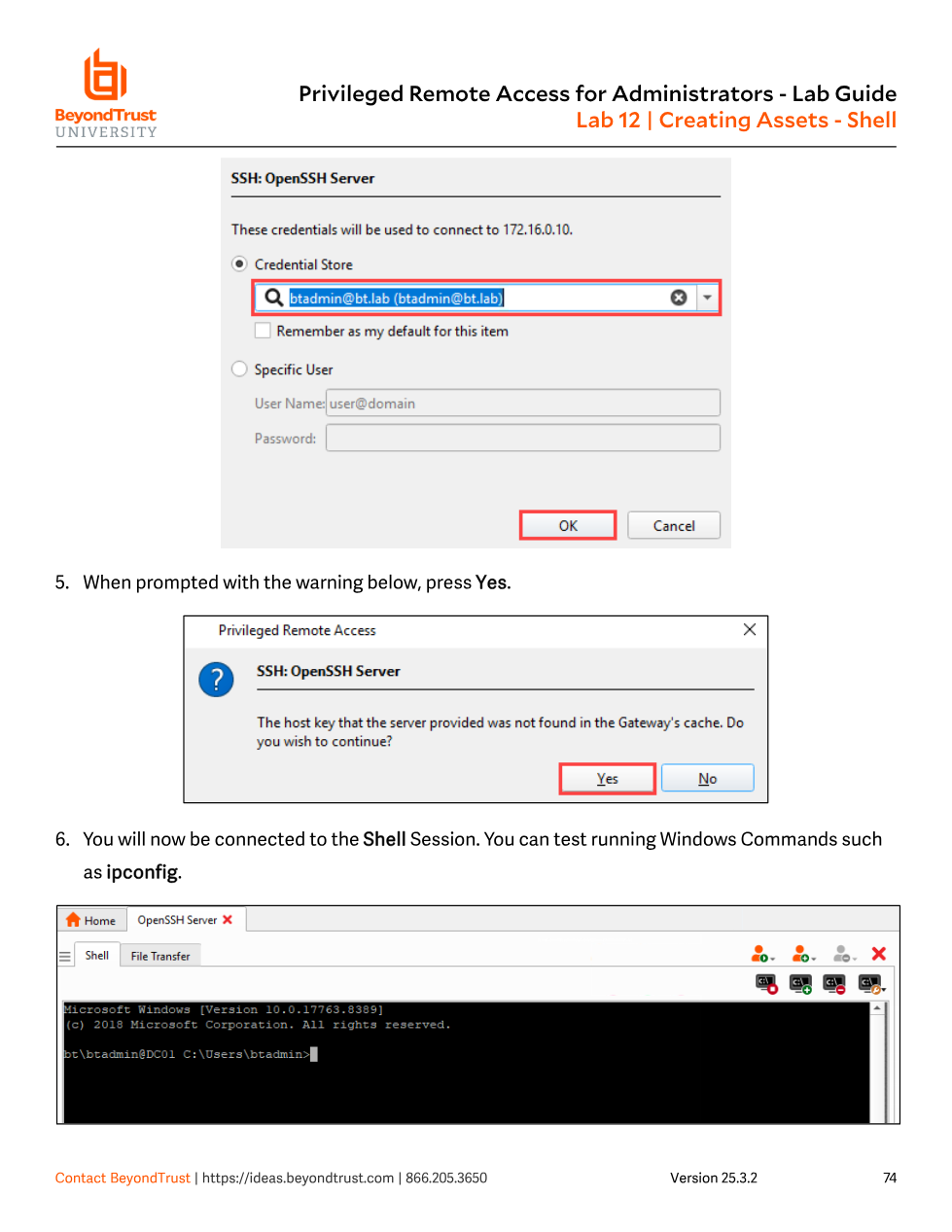
ipconfig-style commands.Two governance features are worth knowing even though they're configured elsewhere: Shell Filtering (Asset Management > Assets > Shell Filtering) uses regex to recognize command-shell prompts on endpoints, and Command Filtering (configured per Session Policy — Module 17) lets admins allow-list or deny-list specific command patterns so a rep can't inadvertently run something destructive. Credential injection with SUDO on Linux endpoints is also possible: an admin configures a functional account in /etc/sudoers with NOPASSWD entries for specific commands, stores its credentials in the Endpoint Credential Manager, and the rep picks that functional account when jumping — again, without ever seeing its password.
Protocol Tunnel
A Protocol Tunnel punches a TCP (or, for Network Tunnels, arbitrary TCP/UDP) connection from the rep's local machine, through the Gateway, to a port on a remote endpoint — letting the rep point their own third-party client (SQL Server Management Studio, a MySQL/PostgreSQL/psql client, kubectl, or literally anything TCP-based) at a local address and have traffic transparently proxied, logged, and audited on the other end. This is the mechanism of choice when there's no built-in PRA session type for the protocol you need, or when the rep specifically needs their own tool rather than a PRA-hosted UI.
Protocol Tunnels are only available if the assigned Gateway has the Protocol Tunnel method enabled. Sub-types include:
| Type | Use case |
|---|---|
| TCP Tunnel | Generic local-port-to-remote-port mapping for any TCP protocol. |
| MySQL / PostgreSQL / SQL Server Tunnel | Database-protocol-aware proxies with credential injection and improved auditing; can launch the matching client tool directly from the session. |
| MongoDB Tunnel | MongoDB-protocol database proxy with credential injection and query auditing. |
| Kubernetes Cluster Tunnel | Proxies kubectl traffic to a cluster (Gateway must be Linux-hosted); credentials expire with the session. |
| Network Tunnel | Layer-3 tunnel for one-to-one or one-to-many access to a subnet, filtered by per-rule IP/protocol/port — the odd one out, since it isn't scoped to a single endpoint. |
Common to database and TCP tunnels: a Local Address (default 127.0.0.1, changeable within the 127.x.x.x range to run multiple tunnels to the same remote port concurrently) and, for TCP Tunnels specifically, explicit Local Port / Remote Port pairs. Once the session is running, the rep points their own client at the local address/port and traffic is transparently relayed — with the important caveat that all TCP connections must originate from the endpoint side and be accepted by the rep's system (see the docs' "Stipulations for correct use" for the full list of protocol restrictions, including a 256-simultaneous-connection cap).
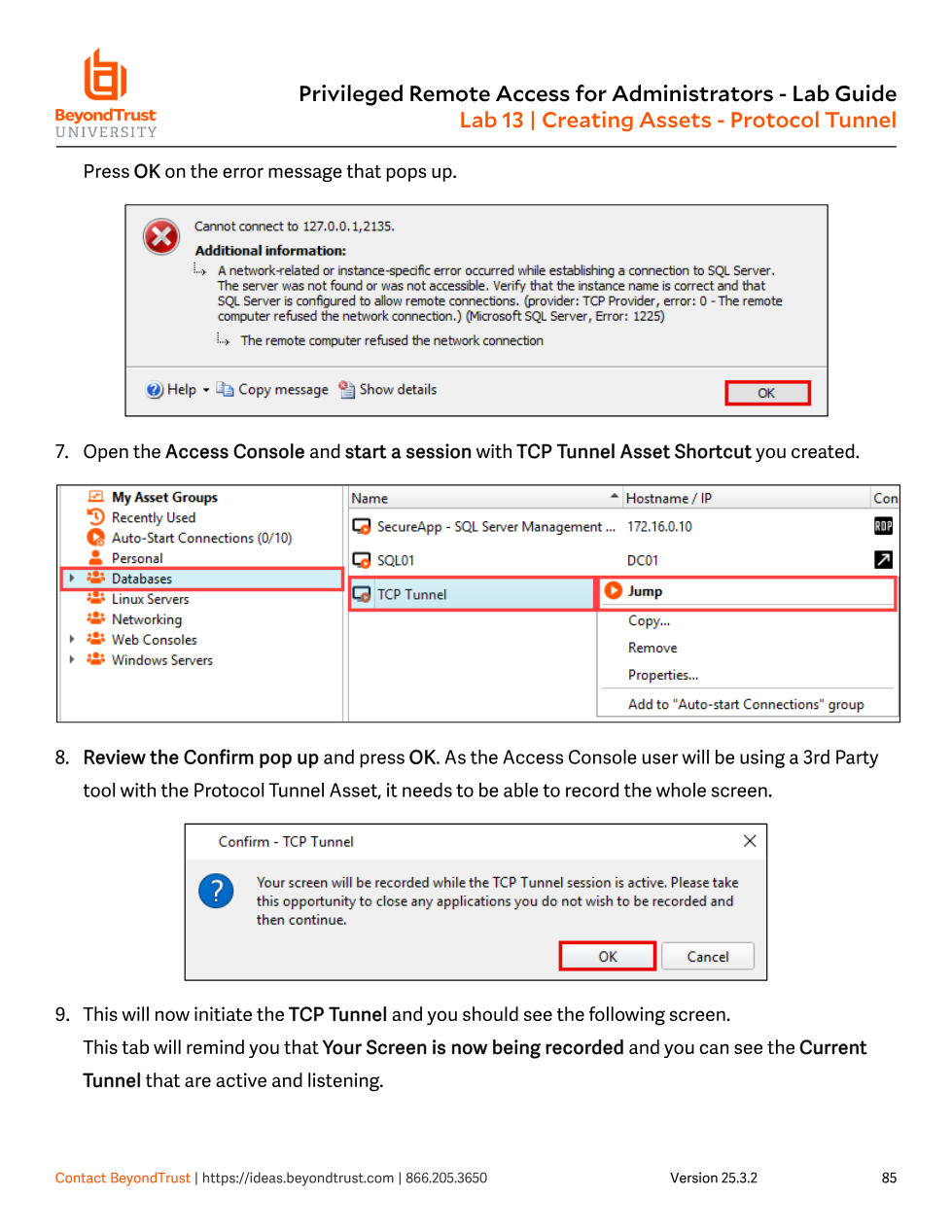
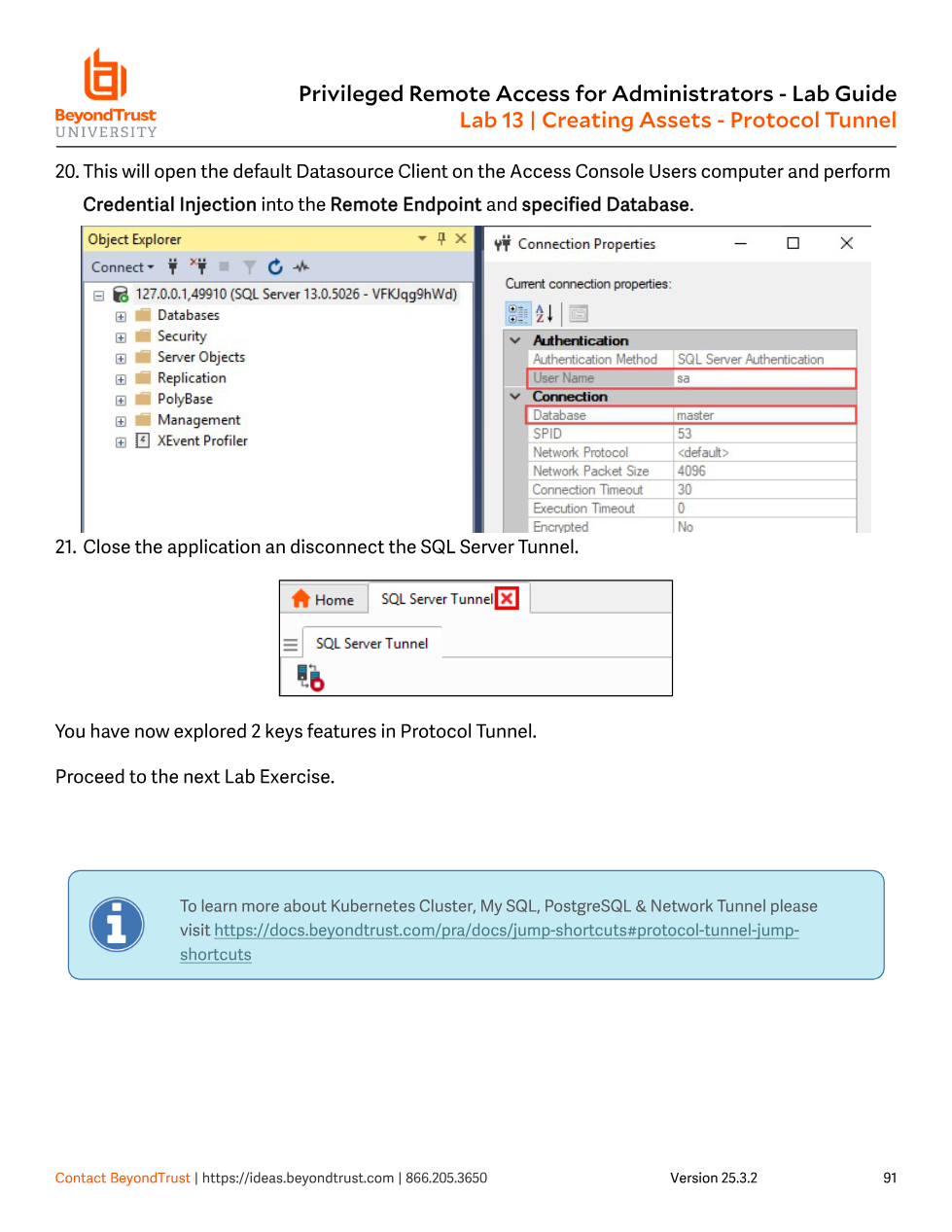
127.0.0.1 through the tunnel; credentials are injected into the connection without the rep handling the raw password.Website
Website assets solve a narrower but increasingly common problem: privileged access to web-based admin interfaces — IaaS consoles (AWS, Azure), hypervisor management (vSphere, Hyper-V, XenServer), and modern network gear that's dropped its CLI in favor of a web UI. Many of these interfaces have inconsistent or absent native MFA, so a Website asset becomes the enforced, audited front door: the rep launches through PRA's browser proxy rather than hitting the interface directly.
Unlike RDP, Shell, and Protocol Tunnel, Website does not ship with a base PRA purchase — it requires additional licensing, and the Create menu only offers it if that add-on and the user's Access Permissions > Jump Technology setting allow it. If Website is missing from your Create dropdown, check licensing before assuming it's a permissions bug.
Creation fields: Gateway (Windows or Linux — note copy/paste is unsupported on Linux Gateways), the target URL, and Verify Certificate (leave checked except for trusted self-signed sites). Credential injection is the headline feature: with a Username Format of Default or Username Only (strips the domain from user@domain/domain\user), and Login Form Detection left on auto (or manually pointed at the login page's username/password/submit element IDs), PRA fills in and submits the login form itself — the rep authenticates to the target site without ever seeing the plaintext credential.
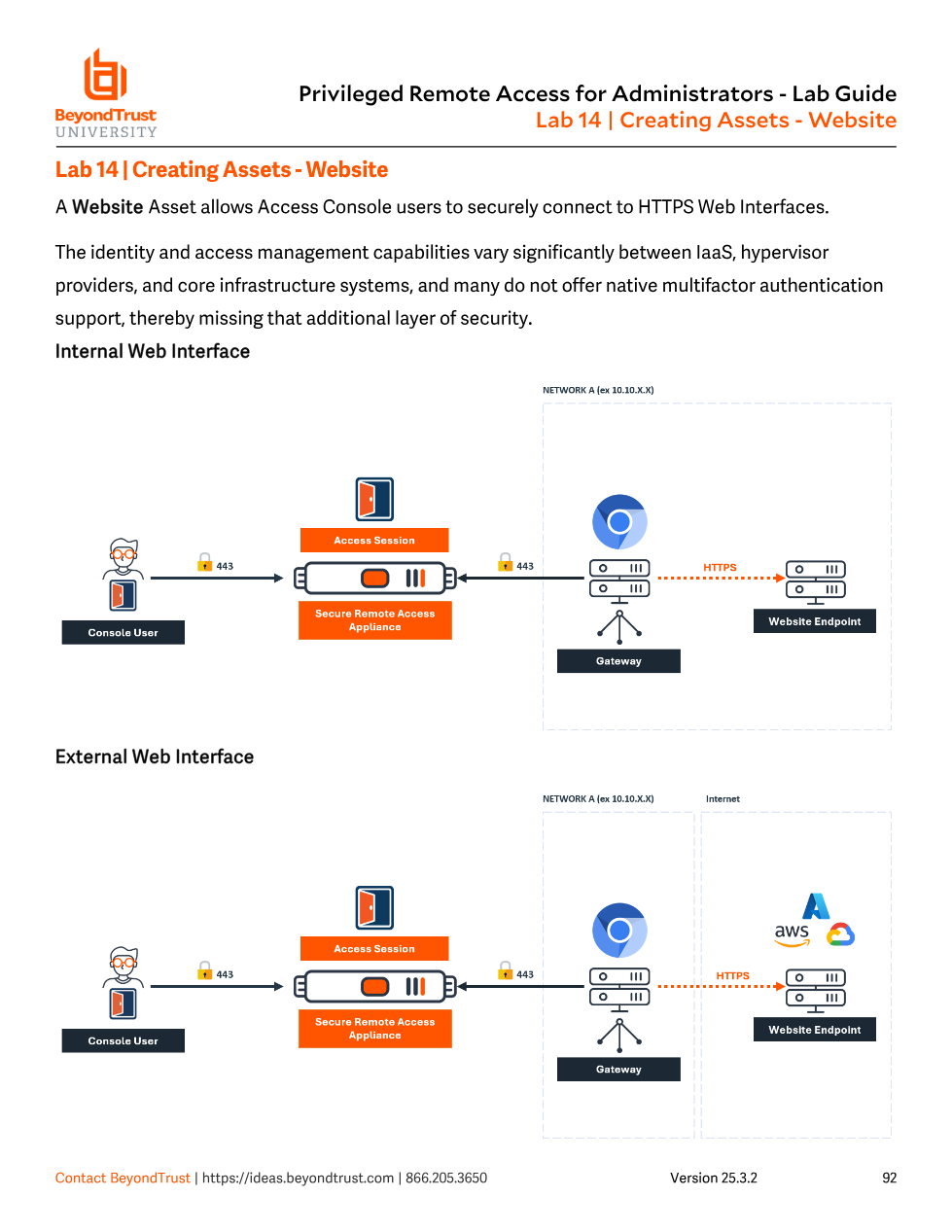
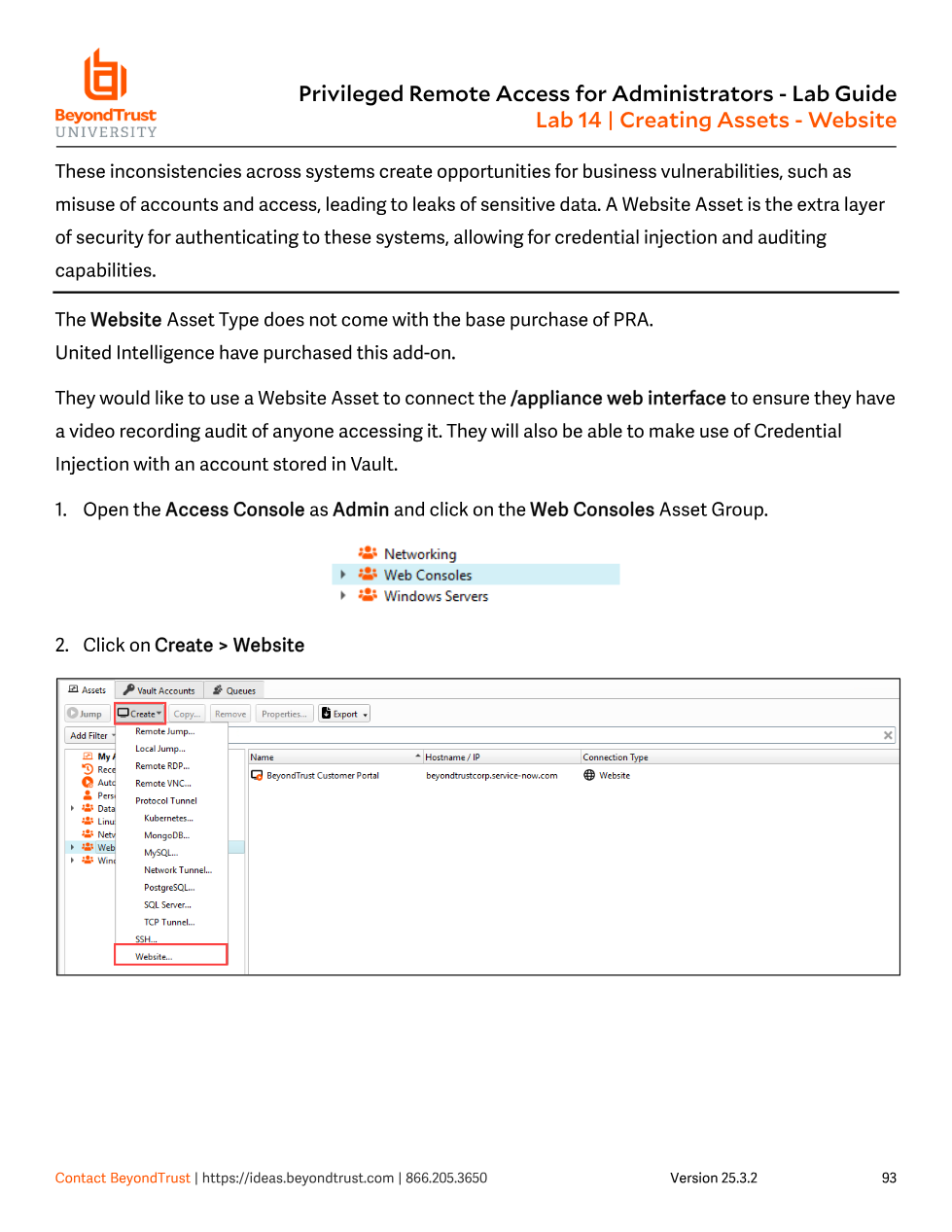
/appliance web interface itself — useful for auditing administrative access to the appliance's own web console.Picking the wrong asset type for the target wastes both setup time and security posture. A web-based hypervisor console created as a plain bookmark (or worse, given out as a direct URL) bypasses PRA's auditing and credential injection entirely — it should be a Website asset. A database that only needs query access is often over-provisioned as a full Remote RDP session to the DB server when a Protocol Tunnel (or SecureApp-scoped RDP launching only the DB client) gives the rep exactly what they need with a narrower blast radius and a full audit trail of the actual queries. Match the asset type to the minimum surface the job requires — that's least privilege applied at the connection-mechanism level, not just the permissions level.
Recap: what you now have
Every asset you create in this module still has to sit inside an Asset Group (Module 11), can carry an Asset Policy governing schedule/approval (Module 12), and is only usable by a user whose Asset Role includes Start Sessions (Module 13). The type-specific configuration covered here — RDP/SecureApp, Shell, Protocol Tunnel, Website — is the last piece: it determines how the connection is actually made. The next module pulls back the curtain on the mechanism underneath all four types: Jump Technology, the Jump Client and Jumpoint infrastructure that makes the Gateway-mediated, outbound-only connection actually happen.