Part 5 · Policies & Governance
Session Policies
A Session Policy is the rulebook for what happens once a session is already running — screen sharing mode, clipboard, file transfer, shell, registry access, canned scripts, and what happens when the session ends. It never decides whether a session is allowed to start; that job belongs to Asset Policies. Keeping that boundary straight is the single most important habit this module builds.
What a Session Policy actually governs
Every tool a rep can use inside a live PRA session — Screen Sharing (view-only vs. view-and-control), clipboard direction, System Sound Sharing, Annotations, File Transfer (and which paths are reachable), Command Shell, System Information actions, Registry Access, Canned Scripts, and what happens automatically when the session ends (lock, log out, or do nothing) — is switched on or off by a Session Policy. Each of those settings can independently be set to Allow, Deny, or Not Defined. Not Defined is a deliberate non-answer: it tells PRA "I have no opinion here, ask the next policy in line."
Session Policies don't sit in only one place. The same policy object can be attached to a Jump Item (an asset), to a user or Group Policy, or made available for Access Invites (external one-time collaborators). Because a single tool setting can be answered by more than one of those sources at once, PRA needs a fixed, non-negotiable order for resolving conflicts — that order is the core of this module.
Four similarly-named concepts — don't mix them up
By this point in the course you've met Asset Policies and Asset Roles; this module and the next add Session Policies and Group Policies. All four have "policy" or "role" in the name and all four affect what a user can do, which is exactly why the exam likes to test the boundary between them.
| Concept | Governs | Applies to | Module |
|---|---|---|---|
| Asset Policy | Whether a session is allowed to start at all — scheduling windows, approval requirements | An asset (Jump Item) | 12 |
| Asset Role | What management actions a user can take on an asset itself (create, edit, start sessions, delete) | A user/group, scoped per Asset Group | 13 |
| Session Policy | What tools/actions are available during an already-running session | A Jump Item, a user, a Group Policy, or an Access Invite | 17 (this one) |
| Group Policy | Broad permission template for a group of users — includes a Session Policy assignment plus everything else a user can do in /login and the Access Console | Groups of users | 18 |
Asset Policy answers "can this session even begin?" Session Policy answers "once it begins, what can this rep touch?" A locked-down Asset Policy with a wide-open Session Policy will still let a session start on schedule — and once it does, the rep will have full tool access. The two layers are independent gates, not a single sliding scale.
Creating and managing Session Policies
Session Policies live at Users & Security > Session Policies in /login. Every site ships with two policies that always exist and can't be deleted: Global Default (locked to Deny on every tool — it's the fallback of last resort) and a starter Users policy. From there you Add a new policy, give it a Display Name, an optional Code Name for API/integration use, and a Description, then work through the Availability section to decide where the policy can be applied: to Users (directly or via Group Policy), to Access Invite, and/or to Assets (Jump Items).
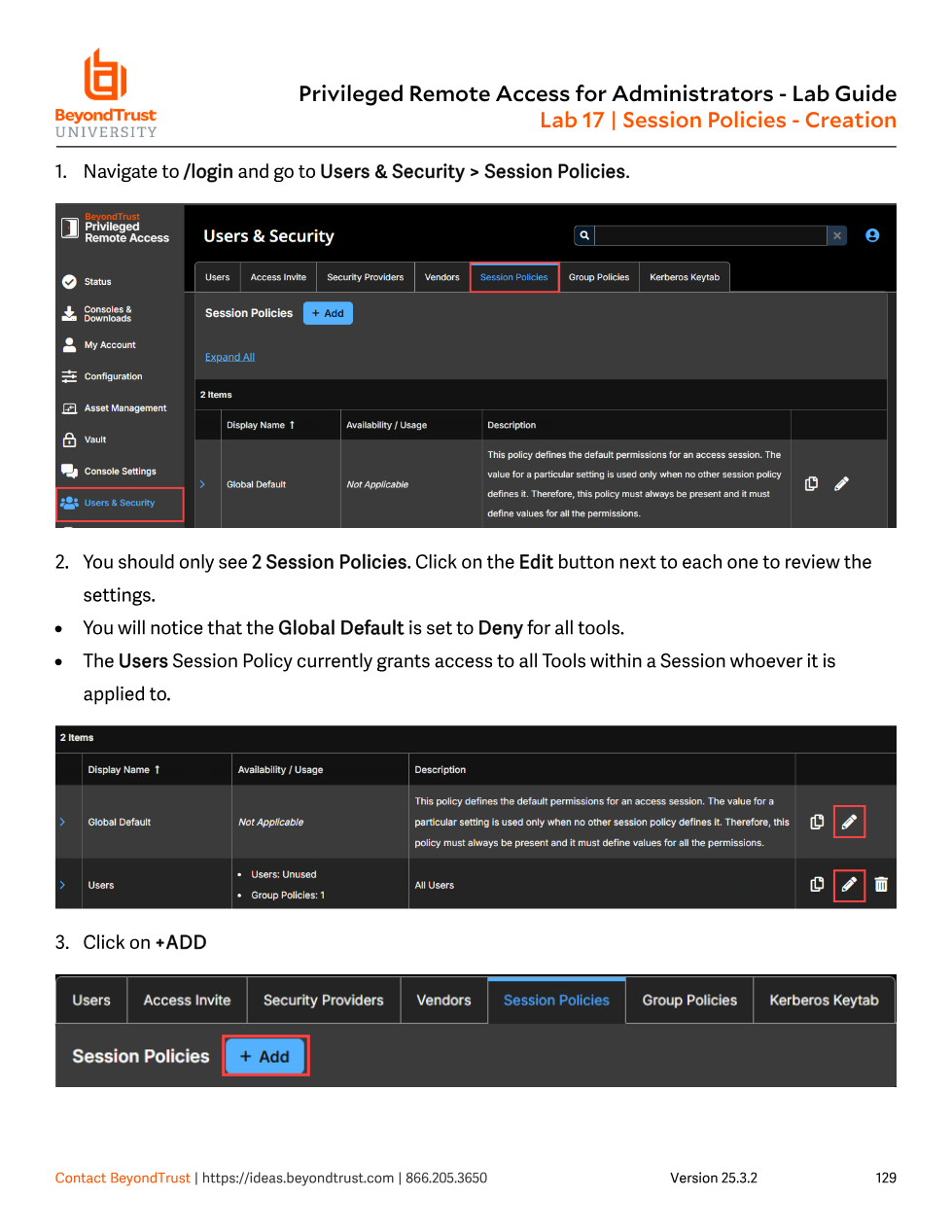
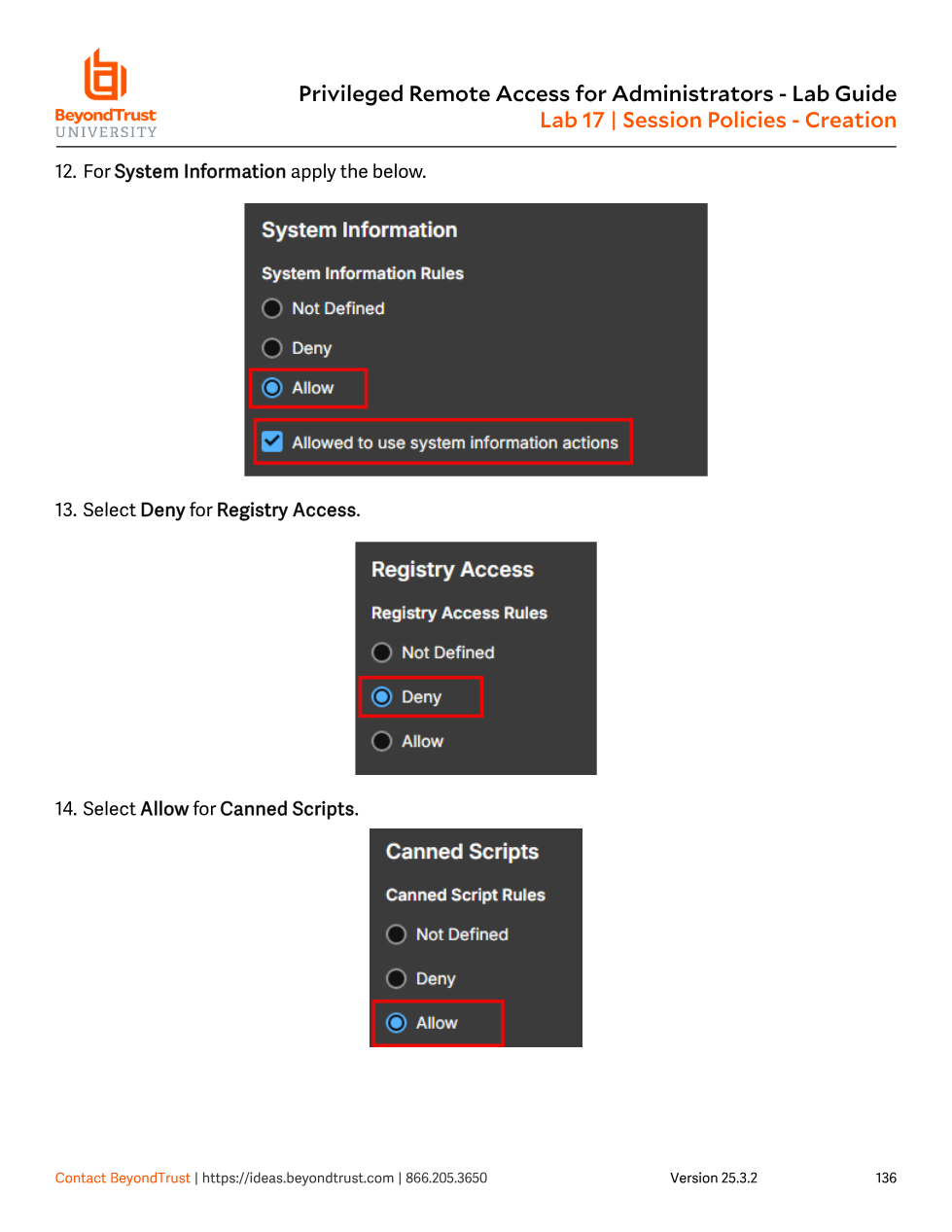
Inside a policy, permissions are grouped by tool: Screen Sharing Rules (Deny / View Only / View and Control), Clipboard Synchronization Direction, Application Sharing Restrictions, System Sound Sharing, Annotations, File Transfer (with accessible-path restrictions on both the endpoint and the rep's own filesystem), Shell, System Information, Registry Access, Canned Scripts, and Session Termination Behavior. Each one defaults to Not Defined until you explicitly choose Allow or Deny.
Evaluation order: the fixed sequence you cannot bypass
The official documentation is blunt about this: "Order of evaluation is fixed and must be followed. The system processes policies in a defined sequence, and you cannot change or bypass this order." For every individual tool, PRA walks down a checkpoint list and stops at the first source that returns an explicit Allow or Deny:
- Access Invite Session Policy (25.3+) — if the session was started via an Access Invite, its policy is checked first and takes precedence over the Jump Item policy.
- Jump Item Session Policy — a policy attached directly to the asset/Jump Item being accessed.
- Group Policy Session Policy — the Session Policy assigned inside a Group Policy the user belongs to (either an existing policy reused there, or a
Customone built inline). - User-level Session Policy — a policy (or custom settings) assigned directly to the individual user account.
- Global Default Policy — the mandatory fallback. It cannot be deleted, cannot be set to
Not Defined, and answersDenyfor everything by default.
Two details matter more than the list itself. First, this is evaluated per tool, not as a whole policy — one policy can win the "File Transfer" decision while a different policy in the chain wins "Registry Access." Second, a tool set to Not Defined is invisible to the evaluator; it simply lets the check fall through to the next checkpoint. The first checkpoint to give a real answer (Allow or Deny) locks the outcome — later, lower-priority checkpoints never get consulted for that tool again, even if they disagree.
File Transfer is set to Not Defined on the Jump Item, Allow on the Group Policy, and Deny on the Global Default. Outcome: Allow. The evaluator skips the Jump Item (Not Defined), stops at Group Policy (first real answer), and never even looks at Global Default. The Global Default's Deny is irrelevant here — it only matters when nothing else answers.
Access Invites: a special case worth its own lab
An Access Invite lets a rep pull an external, one-time collaborator into a running session by clicking Share Session > Invite External User. Because that invitee isn't a PRA user or a member of any Group Policy, they need their own Session Policy source — and since 25.3, that Access Invite policy is checked before the Jump Item policy, giving admins a way to clamp down external participants regardless of how permissive the asset's own policy is.
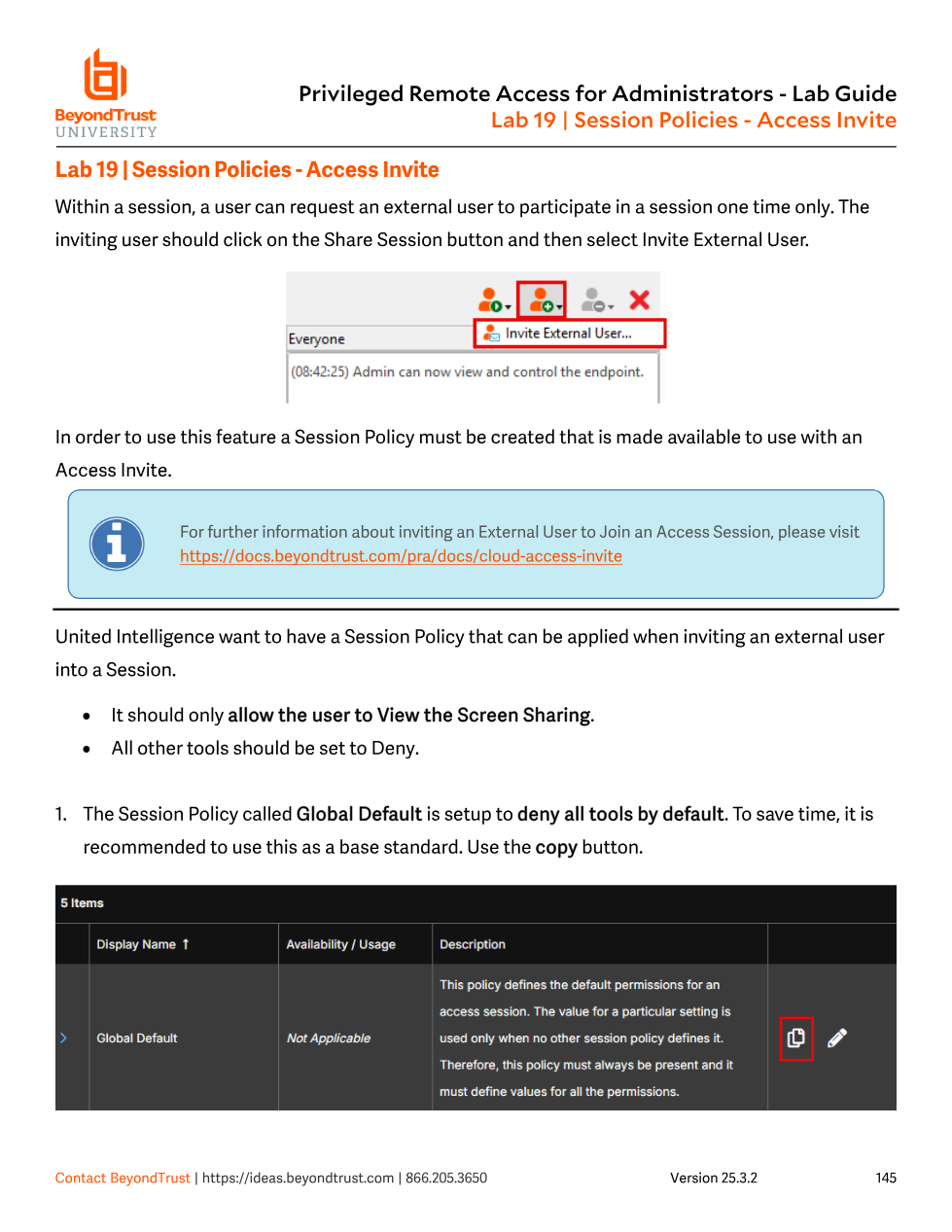
The fastest way to build a restrictive invite policy is to copy the Global Default (already Deny-everything) rather than build one from a blank Users template, then flip on just the one or two permissions you want the invitee to have — in the lab, View-only Screen Sharing. Once the policy exists and its Access Invite availability checkbox is enabled, it appears in the invite dropdown, and creating the invite generates a one-time URL the rep can send or copy to clipboard.
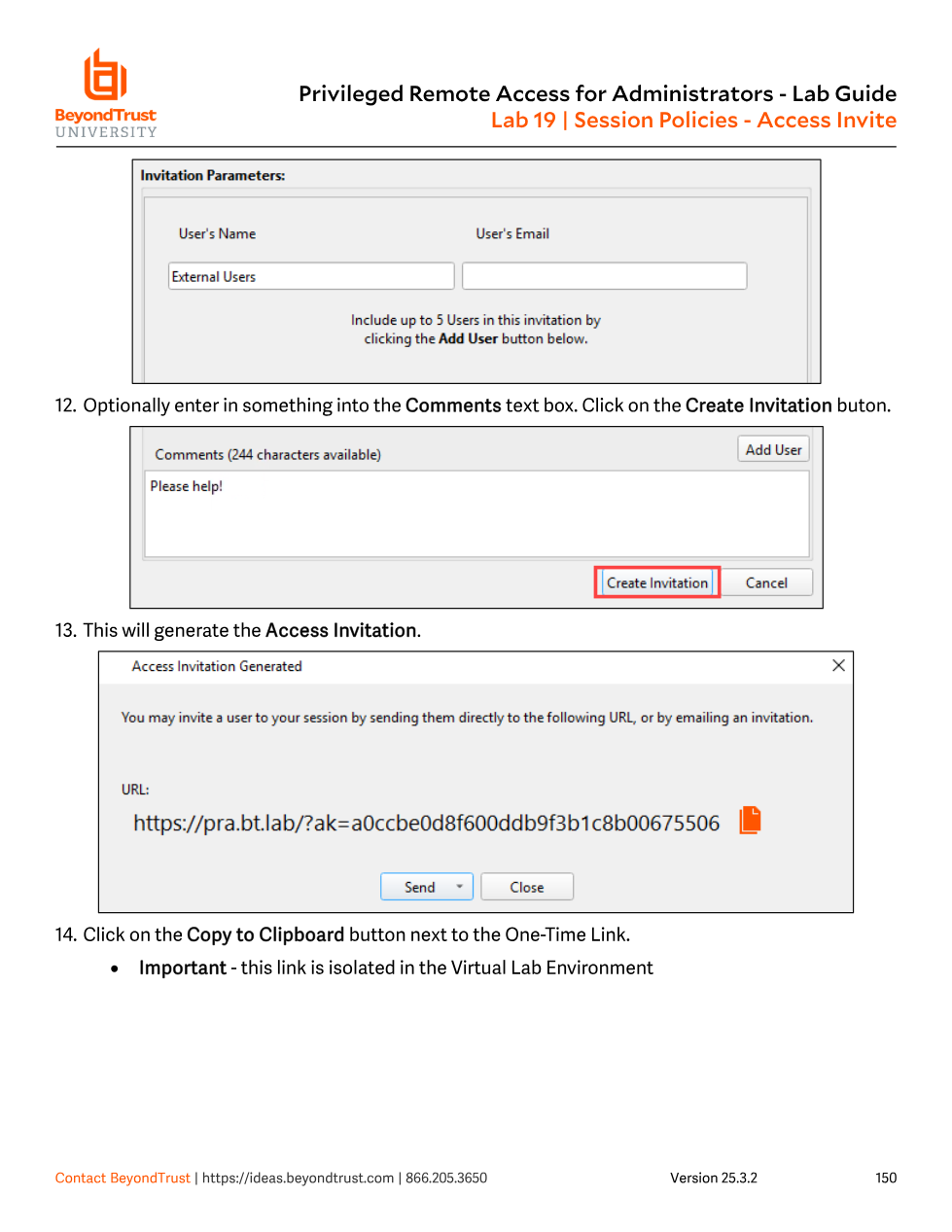
Admins sometimes build a tight Session Policy and assign it to a user or Group Policy, then wonder why an external Access Invite session still has full tool access. The invitee isn't a user — they were never touched by that policy. Access Invite permissions come exclusively from a policy explicitly enabled for Access Invite availability and selected at invite time (or the Global Default if none is chosen). Also remember: Asset Policies are skipped entirely for external invitees — scheduling/approval gates don't apply to them because they're joining a session that's already running.
Copying policies to build variants fast
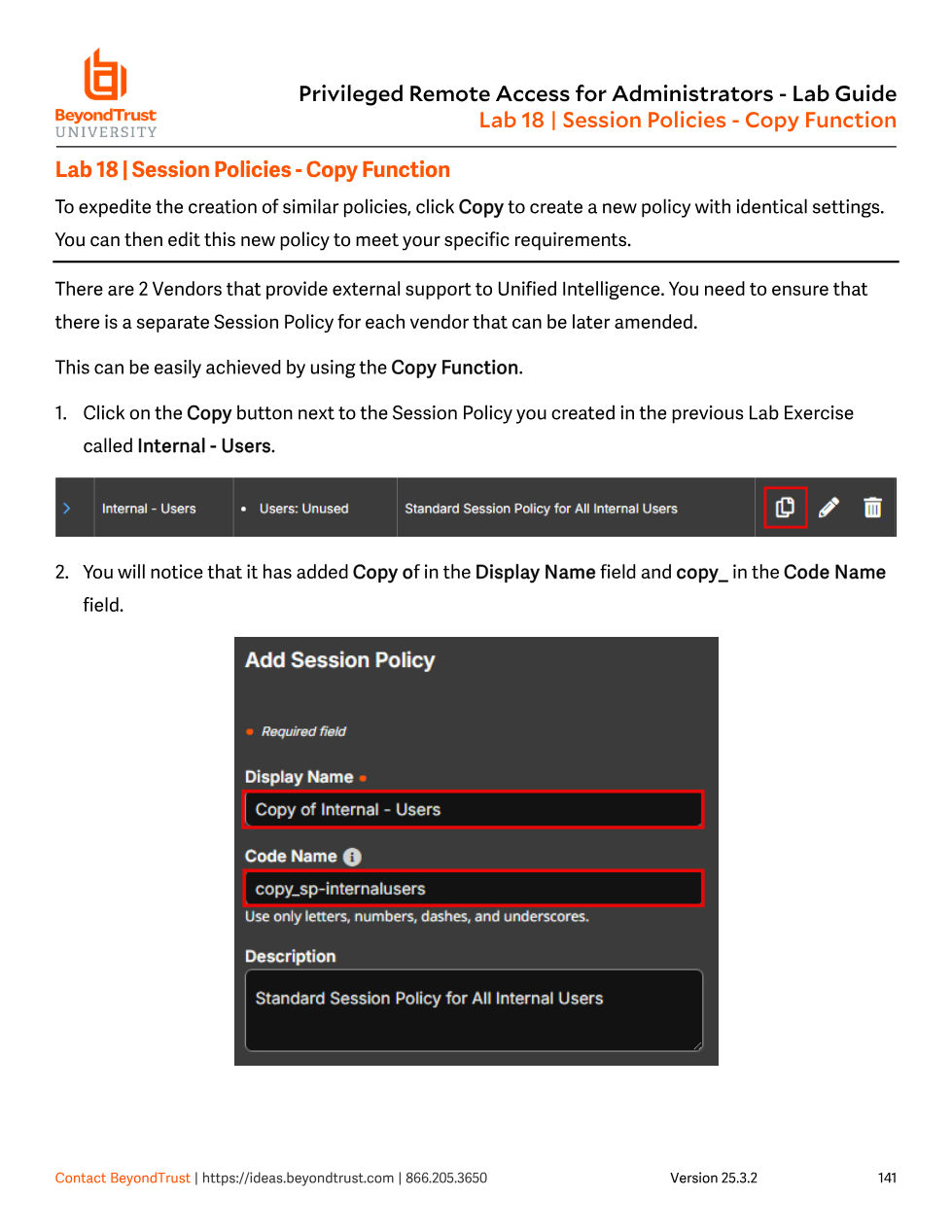
Real deployments rarely need one Session Policy — they need a family of near-identical policies for different vendor teams, support tiers, or invite types. Rather than rebuilding every tool setting from scratch, the Copy button on the Session Policies list duplicates a policy's complete settings into a new one (pre-filled as "Copy of <name>"), which you then rename and adjust.
- From Users & Security > Session Policies, click the copy icon next to the policy you want to clone (e.g. Internal - Users).
- PRA pre-fills Display Name as
Copy of Internal - Usersand Code Name ascopy_<original-code-name>. - Overwrite both fields with meaningful names (e.g.
TardisTech - Users/sp-tardistech) and a description, then Save. - Repeat for each additional vendor or team — the new policy inherits every tool setting from the source, so only the differences need edits.
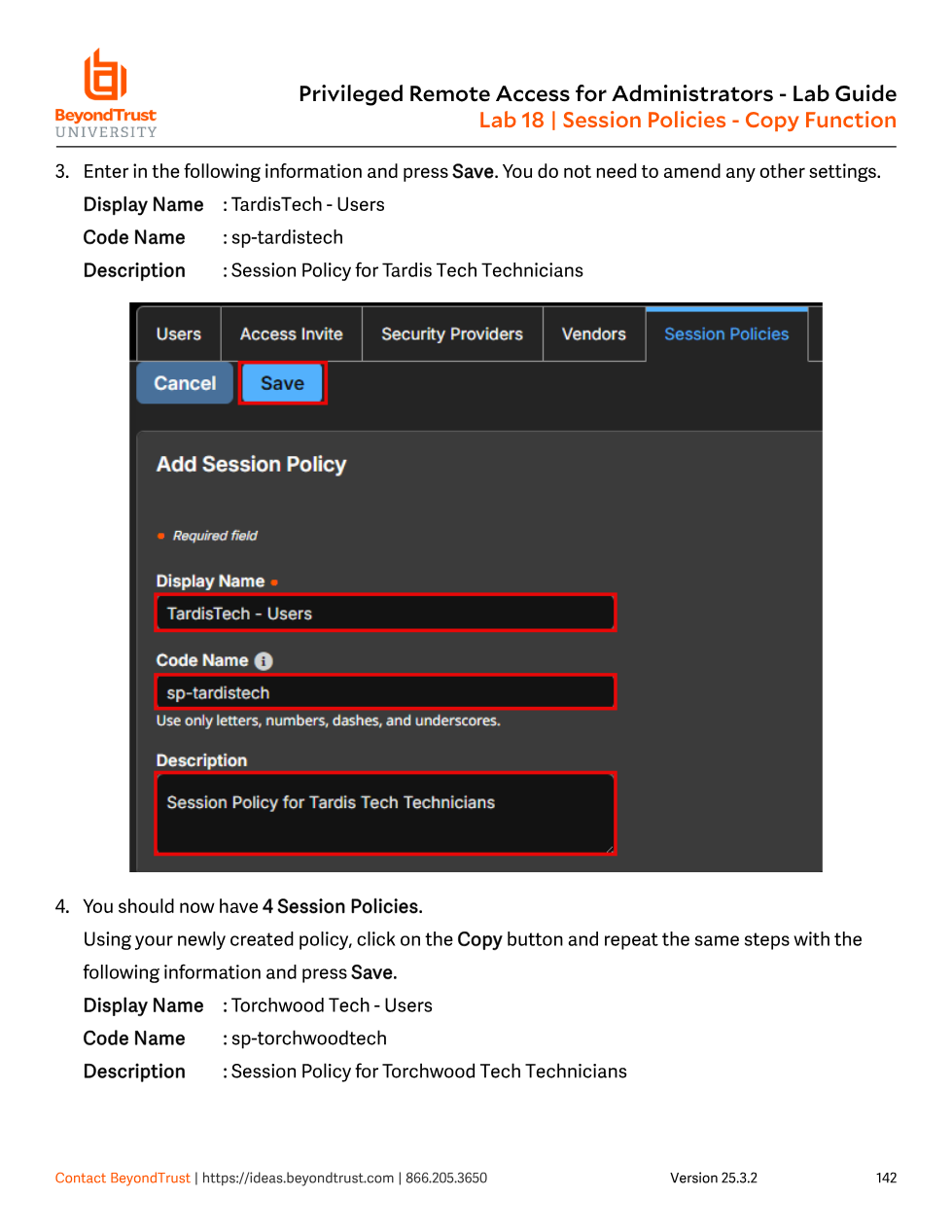
TardisTech - Users with code name sp-tardistech. Repeating this for Torchwood Tech produces a fourth policy without re-entering every permission by hand.Export, import, and the Session Policy Simulator
A policy edited in /login can be exported to a file and imported into a policy on another site, which is how BeyondTrust lets you promote a tuned policy from a staging site into production without re-clicking every checkbox. Because the resolution logic in this module stacks multiple sources together, BeyondTrust also ships a Session Policy Simulator at the bottom of the Session Policies page: pick a user (or invite policy), a session start method, and a Jump Client/Asset, click Simulate, and it shows — read-only — exactly which permission each tool resolved to and which policy in the chain provided the winning answer. Treat the simulator as the debugging tool of first resort whenever "the permission should be on but isn't."