Part 4 · Assets & Jump Technology
Asset Roles
Group and Policy decide who can see an asset and when a session may start. Asset Roles decide the last and most consequential thing: once a user is in front of an asset, exactly what are they permitted to do with it — jump to it, edit it, delete it, move it, or just look at its reports?
What an Asset Role is
An Asset Role is a named collection of permissions that determines what a user can do with the Assets in an Asset Group they've been granted access to. Where an Asset Group answers "can this user see this asset" and an Asset Policy answers "under what conditions can a session start," an Asset Role answers "what actions is this user actually authorized to perform against it." Roles are assigned to users either directly on the Asset Management > Asset Roles page, per-membership when adding a user to an Asset Group (Module 11's New Member Role field), or in bulk via Users & Security > Group Policies.
Out of the box, PRA ships with baseline roles you'll recognize from the Asset Roles list: Administrator (broad permissions), Auditor (reporting-focused, little to no session or edit rights), and Start Sessions Only (jump access with nothing else) — plus a No Access option used to explicitly deny. Custom roles, like the one built in Lab 10, let you assemble exactly the permission set a given job function needs instead of choosing from those defaults.
The permission catalog
Every Asset Role is built from the same fixed list of permissions, split into two families: permissions that apply at the Asset Group or Personal Assets level (bulk/structural actions), and permissions that apply at the individual Asset level (per-item actions once you're looking at one asset).
| Scope | Permission | What it allows |
|---|---|---|
| Asset Group / Personal Assets | Create new Assets or upgrade Jump Clients | Add new Jump Items to the group and push Jump Client version upgrades. |
| Move and Copy Assets | Relocate or duplicate assets between groups — must be granted on both the source and destination group to succeed. | |
| Remove existing Assets | Delete Jump Items from the group. | |
| View Session and Asset Reports | See session history and reporting data for assets in the group. | |
| Asset (per item) | Start Sessions | The core "Jump" permission — without it, a user can see an asset but never connect to it. |
| Edit Tag | Change the asset's Tag field. | |
| Edit Comments | Change the asset's Comments field. | |
| Edit Asset Policy | Reassign which Asset Policy (Module 12) governs this asset. | |
| Edit Session Policy | Reassign which Session Policy (Module 17) governs sessions to this asset. | |
| Edit Connectivity and Authentication / Edit Behavior and Experience | Change how the asset connects (protocol, credentials) and how the session behaves for the user. |
In the Asset Roles list view, the six per-asset "Edit" permissions above are collapsed into a single Edit column: it reads Some if one or more (but not all six) are enabled, and All if every one is checked. The Jump, Create/Deploy, Remove, and Move/Copy columns each map to one permission and simply show Yes/No.
The Add Asset Role form states it plainly: at least one permission must be defined to allow any access at all to an Asset. A role with every checkbox cleared is functionally equivalent to no access — which is exactly the behavior you want from a No Access-style role used to explicitly override inherited permissions for a specific user.
Walkthrough: building a custom Asset Role
Lab 10 builds a role scoped to a specific job function — someone who needs to run sessions and keep an asset's descriptive metadata current, but should not be able to reassign its policies or touch connectivity settings wholesale.
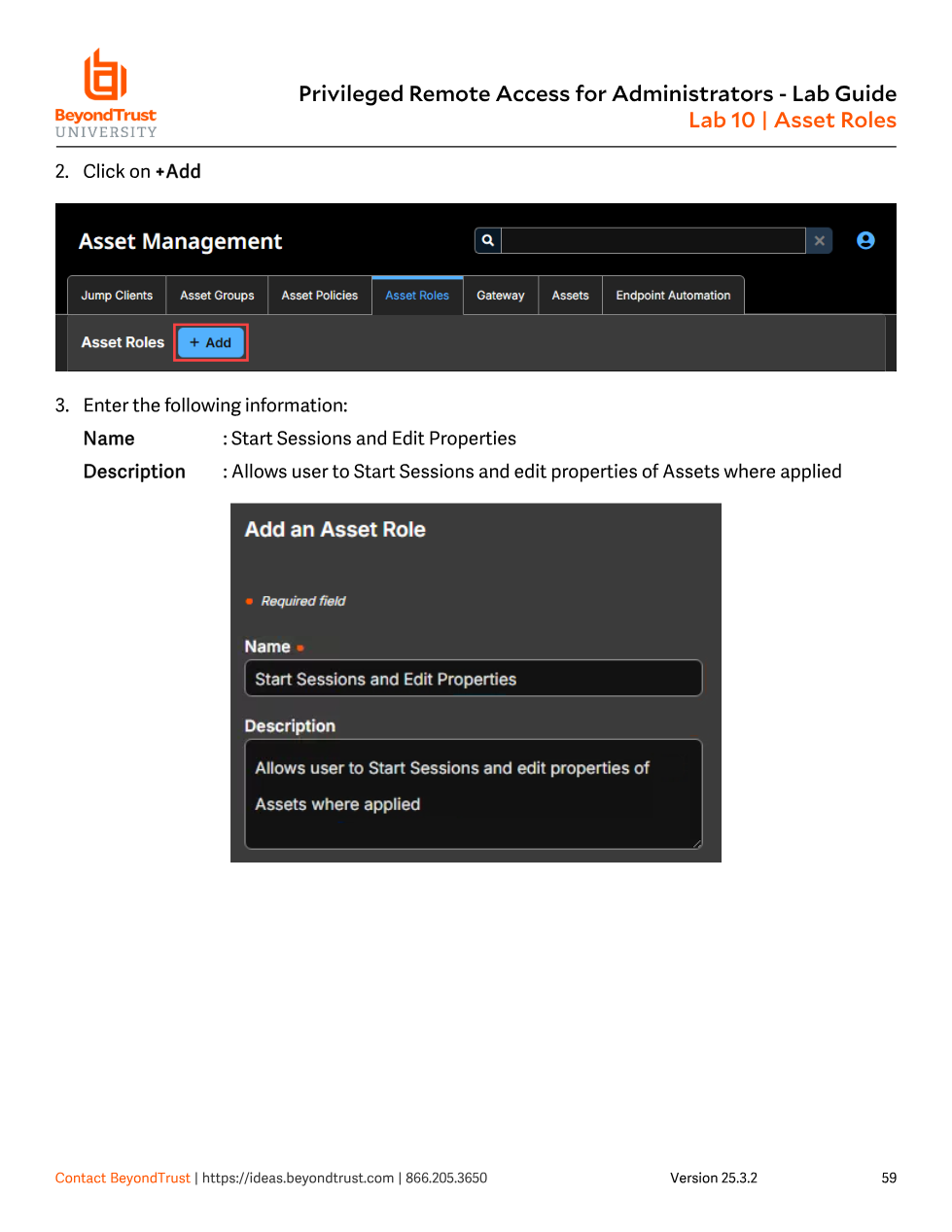
- From Asset Management > Asset Roles, click + Add.
- Enter a Name that describes the function, not the person —
Start Sessions and Edit Properties— plus a Description summarizing intent. - Under Permissions, check only what the role needs. Lab 10 enables Start Sessions, Edit Tag, Edit Comments, Edit Connectivity and Authentication, and Edit Behavior and Experience — but deliberately leaves Create new Assets, Move and Copy Assets, Remove existing Assets, View Session and Asset Reports, Edit Asset Policy, and Edit Session Policy unchecked.
- Click Save. The role is now available anywhere an Asset Role can be assigned — the Asset Group member list, a user's system default, or a Group Policy.
Start Sessions and Edit Properties before assigning permissions.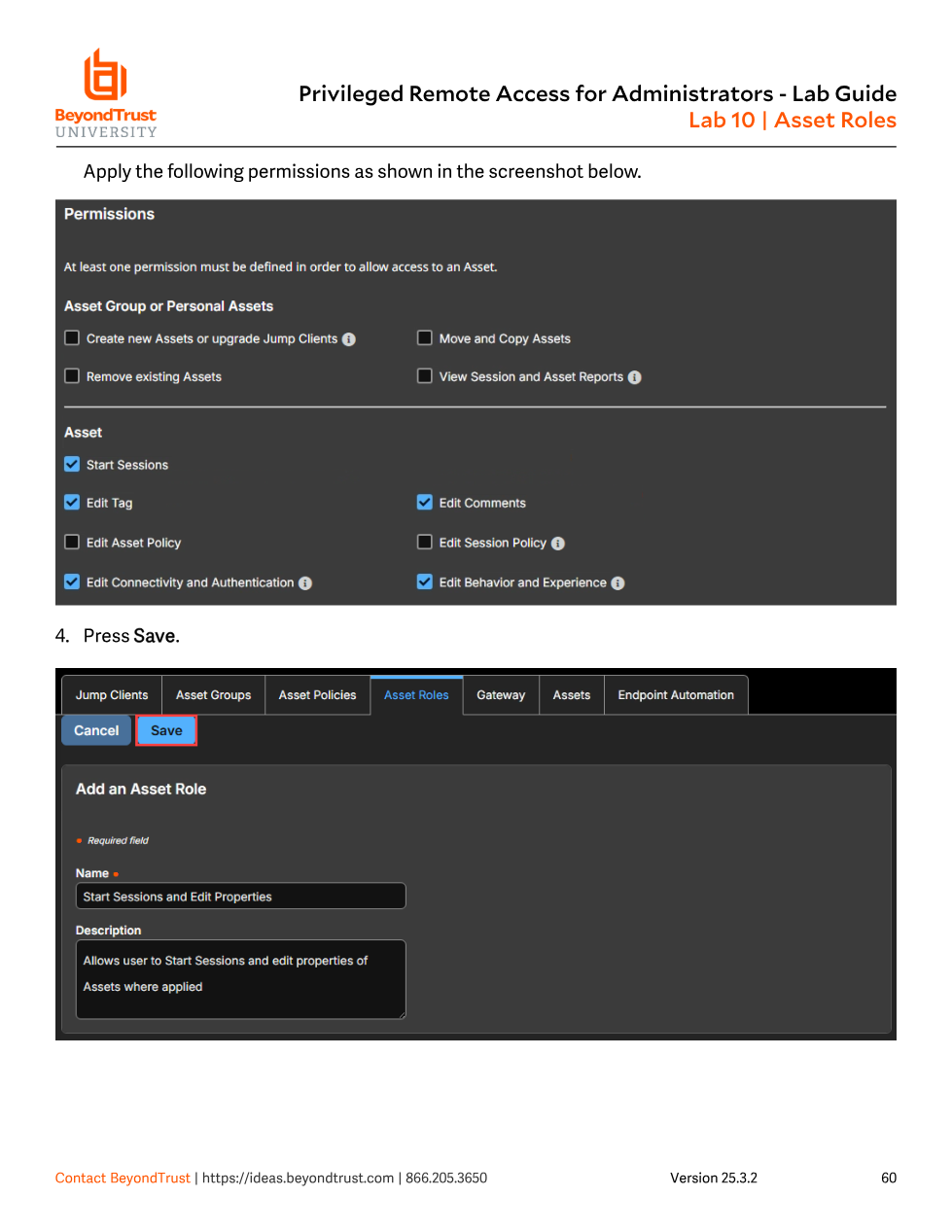
Where roles get assigned
A user's Asset Role for a given group can come from several places, in increasing order of specificity: a system-wide default role on the user's account, a role granted through a Group Policy the user belongs to, or an explicit per-user override set directly on the Asset Group's member list. When a user is added to an Asset Group individually rather than through a Group Policy, the admin can either pick a specific role or select User's default to defer to whatever role is already configured on that user's account or their Group Policy. Module 11's Asset Group member table shows this explicitly, distinguishing users added directly from those inherited via policy — and it's a useful diagnostic when a user reports they can see an asset but can't act on it.
Confusing Asset Roles with Asset Policies is the single most common mix-up in this Part. A Policy governs the gate before the session starts — schedule windows, approval workflows, MFA challenges. A Role governs what happens once you're through the gate — can you Start Sessions, can you Edit the asset's connectivity settings, can you delete it. An admin troubleshooting "user can't jump to this server" needs to check both, in order: is a Policy blocking the start (wrong schedule, pending approval), or does the user's Role simply lack Start Sessions? Checking only one half of that pair is the most common reason these tickets take longer than they should.
Design guidance
- Name roles by function, not by person or department. A role called
Start Sessions and Edit Propertiesis self-documenting years later; a role calledKate's Accessis not. - Grant the minimum permission set the job requires. Start Sessions alone is enough for most front-line reps; reserve Create/Remove/Move-Copy and the policy-editing permissions for admins who actually manage the Asset inventory.
- Use View Session and Asset Reports deliberately. It's easy to forget this exists separately from Start Sessions — an Auditor-style role wants reporting visibility without any ability to jump or edit.
- Remember the three-layer stack. Asset Group (visibility) → Asset Policy (when/with what conditions) → Asset Role (what actions once connected) is the mental model the BCIE exam expects you to apply when diagnosing any access problem in this Part.